> For the complete documentation index, see [llms.txt](https://docs.cherryai.com.cn/llms.txt). Markdown versions of documentation pages are available by appending `.md` to page URLs; this page is available as [Markdown](https://docs.cherryai.com.cn/docs/zhong-wen-fan-ti/pre-basic/settings/ocr.md).
# OCR
OCR(Optical Character Recognition,光學字元識別)負責將 **圖片入面嘅文字變成可複製、可俾 AI 讀取嘅文本**。下面呢啲事都要靠佢:
* 將一張截圖 / 掃描件拖入對話框,想 AI 睇明入面嘅文字
* 將圖片格式嘅發票、資料放入 [知識庫](/docs/zhong-wen-fan-ti/knowledge-base/knowledge-base.md),希望之後可以搵到
* [智能體](/docs/zhong-wen-fan-ti/cherry-studio/preview/agent.md) 打開本地某張圖片做分析
OCR 係一頁獨立嘅設定。你喺【設定】→【OCR】入面配一次識別引擎,所有用到圖片辨字嘅地方都會用同一套配置。
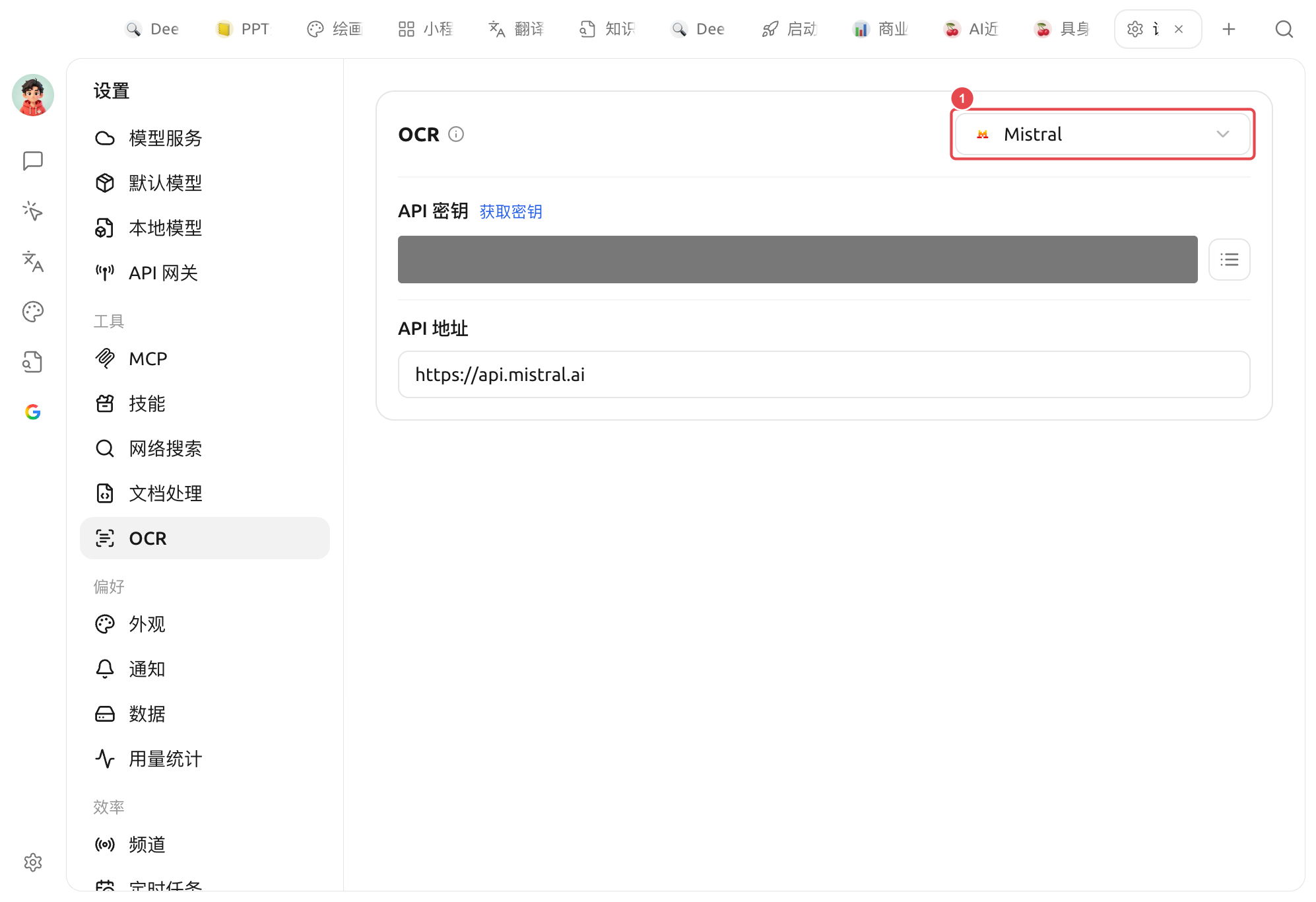
OCR 設定:① 右上角下拉選擇識別引擎(圖示係 Mistral),下方填入所選引擎嘅 API 密鑰同 API 地址
### 選擇識別引擎
面板右上角嘅下拉框用嚟切換 OCR 引擎,**揀中嘅引擎就會作為預設**。內置引擎:
| 引擎 | 接入 / 運行方式 | 適合邊個 |
| ----------------- | ------------------------------------------------------------------------------------- | ----------------------------------------------------------------- |
| **System OCR** | 離線、免配置 | 借用系統自帶識別(macOS Live Text / Windows OCR),開箱即用、速度最快 |
| **PaddleOCR** | 填 API 密鑰([飛槳星河社區](https://aistudio.baidu.com/paddleocr/));如果自部署就將 API 地址指向你嘅服務。可選解析模型 | 唔想佔本地資源、又想要 Paddle 嘅識別效果 |
| **本地 PaddleOCR** | 離線,需先喺【設定】→【本地模型】下載本地 OCR 模型(約 140MB) | 中文識別效果好而且完全喺本機運行,隱私優先 |
| **Tesseract OCR** | 離線、已內置 | 經典開源 OCR,支援多語言,可作為兜底 |
| **Mistral** | Mistral API 密鑰 | 借助多模態大模型識別,複雜版式 / 手寫體等更智能 |
| **Intel OV OCR** | 本地運行(Intel OpenVINO,NPU 加速) | **只喺 Windows + Intel 酷睿 Ultra(帶 NPU)、而且已部署 OV 模型時先會出現**,其餘設備睇唔到呢項 |
{% hint style="success" %}
唔確定揀邊個?先用 **System OCR**——絕大多數截圖、清晰掃描件都可以直接搞掂,而且唔使任何配置。識別效果唔理想時再換本地 PaddleOCR 或 Mistral。
{% endhint %}
揀咗 System OCR 時,面板會顯示 檢測到 macOS Live Text / Windows OCR 引擎可用(系統唔支援時,呢項唔會出現喺下拉裡面)。
{% hint style="warning" %}
* 揀「本地 PaddleOCR」前,請先喺【設定】→【本地模型】下載「本地 OCR 模型」,唔係就無法調用。
* **Tesseract**(同埋 Windows 上嘅 System OCR)可以喺面板嘅「語言」下拉入面勾選要識別嘅語種。
{% endhint %}
### 同文檔處理嘅分別
好多人會將 OCR 同 [文件處理](/docs/zhong-wen-fan-ti/pre-basic/settings/doc-process.md) 搞亂,一句講清:
* **OCR**:管 **圖片/掃描件** 入面嘅文字識別(圖 → 字)。
* **文件處理**:管 **PDF/複雜版式文件** 嘅結構化解析(帶表格、多欄嘅 PDF → 規整文本)。
兩者互相獨立、各配各嘅。純文本 PDF、`.md`/`.txt`/`.docx` 入面嘅文字段落兩者都唔經過,直接讀就得。
***
### 攞幫助同提交意見
如果您喺配置或使用過程中遇到任何疑問、Bug 或有功能改善建議,請參考 [反饋與建議](/docs/zhong-wen-fan-ti/question-contact/suggestions.md) 入面提供嘅官方渠道。
---
# Agent Instructions
This documentation is published with GitBook. GitBook is the documentation platform designed so that both humans and AI agents can read, navigate, and reason over technical content effectively. Learn more at gitbook.com.
## Querying This Documentation
If you need additional information that is not directly available in this page, you can query the documentation by asking a question.
Perform an HTTP GET request on the following URL with the `ask` and `goal` query parameters:
```
GET https://docs.cherryai.com.cn/docs/zhong-wen-fan-ti/pre-basic/settings/ocr.md?ask=&goal=
```
`ask` is the immediate question: it should be specific, self-contained, and written in natural language.
`goal` is what the user is ultimately trying to achieve, the reason they need the answer. Sharing it helps GitBook give you a better, more relevant answer. A goal is most helpful when it describes the outcome the user wants rather than restating the question. For example, with `ask=how do I create an API token`, a goal like `automate deployments from our CI pipeline` lets GitBook tailor the answer to that use case.
The response will contain a direct answer to the question and relevant excerpts and sources from the documentation.
Use this mechanism when the answer is not explicitly present in the current page, you need clarification or additional context, or you want to retrieve related documentation sections.