> For the complete documentation index, see [llms.txt](https://docs.cherryai.com.cn/llms.txt). Markdown versions of documentation pages are available by appending `.md` to page URLs; this page is available as [Markdown](https://docs.cherryai.com.cn/docs/zhong-wen-fan-ti/cherry-studio/preview/drawing.md).
# 繪圖
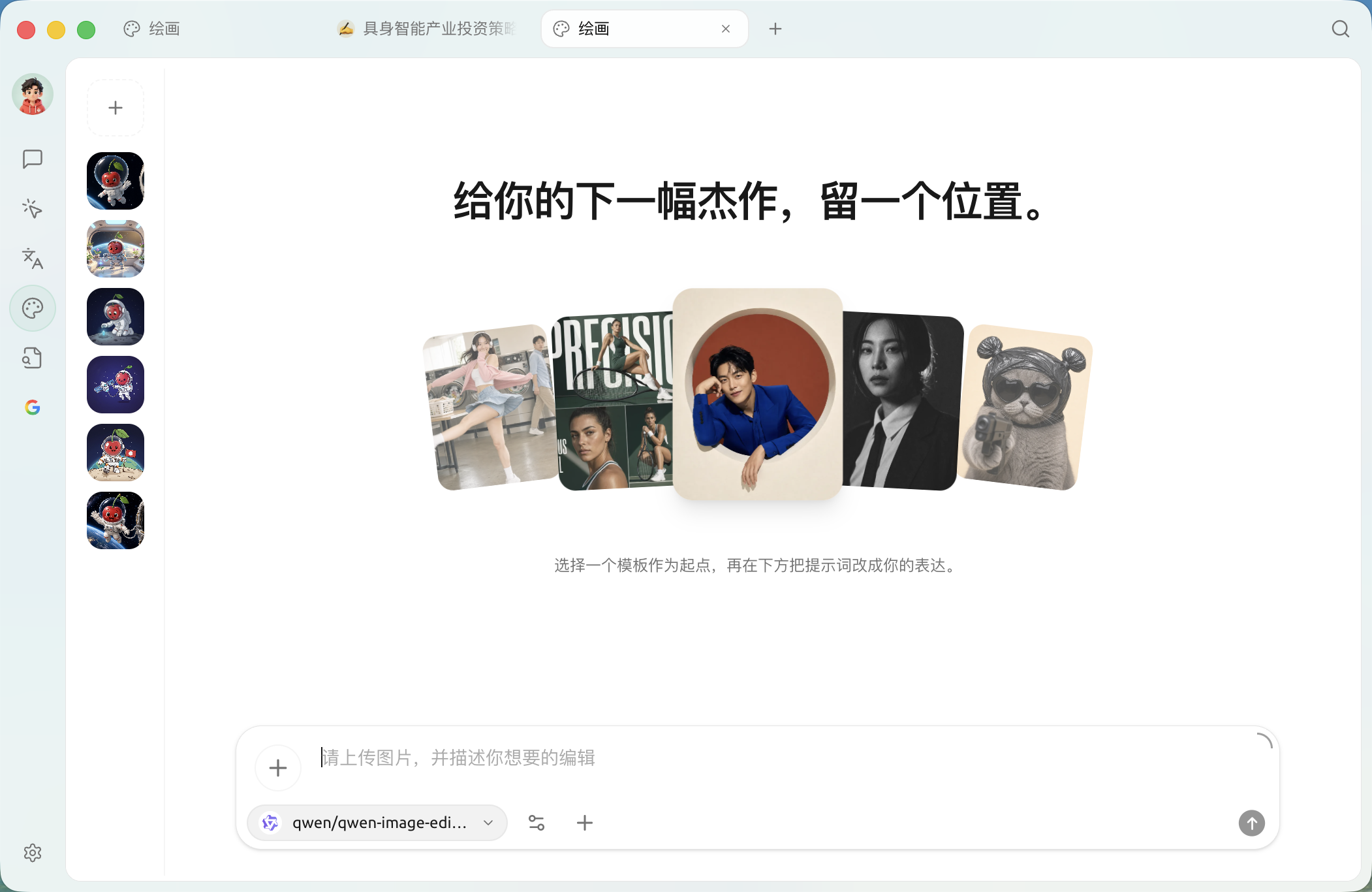
繪圖頁面係 Cherry Studio 內置嘅 **文字生圖工具**:透過文字描述生成圖像,效果同 Midjourney / DALL·E 呢類網頁服務類似。**主要優勢在於可以直接重用 Cherry Studio 入面已配置好嘅服務商帳號**,唔使另外註冊各家平台。
## 進入繪圖
點擊頂部標籤欄右側嘅 **+** 打開【啟動台】,再撳【繪圖】。
## 目前支援嘅服務商
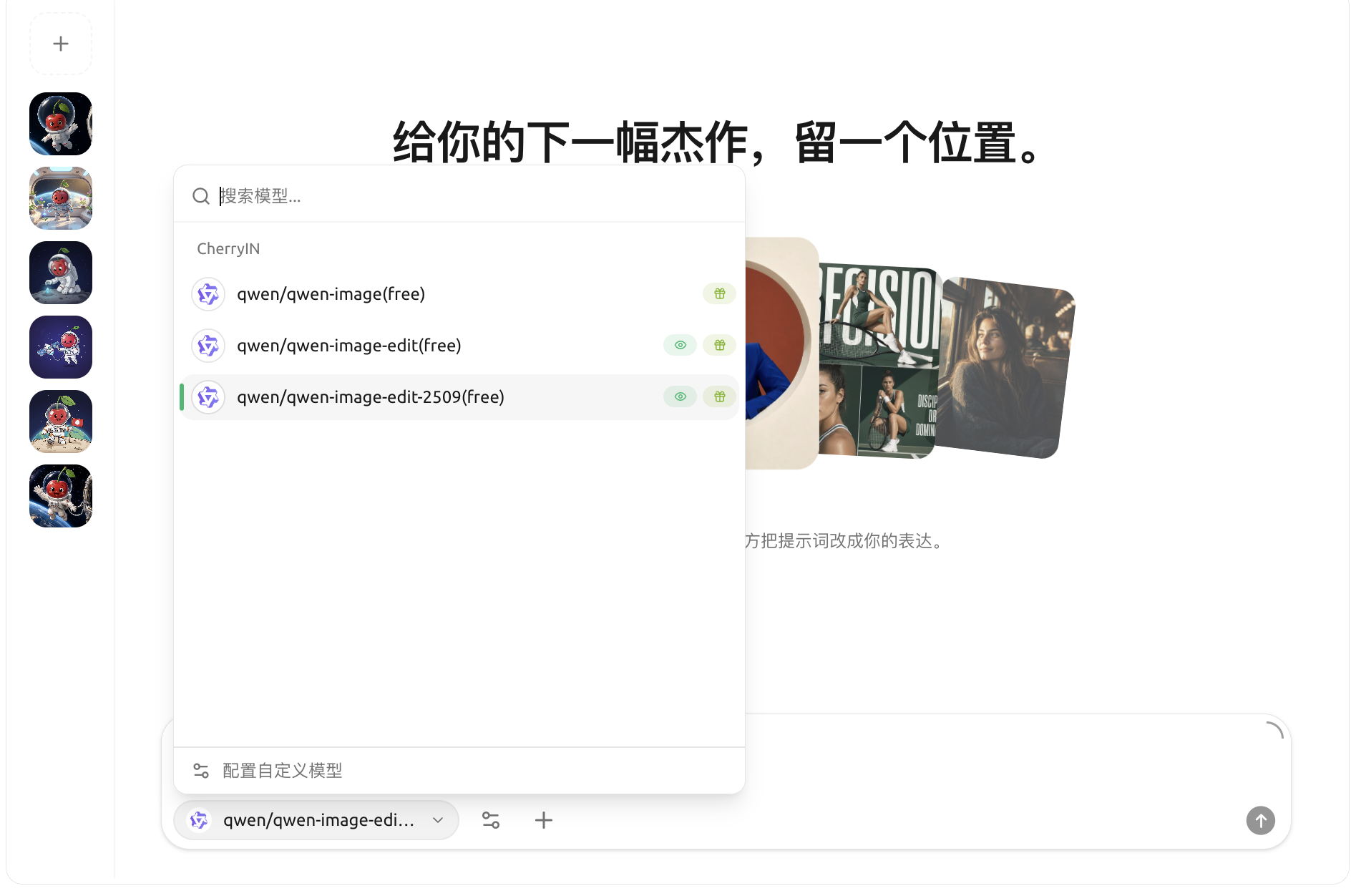
Cherry Studio 嘅繪圖功能依賴各家服務商提供嘅 **圖像模型**。喺模型下拉入面可以睇到而家實際可揀嘅全部項目,按服務商分組列出:
模型下拉:按服務商分組列出可用嘅圖像模型,底部可「配置自訂模型」
按類型大致分為三類:
| 類型 | 服務商 | 說明 |
| ------- | ---------------------------------------------------------------------- | -------------------------------------------- |
| 國內雲服務 | [**硅基流動**](/docs/zhong-wen-fan-ti/pre-basic/providers/siliconcloud.md) | 國內存取最方便,價錢平,模型選擇多 |
| | [**PPIO 派歐雲**](/docs/zhong-wen-fan-ti/pre-basic/providers/ppio.md) | 國內雲算力服務 |
| | **智譜開放平台** | 國產模型 CogView |
| 聚合網關 | **AiHubMix** | 聚合多家廠商嘅網關 |
| | **DMXAPI** | 聚合多家廠商嘅網關 |
| | **TokenFlux** | 海外網關 |
| | **CherryIN** | Cherry 官方網關,統一計費 |
| | **唯一 AI(AiOnly)** | 第三方網關 |
| 自建 / 本地 | **New API** | 自建網關方案,加入之後會出現喺呢個列表 |
| | **OVMS** | OpenVINO Model Server,本地推理(只會喺 OVMS 已經運行時顯示) |
{% hint style="info" %}
任何 **端點類型設為 `圖像生成 (OpenAI)`** 嘅自訂服務商,都會動態出現喺呢度。之後會陸續接入更多。
{% endhint %}
## 開始畫
1. 喺輸入區揀已配置嘅 **服務商同模型**;如果提示「暫無可用嘅圖片生成模型」,撳 `去設定` 喺該服務商底下加一個端點類型為 **圖像生成 (OpenAI)** 嘅模型
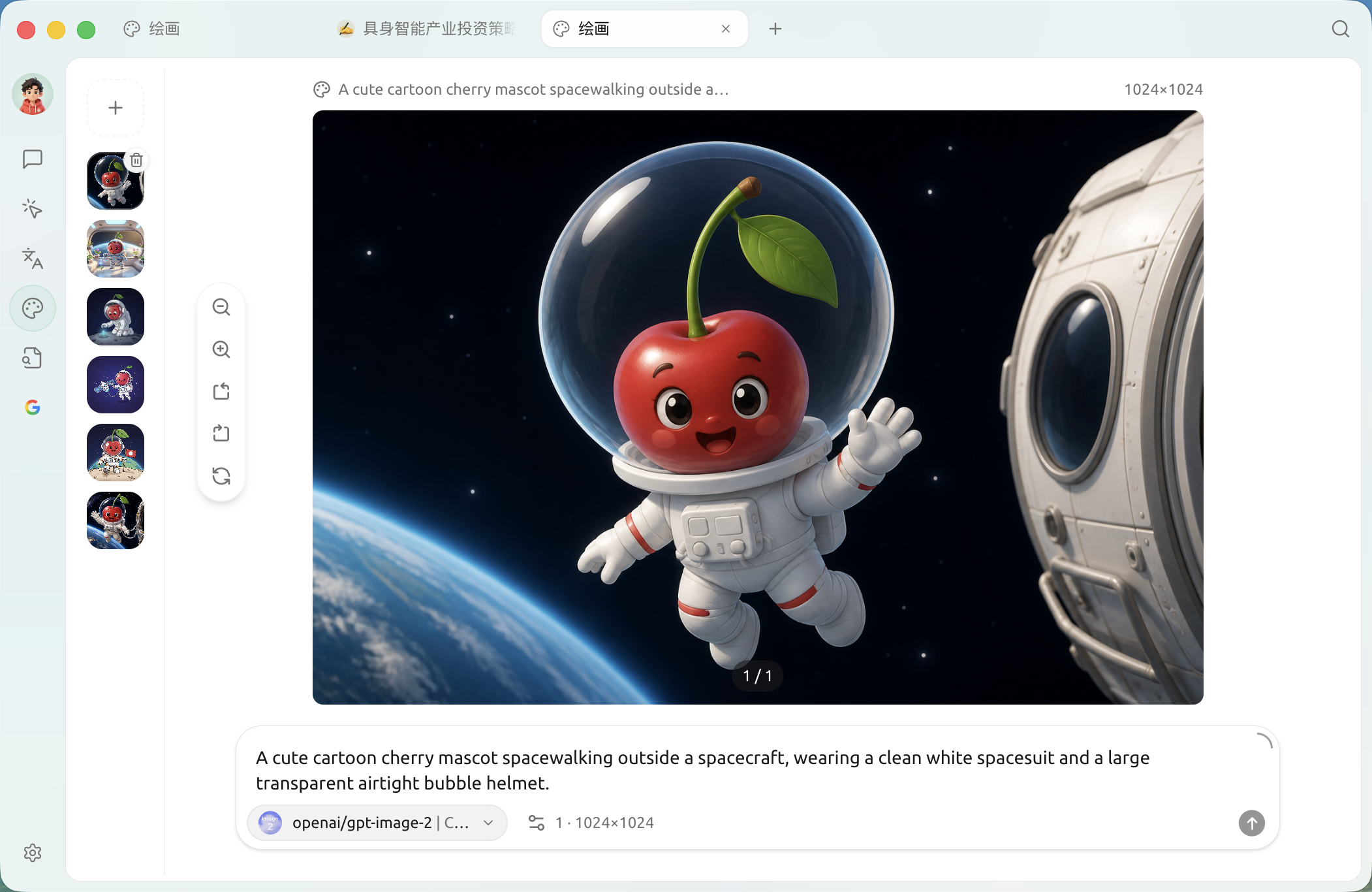
2. 揀一個 **文字生圖模型**(例如 `qwen-image`)),喺輸入框輸入 **提示詞**(中文/英文都得,愈具體愈好),例如:
```
一隻戴住圓眼鏡嘅橘貓坐喺書堆上,復古油畫風格,溫暖嘅黃昏光線
```
3. 調整參數(尺寸、步數、隨機種子等),唔肯定就用預設
4. 撳 **生成**,等幾秒到幾十秒(視乎模型)
5. 生成嘅圖會出現喺畫布上,可以下載、收藏,或者一鍵再畫一張
{% hint style="info" %}
唔想每次都喺輸入區揀模型?去【設定】→【預設模型】→【繪圖模型】指定一個預設嘅 **圖像生成模型**(說明係「圖像生成使用嘅模型」),繪圖時就會預設用佢。
{% endhint %}
## 參數點填?
參數面板入面部分欄位右邊帶 **ⓘ 資訊圖示**,滑鼠懸停會顯示說明(例如硅基流動 / Aihubmix / PPIO 呢啲服務商基本都有),但 **唔係所有服務商** 都加咗 Tooltip——例如智譜、NewAPI 嘅參數面板就冇提示。睇唔到說明時,跟下面預設值直接試就得。
如果想深入了解:
* **尺寸**:影響細節量同生成時間。日常用 1024x1024 就夠
* **步數(Steps)**:模型「打磨」次數。20-30 步通常夠用,太多邊際收益唔大
* **CFG / Guidance**:AI 對你提示詞嘅「聽話程度」。7-12 幾常用
* **種子(Seed)**:固定種子可以令結果可重現;想睇同一個提示詞隨機變化就留空
## 提示同技巧
* **用英文提示詞通常效果會更好**(絕大多數模型都係以英文素材訓練為主)
* 愈具體愈好:風格、構圖、光線、鏡頭都寫埋入去
* 想要「參考某張圖修改」?睇你揀嘅服務商支唔支援 **img2img**(圖生圖)
* 一次出 4 張慳 4 倍時間:將「批次數」調到 4
{% hint style="info" %}
繪圖功能會隨版本擴展。最新支援嘅服務商以應用內下拉為準。
{% endhint %}
{% hint style="danger" %}
注意:Gemini 圖片生成要喺對話介面使用,因為 Gemini 係多模態互動式圖片生成,亦都唔支援參數調校。
{% endhint %}
***
### 攞幫助同提交意見
如果您喺配置或使用過程中遇到任何疑問、Bug 或有功能改善建議,請參考 [反饋與建議](/docs/zhong-wen-fan-ti/question-contact/suggestions.md) 入面提供嘅官方渠道。
---
# Agent Instructions
This documentation is published with GitBook. GitBook is the documentation platform designed so that both humans and AI agents can read, navigate, and reason over technical content effectively. Learn more at gitbook.com.
## Querying This Documentation
If you need additional information that is not directly available in this page, you can query the documentation dynamically by asking a question.
Perform an HTTP GET request on the current page URL with the `ask` query parameter, and the optional `goal` query parameter:
```
GET https://docs.cherryai.com.cn/docs/zhong-wen-fan-ti/cherry-studio/preview/drawing.md?ask=&goal=
```
`ask` is the immediate question: it should be specific, self-contained, and written in natural language.
`goal` is optional and describes the broader end goal you are ultimately trying to accomplish on behalf of the user. GitBook uses it to tailor the answer towards what is most useful for that goal.
The response will contain a direct answer to the question and relevant excerpts and sources from the documentation.
Use this mechanism when the answer is not explicitly present in the current page, you need clarification or additional context, or you want to retrieve related documentation sections.