> For the complete documentation index, see [llms.txt](https://docs.cherryai.com.cn/llms.txt). Markdown versions of documentation pages are available by appending `.md` to page URLs; this page is available as [Markdown](https://docs.cherryai.com.cn/docs/zhong-wen-fan-ti/advanced-basic/workbench/screenshot-ocr.md).

# 截圖、標註同 OCR

Cherry Studio 可以透過全局快捷鍵擷取螢幕區域，加入矩形、箭嘴、畫筆、文字或馬賽克，並把結果複製或者儲存。啟用本地 OCR 之後，仲可以直接選取同複製截圖入面嘅文字。

### 目標同前置條件

* 路徑：【設定】→【截圖】；
* macOS 首次使用需要允許螢幕錄製，授權之後按頁面提示重啟應用程式；
* OCR 需要喺【設定】→【本地模型】下載文字識別模型；
* 截圖功能預設關閉，自動識別文字預設開啟，但模型未就緒時唔會執行 OCR。

### 術語

| 術語    | 含義                               |
| ----- | -------------------------------- |
| 全局快捷鍵 | 就算而家焦點唔喺 Cherry Studio，都可以觸發嘅快捷鍵 |
| OCR   | 將圖片入面嘅文字辨識成可以選取、複製嘅文本            |
| 馬賽克   | 遮擋截圖入面嘅帳號、路徑、密鑰或者其他敏感區域          |

### 操作路徑

【設定】→【截圖】→開啟【啟用截圖】→按截圖快捷鍵→框選區域→標註或識別文字→複製或儲存。

### 操作步驟

{% stepper %}
{% step %}

#### 1. 啟用截圖並檢查權限

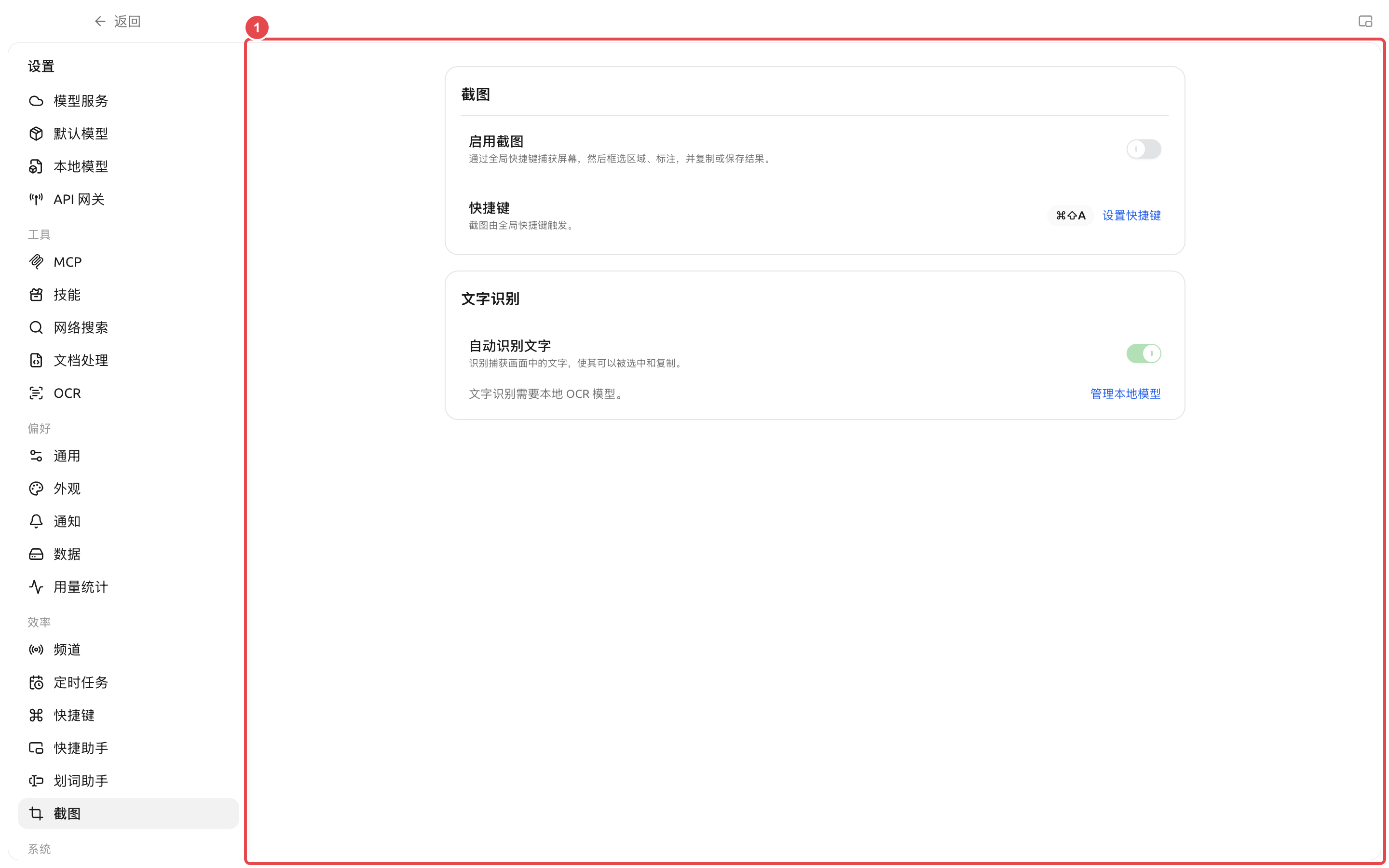
打開【設定】→【截圖】，開啟【啟用截圖】。macOS 出現【螢幕錄製權限】時選擇【去授權】；授權完成後點擊【立即重啟】。
{% endstep %}

{% step %}

#### 2. 設定快捷鍵

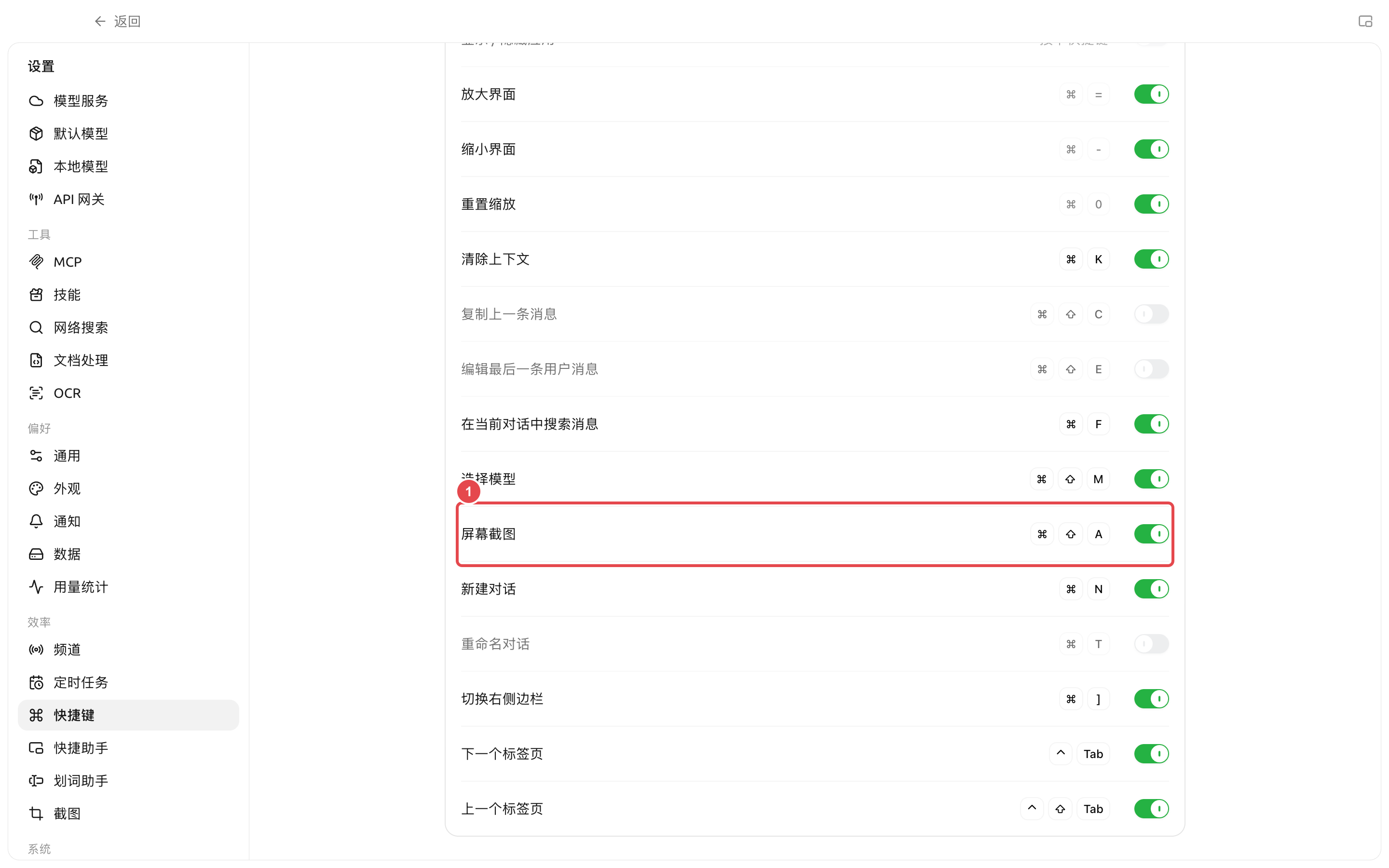
預設快捷鍵係 macOS 嘅 `Command+Shift+A`，Windows 同 Linux 嘅 `Ctrl+Shift+A`。點擊【設定快捷鍵】可以跳去對應行；如果系統或者其他應用程式已經佔用，頁面會顯示衝突提示。
{% endstep %}

{% step %}

#### 3. 框選並標註

撳下快捷鍵之後拖動框選區域。使用【矩形】【箭嘴】【畫筆】【文字】標出重點，使用【馬賽克】遮擋敏感資訊；屬性面板可以調整顏色、線闊同字號。
{% endstep %}

{% step %}

#### 4. 複製文字或圖像

OCR 模型就緒時，頁面會自動辨識文字；亦可以點擊【識別文字】。直接選取文字或者選擇【複製全部文字】；完成標註後選擇【複製並關閉】或【儲存圖像】。
{% endstep %}
{% endstepper %}

### 預期結果

截圖只包含框選區域；標註清晰而且敏感資訊已經遮擋；複製之後可喺目標應用程式貼上圖像，或者將 OCR 文字貼上做可編輯文本。

### 關鍵截圖

<figure><img src="https://raw.githubusercontent.com/SiinXu/cherry-studio-docs/2446b25878f69e98f33d50623a3c4cf5e836680a/.gitbook/assets/cherry-guide-screenshot-shortcut.png" alt="快捷键设置中的屏幕截图快捷键"><figcaption><p>① 【螢幕截圖】係可修改嘅全局快捷鍵；修改之後先喺非 Cherry Studio 視窗測試一次。</p></figcaption></figure>

### 配置說明

| 配置項    | 產品預設值                  | 建議起點          | 作用          | 適用場景         | 注意事項           |
| ------ | ---------------------- | ------------- | ----------- | ------------ | -------------- |
| 啟用截圖   | 關閉                     | 需要時開啟         | 註冊全局截圖快捷鍵   | 日常截圖、教程、問題反饋 | macOS 需要螢幕錄製權限 |
| 截圖快捷鍵  | `Command/Ctrl+Shift+A` | 保持預設，衝突時先改    | 由任何應用程式觸發截圖 | 高頻跨應用使用      | 同其他應用程式衝突時唔會觸發 |
| 自動識別文字 | 開啟                     | 成日複製截圖文字時保持開啟 | 截圖後自動執行 OCR | 報錯截圖、表格、介面文字 | 需要下載本地 OCR 模型  |

<figure><img src="https://raw.githubusercontent.com/SiinXu/cherry-studio-docs/2446b25878f69e98f33d50623a3c4cf5e836680a/.gitbook/assets/cherry-guide-screenshot-settings.png" alt="截图设置中的启用开关、快捷键和本地 OCR 状态"><figcaption></figcaption></figure>

### 用戶案例

測試人員擷取一個設定錯誤，使用矩形框住錯誤提示，用馬賽克遮擋帳號同本地路徑，再複製到問題反饋助手。之後由同一張截圖複製錯誤碼，貼到重現步驟入面，避免手動輸入出錯。

### 常見問題

<details>

<summary>撳快捷鍵冇反應點算？</summary>

確認【啟用截圖】已開啟，再睇吓快捷鍵旁邊有冇出現衝突提示。macOS 仲要檢查螢幕錄製權限，授權後重啟；Windows 同 Linux 可以試吓改用一組冇畀系統佔用嘅組合。

</details>

<details>

<summary>點解複製唔到文字？</summary>

打開【設定】→【本地模型】，確認 OCR 模型狀態係就緒。標註過程中無法辨識文字；先完成或者撤銷當前標註，再執行 OCR。

</details>

### 參考資料

* 問題反饋同功能建議
* 輸入工具欄同效率工具


---

# Agent Instructions
This documentation is published with GitBook. GitBook is the documentation platform designed so that both humans and AI agents can read, navigate, and reason over technical content effectively. Learn more at gitbook.com.

## Querying This Documentation
If you need additional information that is not directly available in this page, you can query the documentation dynamically by asking a question.

Perform an HTTP GET request on the current page URL with the `ask` query parameter, and the optional `goal` query parameter:

```
GET https://docs.cherryai.com.cn/docs/zhong-wen-fan-ti/advanced-basic/workbench/screenshot-ocr.md?ask=<question>&goal=<endgoal>
```

`ask` is the immediate question: it should be specific, self-contained, and written in natural language.
`goal` is optional and describes the broader end goal you are ultimately trying to accomplish on behalf of the user. GitBook uses it to tailor the answer towards what is most useful for that goal.

The response will contain a direct answer to the question and relevant excerpts and sources from the documentation.

Use this mechanism when the answer is not explicitly present in the current page, you need clarification or additional context, or you want to retrieve related documentation sections.