> For the complete documentation index, see [llms.txt](https://docs.cherryai.com.cn/llms.txt). Markdown versions of documentation pages are available by appending `.md` to page URLs; this page is available as [Markdown](https://docs.cherryai.com.cn/docs/zhong-wen-fan-ti/advanced-basic/knowledge-content/translation-workflow.md).
# 文件、圖片同長文翻譯
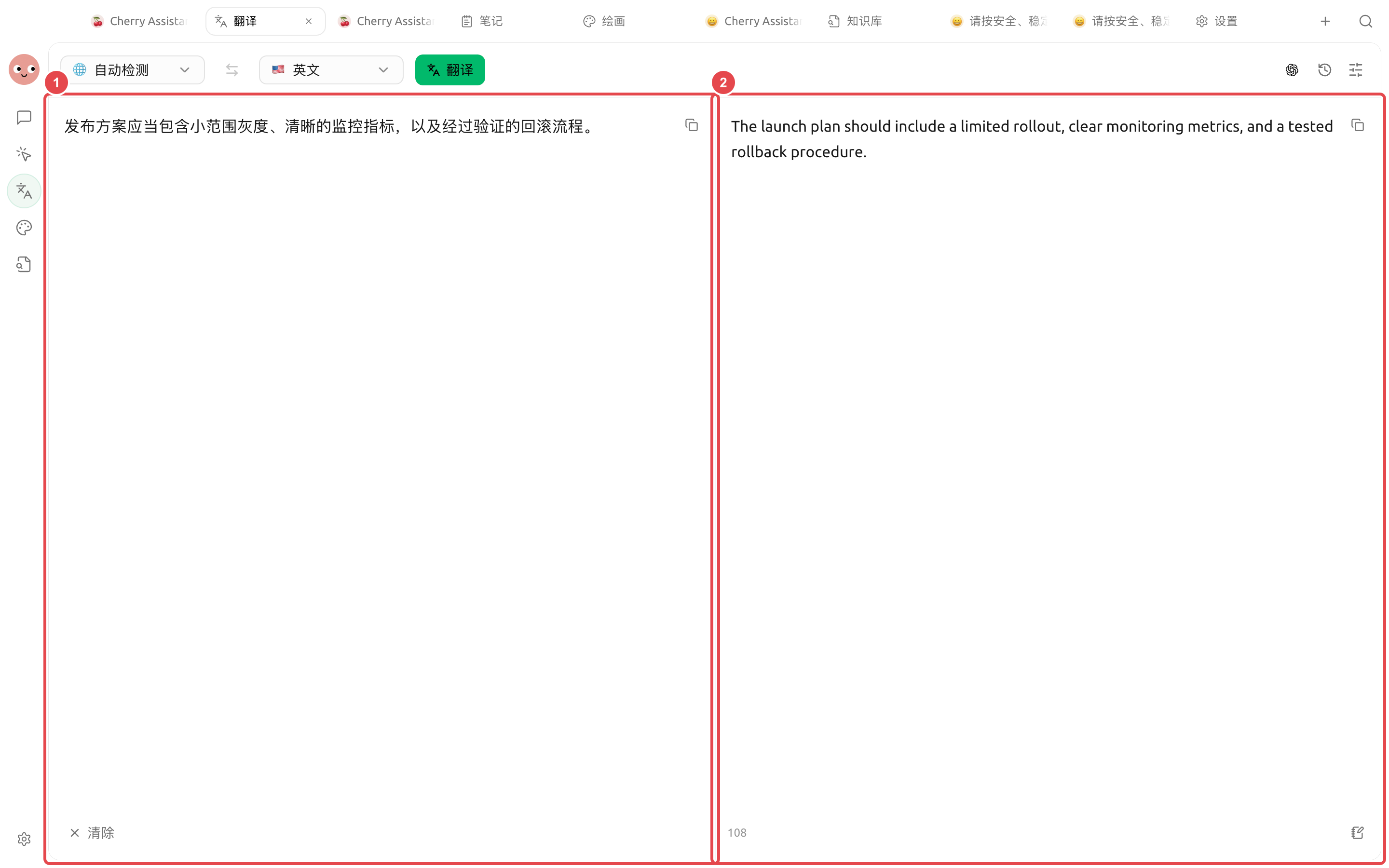
【翻譯】可以處理直接輸入嘅文字,亦都可以上載圖片或者文件。圖片會先識別文字,文件就按格式同內容處理;歷史記錄可以收藏、再次打開同複用。
#### 結果出嚟之後檢查乜
| 檢查項 | 例子 |
| ----- | ------------------ |
| 關鍵含義 | 「灰度發佈」唔可以淨係按顏色直譯 |
| 專有名詞 | 產品名、團隊名同功能名保持一致 |
| 數字與條件 | 日期、比例、金額同否定詞唔可以漏咗 |
| 語氣 | 通知、合約、營銷文案分別採用合適語氣 |
短文字可以直接逐句核對;文件同長文先抽查標題、表格、數字同重複術語,再決定係咪整篇交付。
### 保留版式翻譯 PDF
上載可提取文字嘅 PDF 後,頁面會檢測 BabelDOC。第一次使用時選擇【安裝 BabelDOC】;依賴就緒後,左側預覽原文,右側顯示譯文 PDF,並按檢查資源、解析、翻譯、排版同渲染顯示進度。
{% stepper %}
{% step %}
#### 1. 上載 PDF 並檢查依賴
撳【拖入或點擊上載圖片/文件】揀一個 PDF。頁面提示缺少或者版本過舊時,安裝或更新 BabelDOC;安裝由 Cherry Studio 嘅【環境依賴】統一管理。
{% endstep %}
{% step %}
#### 2. 選擇翻譯模型同目標語言
PDF 翻譯需要而家嘅模型可以透過本地 API gateway 調用。模型唔可用時先返去【設定】→【模型服務】檢查連線,唔好反覆安裝 BabelDOC。
{% endstep %}
{% step %}
#### 3. 對照雙欄結果
翻譯完成後逐頁比較原文同譯文,重點檢查表格、圖註、頁眉頁腳、腳註同斷行。撳下載按鈕可以另存譯文 PDF。
{% endstep %}
{% step %}
#### 4. 從歷史記錄繼續
PDF 翻譯會進入【翻譯歷史】同【文件】。歷史記錄可以重新打開雙欄預覽、定位譯文文件或者另存結果;刪除記錄時,對應譯文文件都會一齊回收。
{% endstep %}
{% endstepper %}
{% hint style="warning" %}
掃描版或者純圖片 PDF 暫時唔支援保留版式翻譯。頁面提示需要 OCR 時,先將圖片文字識別做可校對文本,再使用普通翻譯流程。
{% endhint %}
### 翻譯步驟
{% stepper %}
{% step %}
#### 1. 先確認源語言同目標語言
自動識別適合混合或者未知語言;合約、技術文檔等正式材料建議手動確認語言,減少誤判。
{% endstep %}
{% step %}
#### 2. 選擇翻譯方式
需要上下文、語氣同術語一致時使用已配置嘅模型;普通短句可以選擇更輕量嘅方式。具體可用項以而家頁面為準。
{% endstep %}
{% step %}
#### 3. 分段核對
先檢查名稱、數字、日期、否定詞同單位。圖片翻譯仲要核對 OCR 結果;識別錯咗,後面嘅譯文都會跟住錯。
{% endstep %}
{% step %}
#### 4. 收藏、匯出或複用結果
喺【翻譯歷史】入面查看、收藏同再次使用文字譯文;PDF 結果可以雙欄預覽、打開文件或者另存。正式交付前,把術語表同人工修訂保存到項目資料入面。
{% endstep %}
{% endstepper %}
#### 應用案例:準備多語言產品資料
先把產品名、功能名同禁止改寫嘅術語整理成一份說明。上載中文說明書,先翻譯一個章節並確認術語,再處理全文;宣傳圖片單獨上載做 OCR 翻譯。完成後把已確認嘅術語同譯文放入項目工作目錄,等 Agent 統一檢查標題、連結同數字,但唔畀佢自行改寫法務聲明。
{% hint style="danger" %}
醫療、法律、財務及安全相關內容需要專業人士覆核。自動翻譯可以提高效率,唔可以取代有責任主體嘅審校。
{% endhint %}
---
# Agent Instructions
This documentation is published with GitBook. GitBook is the documentation platform designed so that both humans and AI agents can read, navigate, and reason over technical content effectively. Learn more at gitbook.com.
## Querying This Documentation
If you need additional information that is not directly available in this page, you can query the documentation dynamically by asking a question.
Perform an HTTP GET request on the current page URL with the `ask` query parameter, and the optional `goal` query parameter:
```
GET https://docs.cherryai.com.cn/docs/zhong-wen-fan-ti/advanced-basic/knowledge-content/translation-workflow.md?ask=&goal=
```
`ask` is the immediate question: it should be specific, self-contained, and written in natural language.
`goal` is optional and describes the broader end goal you are ultimately trying to accomplish on behalf of the user. GitBook uses it to tailor the answer towards what is most useful for that goal.
The response will contain a direct answer to the question and relevant excerpts and sources from the documentation.
Use this mechanism when the answer is not explicitly present in the current page, you need clarification or additional context, or you want to retrieve related documentation sections.