> For the complete documentation index, see [llms.txt](https://docs.cherryai.com.cn/llms.txt). Markdown versions of documentation pages are available by appending `.md` to page URLs; this page is available as [Markdown](https://docs.cherryai.com.cn/docs/zhong-wen-fan-ti/advanced-basic/knowledge-content/painting-workflow.md).

# 圖片生成、編輯同增強

【繪畫】唔單止可以由文字生成圖片，亦可以用參考圖、編輯指定區域、合併多張圖片、重用模板同增強解像度。先確定圖片用途，再揀生成或編輯方式。

## 揀合適嘅起點

| 需求            | 建議做法         |
| ------------- | ------------ |
| 由零開始整視覺方向     | 文字生圖或模板      |
| 保留主體、改變背景或者風格 | 上傳參考圖之後編輯    |
| 只改圖片入面一部分     | 用蒙版標出修改區域    |
| 將多個素材合成一張圖    | 多圖合併，並說明主次關係 |
| 現有圖片需要更清晰     | 使用增強／放大功能    |

### 例子：由一句描述到成品

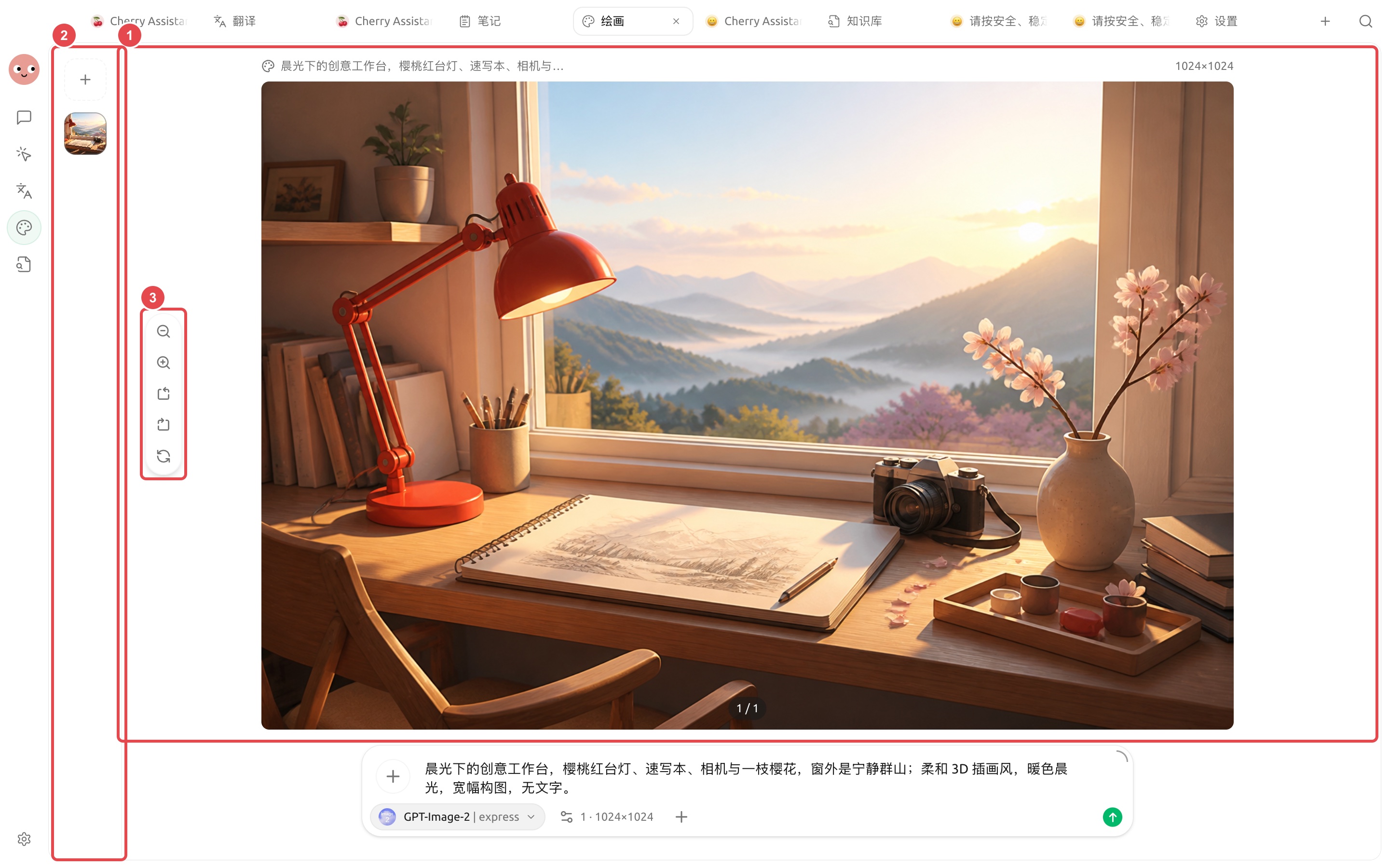
打開【繪畫】，選擇支援當前任務嘅圖片模型，輸入主體、環境、風格、光線、構圖同限制條件，然後送出。示例提示詞係：

> 晨光下嘅創意工作台，櫻桃紅檯燈、速寫本、相機同一枝櫻花，窗外係寧靜群山；柔和 3D 插畫風，暖色晨光，闊幅構圖，冇文字。

```mermaid
flowchart LR
    A[寫清用途同構圖] --> B[選擇繪畫模型]
    B --> C[生成第一版]
    C --> D{主體、邊緣同尺寸可唔可以用}
    D -- 否 --> E[只改一個方向]
    E --> C
    D -- 係 --> F[放大檢查再匯出]
```

{% hint style="info" %}
示例使用【GPT-Image-2 | express】生成闊幅工作台插畫。模型、尺寸同可用操作以你而家頁面顯示為準；睇唔到嘅參數唔好照搬。
{% endhint %}

生成之後唔好即刻離開：先放大檢查主體、邊緣同多餘元素，再由左側歷史切換版本。需要調整時，保留有效描述，只改一個方向。

<figure><img src="https://3562065924-files.gitbook.io/~/files/v0/b/gitbook-x-prod.appspot.com/o/spaces%2F0Ut5BptC3t8CtSU1UWpM%2Fuploads%2Fgit-blob-418a088986e17a73a4808871fc4c1f5c1684fa05%2Fcherry-v2-guide-painting-result.jpg?alt=media" alt="使用 GPT-Image-2 express 生成的晨光工作台插画与历史记录"><figcaption><p>① 左側保留今次生成嘅歷史縮圖；② 中間顯示完整成品；③ 放大檢查後再下載、複製或者繼續編輯。</p></figcaption></figure>

## 完成一張可用圖片

{% stepper %}
{% step %}

### 1. 揀模型同模式

唔同圖片模型支援嘅尺寸、參考圖同編輯能力都唔同。頁面冇顯示嘅參數唔好憑經驗硬填。
{% endstep %}

{% step %}

### 2. 寫清用途同構圖

說明主體、環境、視角、色調、比例、留白同唔好出現嘅內容。要擺標題時，通常會叫模型留白，文字再由設計工具加返。
{% endstep %}

{% step %}

### 3. 一次只驗證一個方向

先生成少量結果，揀最接近嘅圖片再編輯或者增強。多次同時生成會增加用量，亦唔利於判斷邊條要求生效。
{% endstep %}

{% step %}

### 4. 檢查細節後匯出

放大檢查人物手部、產品結構、文字、品牌標誌同邊緣。需要商業使用時，再確認素材來源同相關服務條款。
{% endstep %}
{% endstepper %}

### 喺 Agent 入面畫圖

先去【設定】→【預設模型】揀【繪畫模型】，再打開 Agent 嘅【內置工具】確認【生成圖片】已啟用。之後可以喺【工作】入面叫 Agent 先讀文章、提煉視覺方向，再直接生成配圖。

<figure><img src="/files/9558d1511c28f4bbf93eaada7794cdc32d14c052" alt="默认模型设置中的绘画模型选择"><figcaption><p>【預設模型】入面嘅【繪畫模型】決定 Agent 同相關繪畫入口優先用邊個模型。</p></figcaption></figure>

### 應用案例：製作一組品牌活動配圖

先喺模板中確定統一嘅色調、鏡頭同留白規則，生成橫版頭圖。揀定方向後，用同一參考圖分別製作方形社交圖同直版故事圖；產品外觀唔一致時用局部編輯修正，最後再增強需要投放嘅版本。整個過程中唔畀模型生成品牌文字，避免錯字同變形。

{% hint style="warning" %}
參考圖可能會被傳送到所選模型服務。客戶資料、人像同未公開產品圖喺上傳前，應確認允許使用嘅服務範圍。
{% endhint %}


---

# Agent Instructions
This documentation is published with GitBook. GitBook is the documentation platform designed so that both humans and AI agents can read, navigate, and reason over technical content effectively. Learn more at gitbook.com.

## Querying This Documentation
If you need additional information that is not directly available in this page, you can query the documentation dynamically by asking a question.

Perform an HTTP GET request on the current page URL with the `ask` query parameter, and the optional `goal` query parameter:

```
GET https://docs.cherryai.com.cn/docs/zhong-wen-fan-ti/advanced-basic/knowledge-content/painting-workflow.md?ask=<question>&goal=<endgoal>
```

`ask` is the immediate question: it should be specific, self-contained, and written in natural language.
`goal` is optional and describes the broader end goal you are ultimately trying to accomplish on behalf of the user. GitBook uses it to tailor the answer towards what is most useful for that goal.

The response will contain a direct answer to the question and relevant excerpts and sources from the documentation.

Use this mechanism when the answer is not explicitly present in the current page, you need clarification or additional context, or you want to retrieve related documentation sections.