> For the complete documentation index, see [llms.txt](https://docs.cherryai.com.cn/llms.txt). Markdown versions of documentation pages are available by appending `.md` to page URLs; this page is available as [Markdown](https://docs.cherryai.com.cn/docs/jp/pre-basic/settings/ocr.md).
# OCR
OCR(Optical Character Recognition、光学文字認識)は、 **画像内の文字を、コピー可能でAIが読み取れるテキストに変える**。以下のことはすべてそれに依存しています:
* スクリーンショット/スキャン画像をチャット欄にドラッグして、AIに中の文字を読ませたい
* 画像形式の請求書や資料を [ナレッジベース](/docs/jp/knowledge-base/knowledge-base.md)に入れて、後で検索できるようにしたい
* [エージェント](/docs/jp/cherry-studio/preview/agent.md) ローカルの画像を開いて分析する
OCRは独立した設定ページです。【設定】→【OCR】で一度認識エンジンを設定すれば、画像内の文字認識を使うすべての場所で同じ設定が使われます。
### 認識エンジンを選択
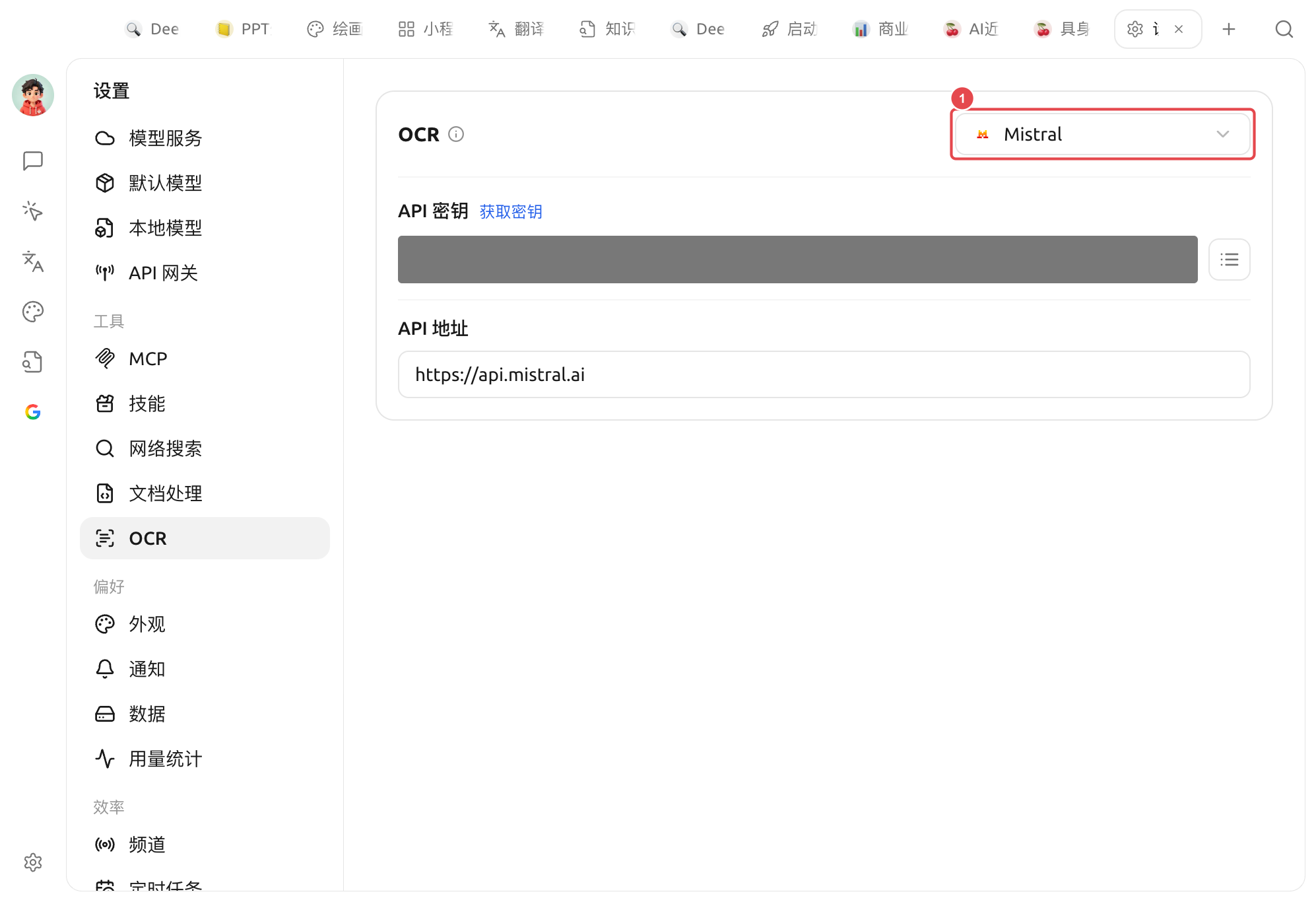
パネル右上のドロップダウンでOCRエンジンを切り替えます、**選択したエンジンがそのままデフォルト**。内蔵エンジン:
| エンジン | 接続/動作方式 | 対象 |
| ----------------- | ------------------------------------------------------------------------------------------------------ | ----------------------------------------------------------------------------------- |
| **System OCR** | オフライン、設定不要 | システム標準の認識(macOS Live Text / Windows OCR)を利用し、すぐ使えて最速 |
| **PaddleOCR** | API キーを入力([飛桨星河コミュニティ](https://aistudio.baidu.com/paddleocr/));自己ホストする場合はAPIアドレスを自分のサービスに向けます。任意の解析モデル | ローカルリソースを使いたくないが、Paddleの認識精度は欲しい |
| **ローカルPaddleOCR** | オフライン。まず【設定】→【ローカルモデル】でローカルOCRモデル(約140MB)をダウンロードする必要があります | 中国語認識の精度が高く、完全にローカルで動作。プライバシー重視 |
| **Tesseract OCR** | オフライン、組み込み済み | 定番のオープンソースOCR。多言語対応で、フォールバックとして使えます |
| **Mistral** | Mistral APIキー | マルチモーダル大規模モデルで認識し、複雑なレイアウト/手書きなどにもより賢く対応 |
| **Intel OV OCR** | ローカル実行(Intel OpenVINO、NPU加速) | **Windows+Intel Core Ultra(NPU搭載)で、かつOVモデルをデプロイ済みの場合にのみ表示**、それ以外のデバイスではこの項目は表示されません |
{% hint style="success" %}
どれを選べばいいかわからない?まずは **System OCR**——ほとんどのスクリーンショットや鮮明なスキャン画像はそのまま処理でき、設定も不要です。認識結果が不十分な場合は、ローカルPaddleOCRやMistralに切り替えてください。
{% endhint %}
System OCRを選ぶと、パネルには macOS Live Text / Windows OCRエンジンが利用可能です(システムが非対応の場合、この項目はドロップダウンに表示されません)。
{% hint style="warning" %}
* 「ローカルPaddleOCR」を選ぶ前に、【設定】→【ローカルモデル】で「ローカルOCRモデル」をダウンロードしてください。さもないと呼び出せません。
* **Tesseract**(およびWindows上のSystem OCR)は、パネルの「言語」ドロップダウンで認識したい言語を選択できます。
{% endhint %}
### 文書処理との違い
多くの人がOCRと [ドキュメント処理](/docs/jp/pre-basic/settings/doc-process.md) 混同しますが、一言で区別すると:
* **OCR**:担当 **画像 / スキャンデータ** 内の文字認識(画像→文字)。
* **ドキュメント処理**:担当 **PDF / 複雑なレイアウトの文書** の構造化解析(表や複数カラム付きのPDF→整形テキスト)。
両者は互いに独立しており、それぞれ別設定です。プレーンテキストPDF、`.md`/`.txt`/`.docx` 内の文字段落はどちらも介さず、そのまま読めます。
***
### ヘルプの取得とフィードバックの送信
設定または使用中に不明点、バグ、機能改善の提案がある場合は、 [フィードバックと提案](/docs/jp/question-contact/suggestions.md) に記載の公式チャネルをご参照ください。
---
# Agent Instructions
This documentation is published with GitBook. GitBook is the documentation platform designed so that both humans and AI agents can read, navigate, and reason over technical content effectively. Learn more at gitbook.com.
## Querying This Documentation
If you need additional information that is not directly available in this page, you can query the documentation by asking a question.
Perform an HTTP GET request on the following URL with the `ask` and `goal` query parameters:
```
GET https://docs.cherryai.com.cn/docs/jp/pre-basic/settings/ocr.md?ask=&goal=
```
`ask` is the immediate question: it should be specific, self-contained, and written in natural language.
`goal` is what the user is ultimately trying to achieve, the reason they need the answer. Sharing it helps GitBook give you a better, more relevant answer. A goal is most helpful when it describes the outcome the user wants rather than restating the question. For example, with `ask=how do I create an API token`, a goal like `automate deployments from our CI pipeline` lets GitBook tailor the answer to that use case.
The response will contain a direct answer to the question and relevant excerpts and sources from the documentation.
Use this mechanism when the answer is not explicitly present in the current page, you need clarification or additional context, or you want to retrieve related documentation sections.