> For the complete documentation index, see [llms.txt](https://docs.cherryai.com.cn/llms.txt). Markdown versions of documentation pages are available by appending `.md` to page URLs; this page is available as [Markdown](https://docs.cherryai.com.cn/docs/jp/pre-basic/settings/data-settings/notion.md).

# Notion設定チュートリアル

Cherry Studio はトピックを Notion のデータベースにインポートすることをサポートしています。

## ステップ1

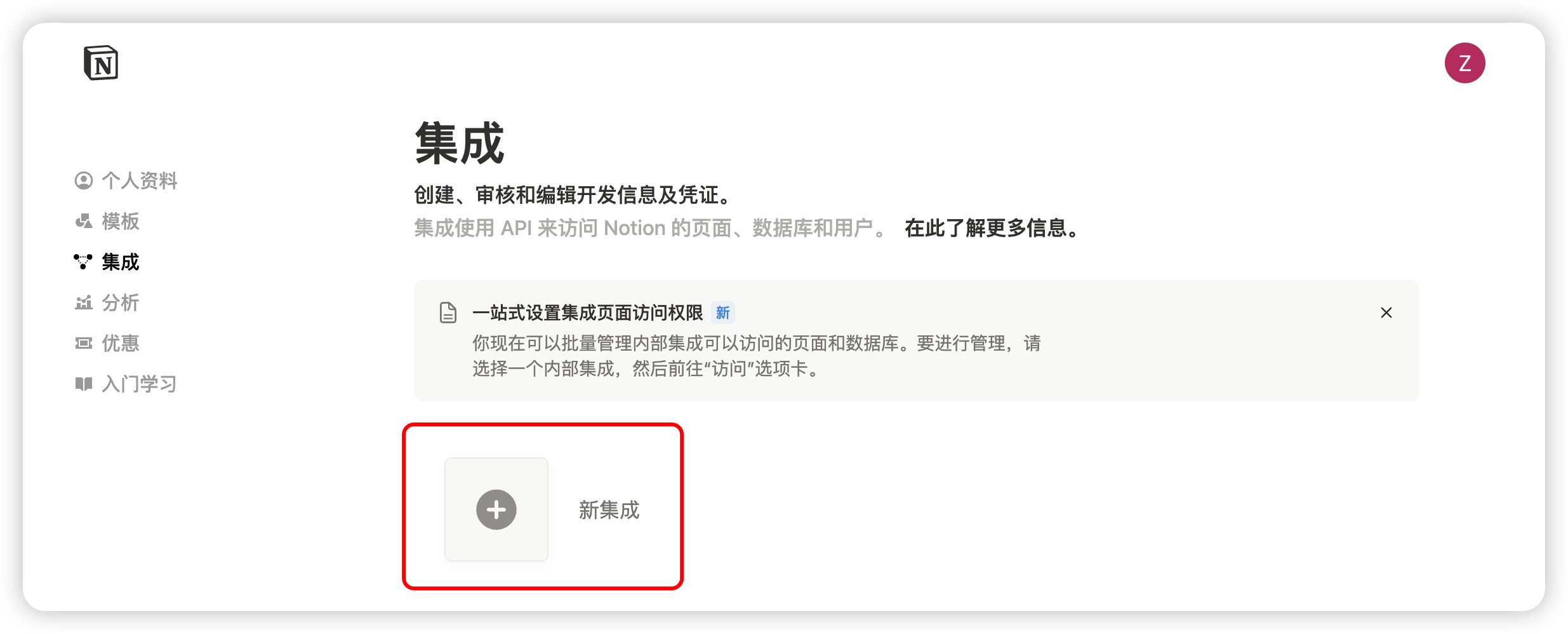
ウェブサイトを開く [Notion 連携](https://www.notion.so/profile/integrations) アプリを作成する

<figure><img src="https://3776196818-files.gitbook.io/~/files/v0/b/gitbook-x-prod.appspot.com/o/spaces%2F0Ut5BptC3t8CtSU1UWpM%2Fuploads%2Fgit-blob-4ecbd896fc33deab1d51e9f2f46a5526ce4a527c%2F%E5%88%9B%E5%BB%BA%E5%BA%94%E7%94%A8.png?alt=media" alt=""><figcaption><p>プラス記号をクリックしてアプリを作成</p></figcaption></figure>

## ステップ2

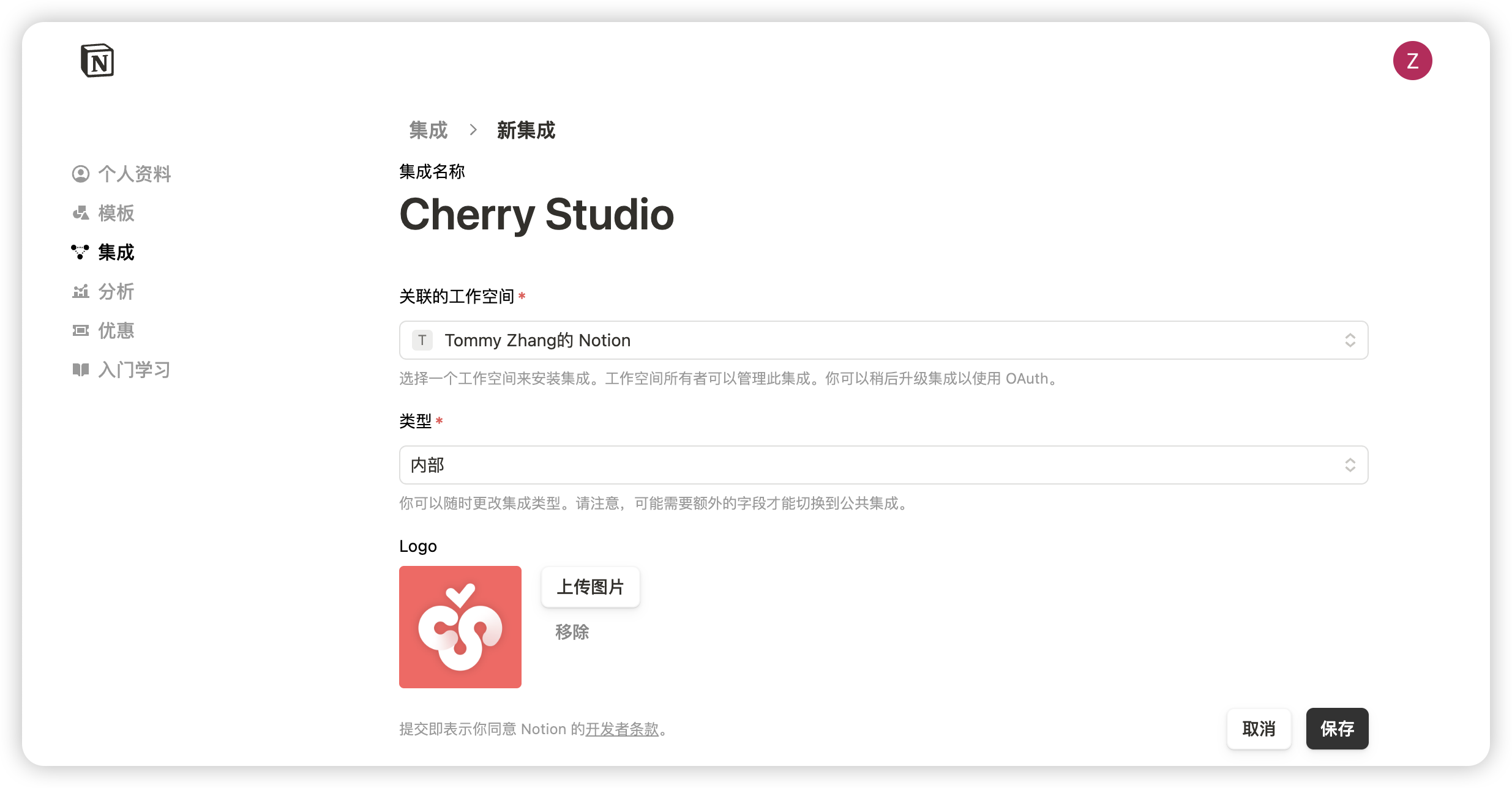
アプリを作成する

<figure><img src="https://3776196818-files.gitbook.io/~/files/v0/b/gitbook-x-prod.appspot.com/o/spaces%2F0Ut5BptC3t8CtSU1UWpM%2Fuploads%2Fgit-blob-c0f71fb06f84c1c0730aba566d5bb8211447837e%2F%E5%A1%AB%E5%86%99%E5%BA%94%E7%94%A8%E4%BF%A1%E6%81%AF.png?alt=media" alt=""><figcaption><p>アプリ情報を入力</p></figcaption></figure>

名前：Cherry Studio

種類：最初のものを選択

アイコン：この画像を保存してもよいです

<figure><img src="https://3776196818-files.gitbook.io/~/files/v0/b/gitbook-x-prod.appspot.com/o/spaces%2F0Ut5BptC3t8CtSU1UWpM%2Fuploads%2Fgit-blob-a60054c45fe10dfdeeb5786d3e7d0a53586d153c%2FCherry-Studio-Logo.png?alt=media" alt="" width="188"><figcaption></figcaption></figure>

## ステップ3

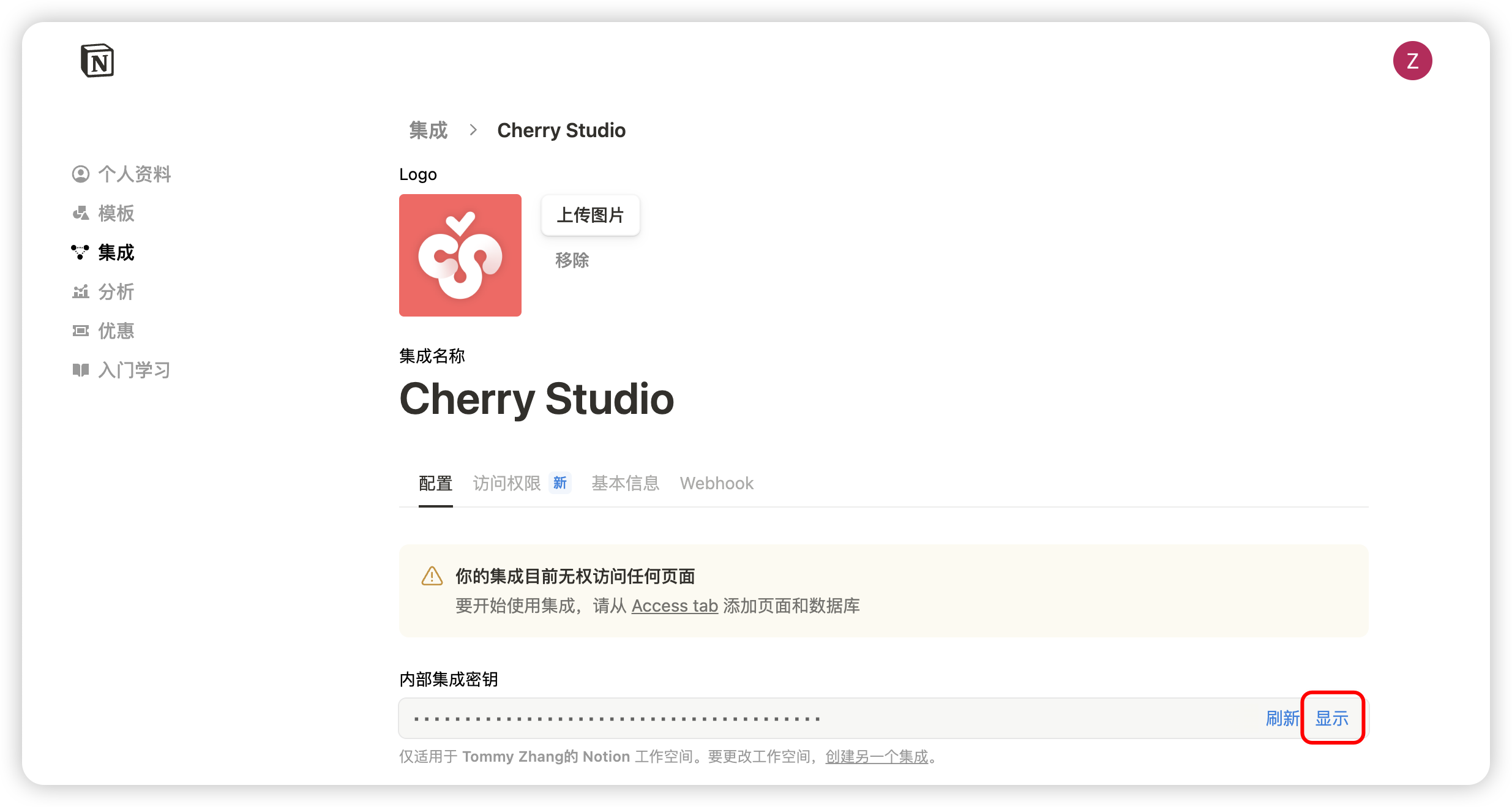
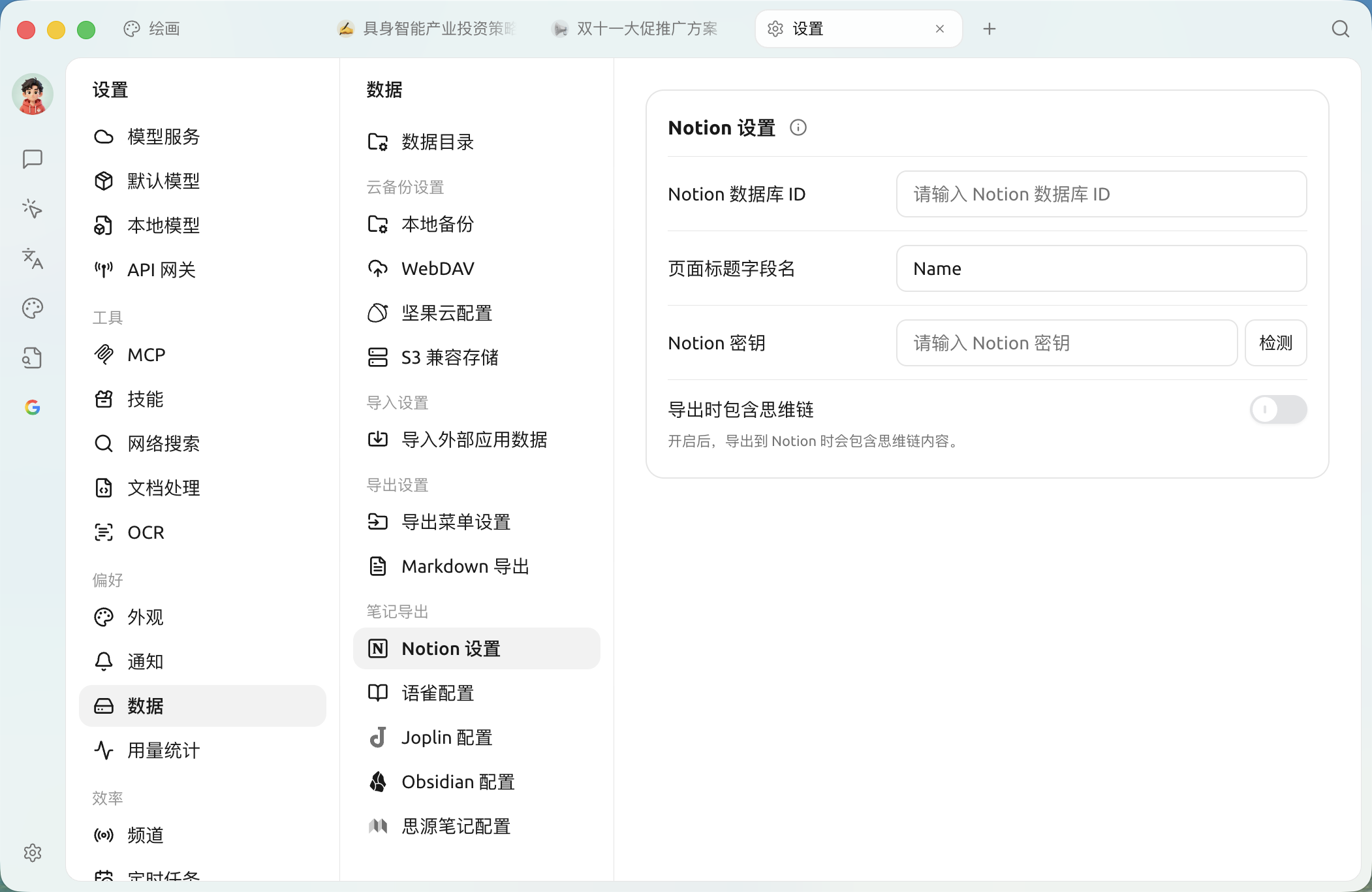
キーをコピーして Cherry Studio の設定に入力します

<figure><img src="https://3776196818-files.gitbook.io/~/files/v0/b/gitbook-x-prod.appspot.com/o/spaces%2F0Ut5BptC3t8CtSU1UWpM%2Fuploads%2Fgit-blob-f4aee2c8b4a3d68f00b377f54f203b305cace80c%2F%E5%A4%8D%E5%88%B6%E5%AF%86%E9%92%A5.png?alt=media" alt=""><figcaption><p>コピーキーをクリック</p></figcaption></figure>

<figure><img src="https://3776196818-files.gitbook.io/~/files/v0/b/gitbook-x-prod.appspot.com/o/spaces%2F0Ut5BptC3t8CtSU1UWpM%2Fuploads%2Fgit-blob-6549e17b77d491b9798a55b8111f5ef082ed5071%2F%E5%A1%AB%E5%86%99%E5%AF%86%E9%92%A5.png?alt=media" alt=""><figcaption><p>【設定】→【データ】→【Notion 設定】：キー / データベース ID / ページタイトルのフィールド名はすべてこのページで入力します</p></figcaption></figure>

## ステップ4

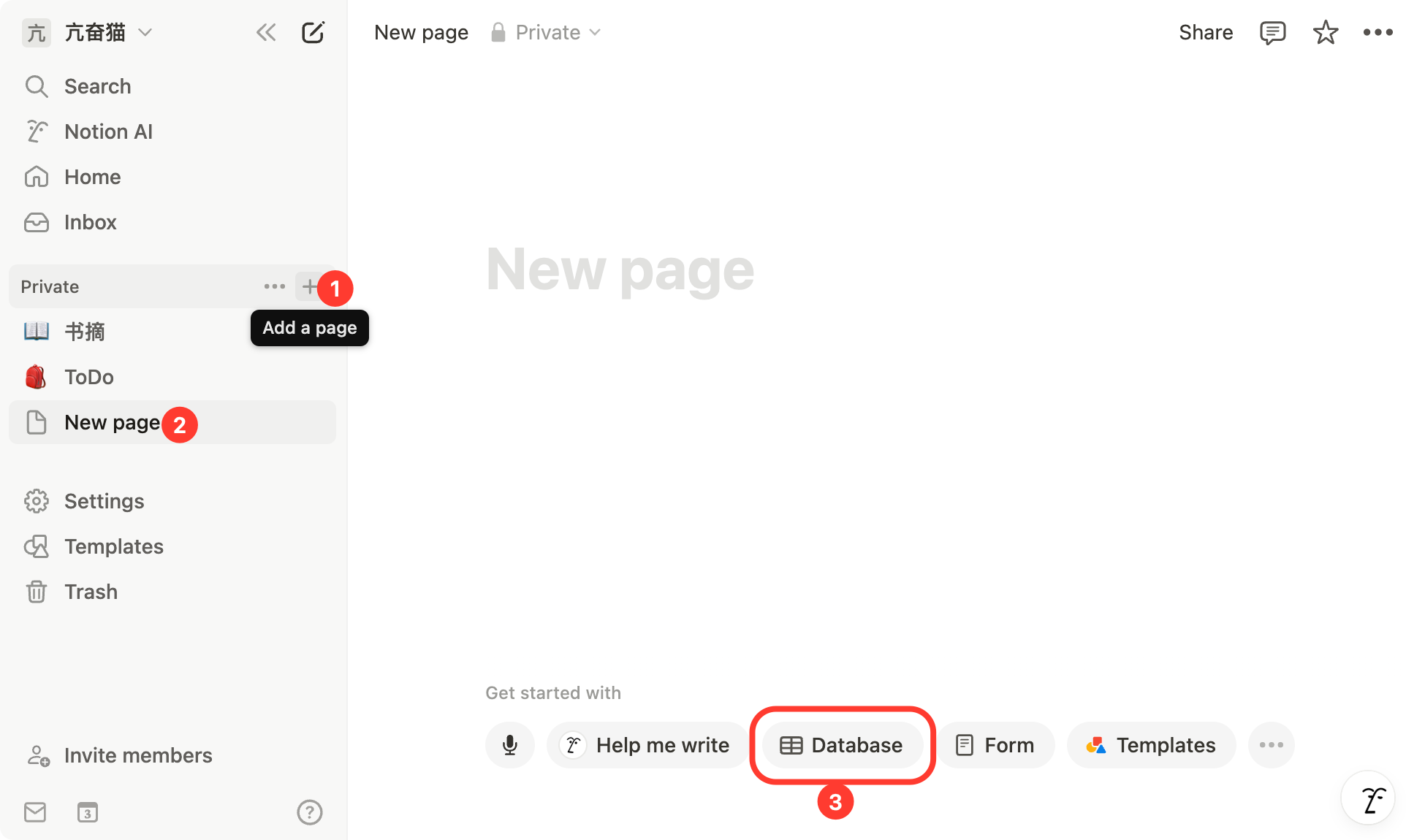
開く [Notion](https://www.notion.so/) サイトで新しいページを作成し、下部でデータベースタイプを選択し、名前に Cherry Studio と入力して、図の手順に従って接続します

<figure><img src="https://3776196818-files.gitbook.io/~/files/v0/b/gitbook-x-prod.appspot.com/o/spaces%2F0Ut5BptC3t8CtSU1UWpM%2Fuploads%2Fgit-blob-37823a6d49173eb151f8689c52eb22ae29294b28%2F%E5%88%9B%E5%BB%BA%E9%A1%B5%E9%9D%A2.png?alt=media" alt=""><figcaption><p>新しいページを作成してデータベースタイプを選択</p></figcaption></figure>

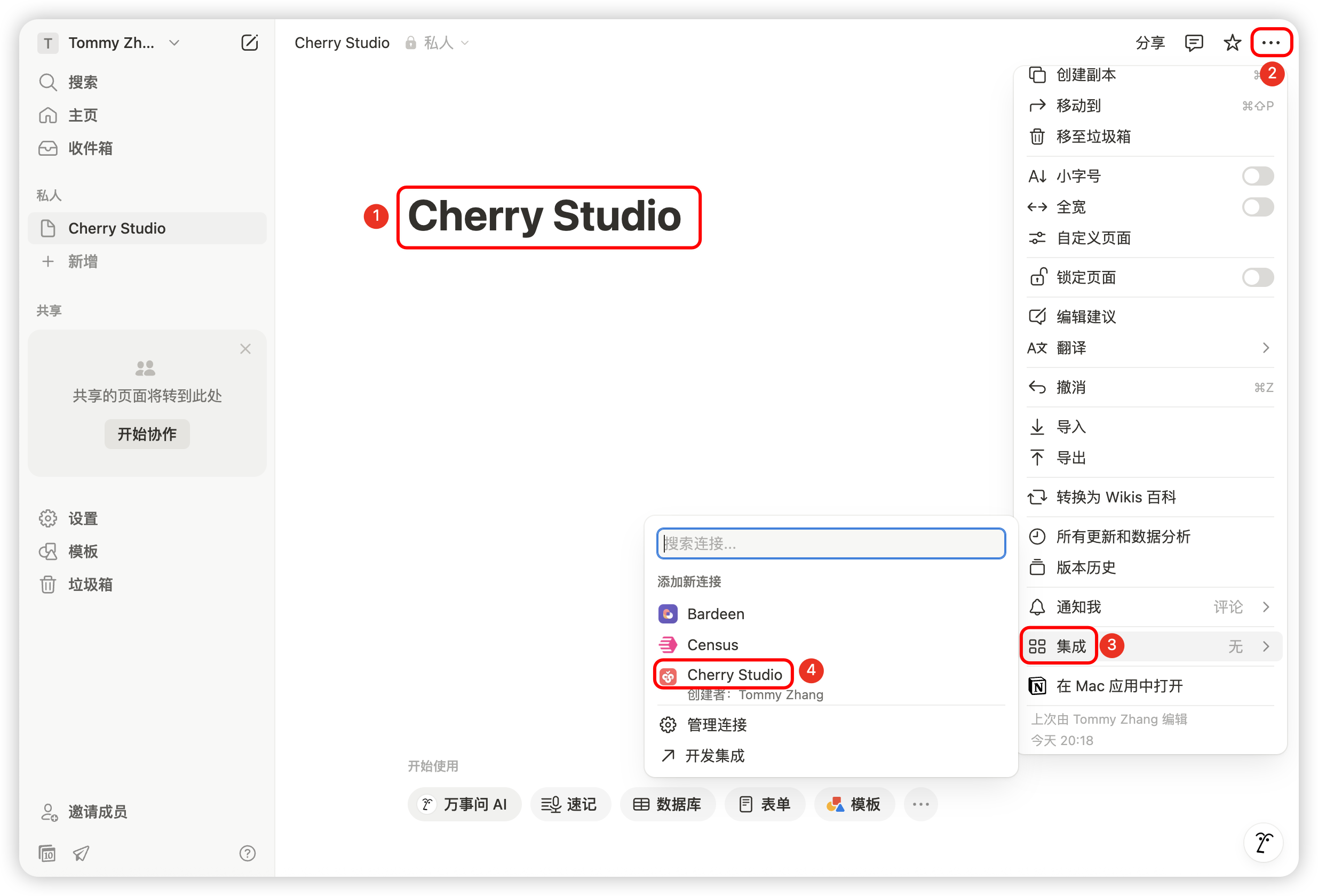
<figure><img src="https://3776196818-files.gitbook.io/~/files/v0/b/gitbook-x-prod.appspot.com/o/spaces%2F0Ut5BptC3t8CtSU1UWpM%2Fuploads%2Fgit-blob-645c4d09f261a0402057b6e89a4b4d75923f5e87%2F%E8%BF%9E%E6%8E%A5APP.png?alt=media" alt=""><figcaption><p>ページ名を入力し、APP に接続するを選択</p></figcaption></figure>

## ステップ5

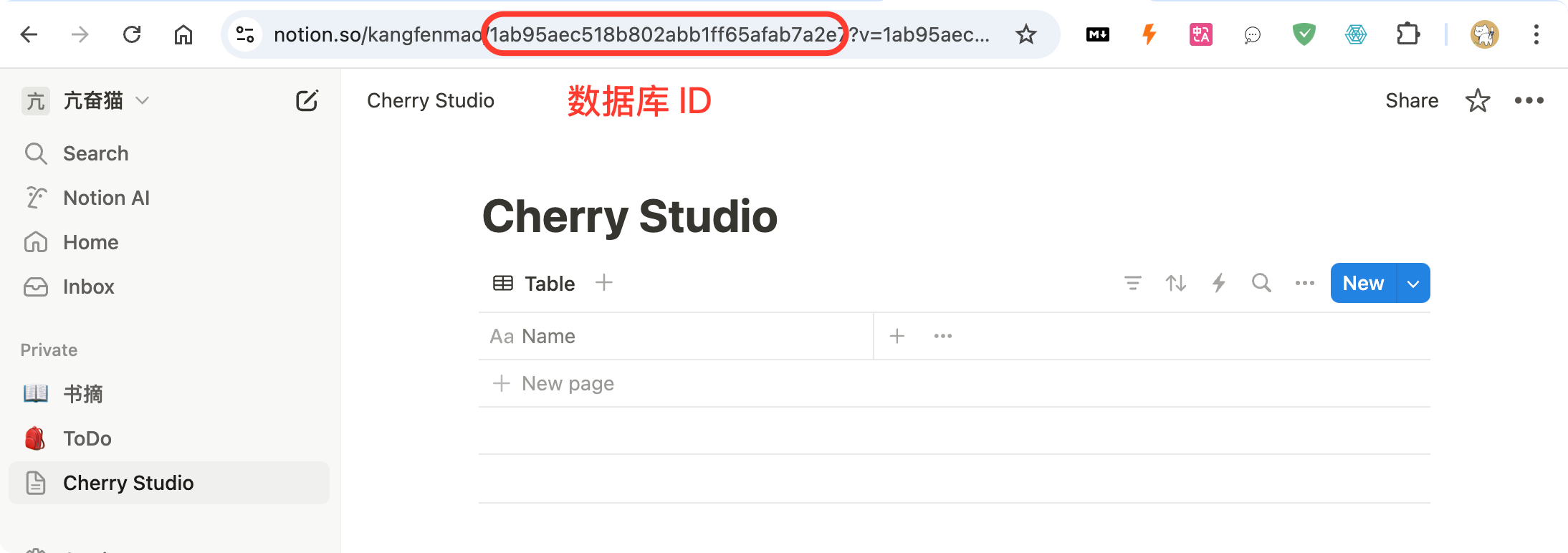
<figure><img src="https://3776196818-files.gitbook.io/~/files/v0/b/gitbook-x-prod.appspot.com/o/spaces%2F0Ut5BptC3t8CtSU1UWpM%2Fuploads%2Fgit-blob-06e7a9a7120df0dea617b252f2ac1dc3610b8362%2F%E5%A4%8D%E5%88%B6%E6%95%B0%E6%8D%AE%E5%BA%93ID.png?alt=media" alt=""><figcaption><p>データベース ID をコピー</p></figcaption></figure>

もしあなたの Notion データベースの URL が次のようになっているなら：

<https://www.notion.so/\\>\<long\_hash\_1>?v=\<long\_hash\_2>

その場合、Notion データベース ID は `<long_hash_1>` この部分は、上の Notion 設定ページに戻って入力し、チェックをクリックします。

## ステップ6

入力 `ページタイトルのフィールド名`：

ウェブ版が英語なら、次を入力します `Name`\
ウェブ版が中国語なら、次を入力します `名称`

## 第7ステップ

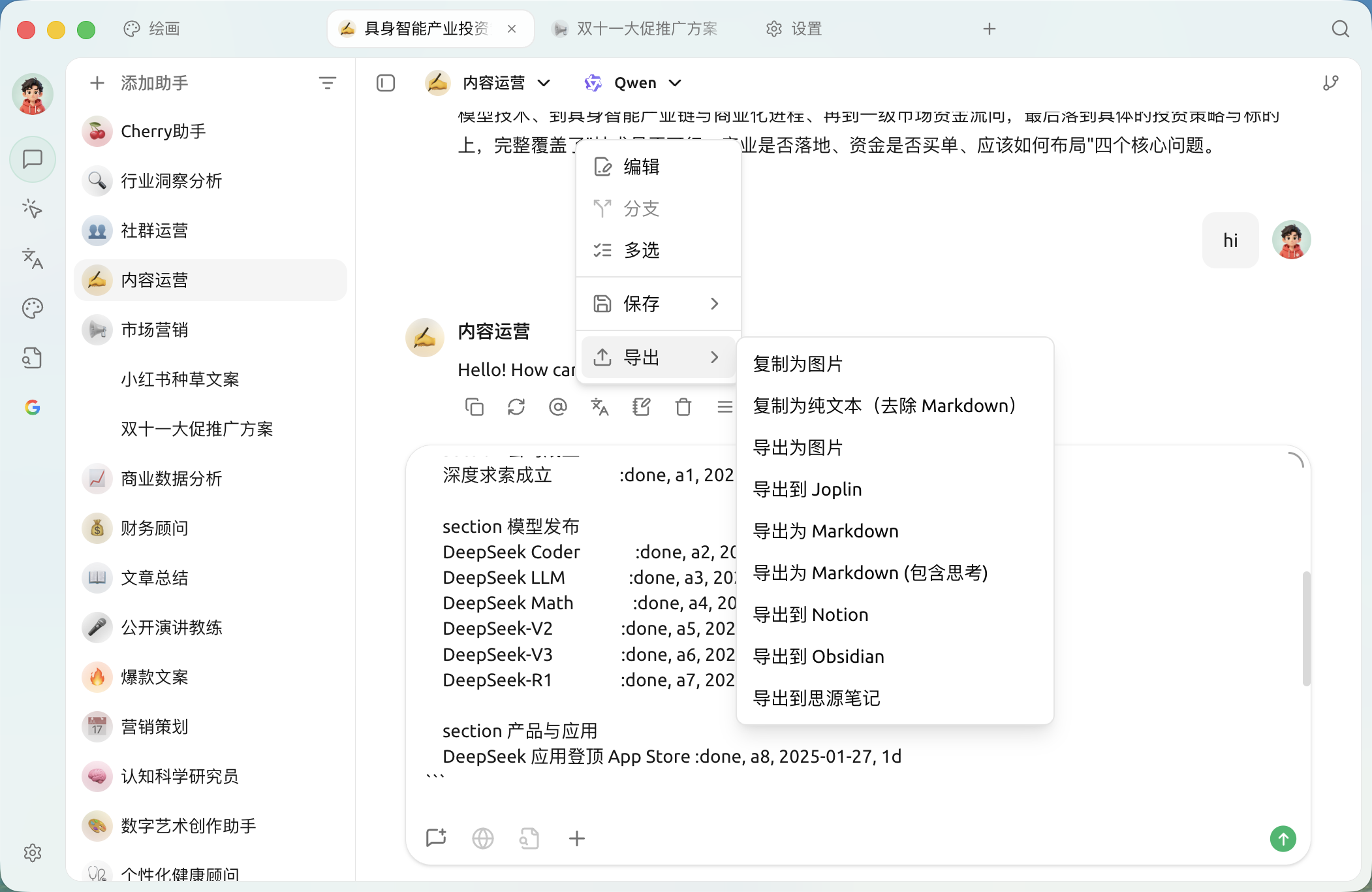
おめでとうございます、Notion の設定は完了しました ✅ 次に、Cherry Studio の内容をあなたの Notion データベースにエクスポートできます

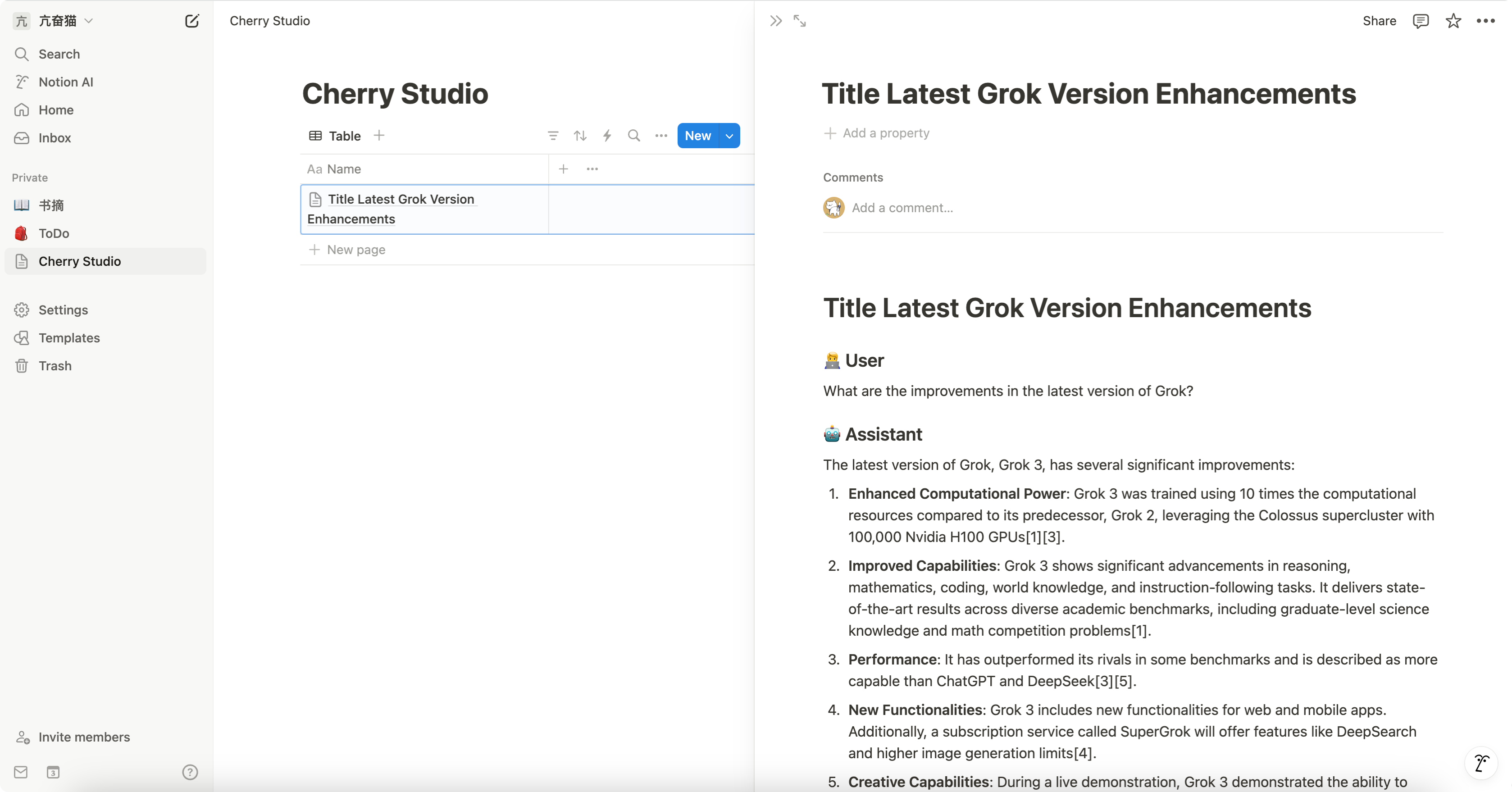
<figure><img src="https://3776196818-files.gitbook.io/~/files/v0/b/gitbook-x-prod.appspot.com/o/spaces%2F0Ut5BptC3t8CtSU1UWpM%2Fuploads%2Fgit-blob-480d15512e112d39a196a6bbf8505e738c4cc7f9%2F%E5%AF%BC%E5%87%BA.png?alt=media" alt=""><figcaption><p>Notion にエクスポート</p></figcaption></figure>

<figure><img src="https://3776196818-files.gitbook.io/~/files/v0/b/gitbook-x-prod.appspot.com/o/spaces%2F0Ut5BptC3t8CtSU1UWpM%2Fuploads%2Fgit-blob-be0261fa606139204b00232c0ebd5f7dee14396f%2F%E6%9F%A5%E7%9C%8B%E7%BB%93%E6%9E%9C.png?alt=media" alt=""><figcaption><p>エクスポート結果を確認</p></figcaption></figure>

***

### ヘルプの取得とフィードバックの送信

設定や使用中に疑問、バグ、または機能改善の提案がある場合は、 [フィードバックと提案](/docs/jp/question-contact/suggestions.md) に記載の公式チャネルをご参照ください。


---

# Agent Instructions
This documentation is published with GitBook. GitBook is the documentation platform designed so that both humans and AI agents can read, navigate, and reason over technical content effectively. Learn more at gitbook.com.

## Querying This Documentation
If you need additional information that is not directly available in this page, you can query the documentation by asking a question.

Perform an HTTP GET request on the following URL with the `ask` and `goal` query parameters:

```
GET https://docs.cherryai.com.cn/docs/jp/pre-basic/settings/data-settings/notion.md?ask=<question>&goal=<user_goal>
```

`ask` is the immediate question: it should be specific, self-contained, and written in natural language.
`goal` is what the user is ultimately trying to achieve, the reason they need the answer. Sharing it helps GitBook give you a better, more relevant answer. A goal is most helpful when it describes the outcome the user wants rather than restating the question. For example, with `ask=how do I create an API token`, a goal like `automate deployments from our CI pipeline` lets GitBook tailor the answer to that use case.

The response will contain a direct answer to the question and relevant excerpts and sources from the documentation.

Use this mechanism when the answer is not explicitly present in the current page, you need clarification or additional context, or you want to retrieve related documentation sections.