> For the complete documentation index, see [llms.txt](https://docs.cherryai.com.cn/llms.txt). Markdown versions of documentation pages are available by appending `.md` to page URLs; this page is available as [Markdown](https://docs.cherryai.com.cn/docs/jp/cherry-studio/preview/quick-assistant.md).
# クイックアシスタント
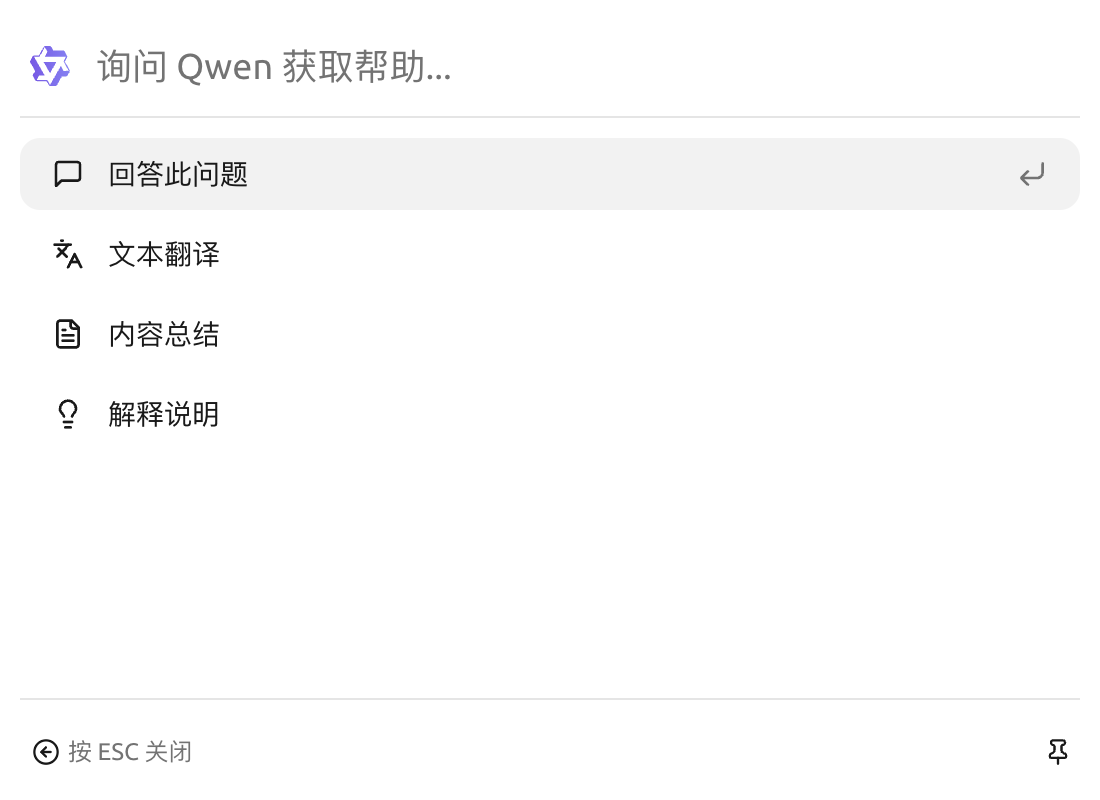
クイックアシスタントは Cherry Studio が提供する便利なツールで、どんなアプリケーションでも AI 機能に素早くアクセスでき、即時の質問、翻訳、要約、説明などを行えます。
### クイックアシスタントを有効にする
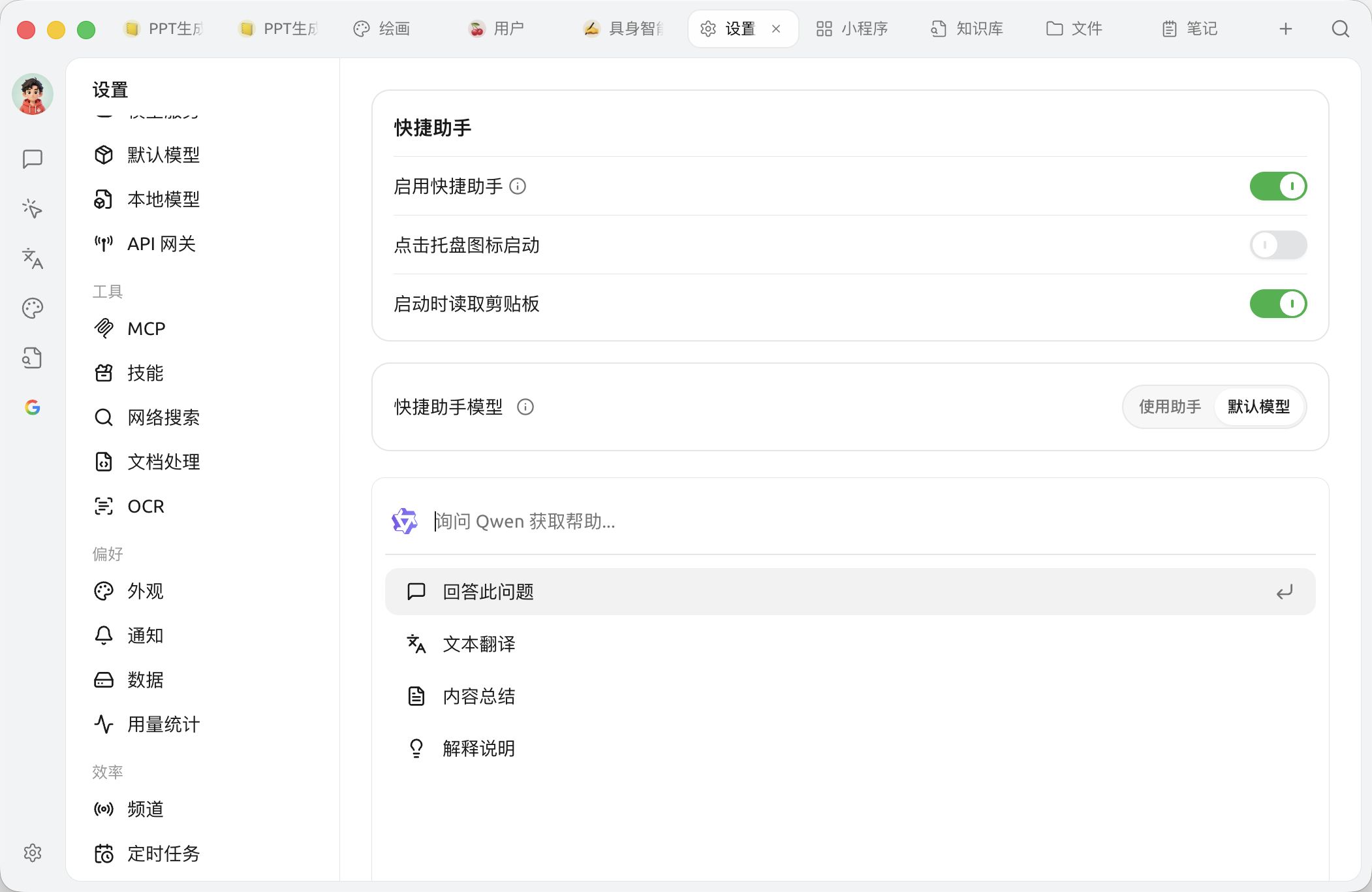
1. **設定を開く:** 【設定】→【クイックアシスタント】へ進みます(左側メニュー内)。
2. **スイッチを有効にする:** 【クイックアシスタントを有効にする】をオンにします。オンにすると、ページにさらに多くのオプションが展開されます。
{% hint style="info" %}
**クイックアシスタント vs 文字選択アシスタント**:この2つは別の機能です。
* **クイックアシスタント**:ショートカットでミニウィンドウを呼び出して能動的に質問し、現在選択している内容には依存しません。
* **選択テキスト支援**:任意のアプリ内で文字を選択した後、ツールバーで選択した文字に対して翻訳/説明/書き換えを行います。
* 設定画面はそれぞれ【設定】→【クイックアシスタント】と【設定】→【文字選択アシスタント】にあります。
{% endhint %}
3. **閉じる:** を押す ESC キー、またはクイックアシスタントウィンドウの外側をクリックすると閉じられます。
{% hint style="info" %}
【クイックアシスタントモデル】で【デフォルトモデル】を選択した場合に使用 [グローバル既定の高速モデル](/docs/jp/pre-basic/settings/default-models.md);【アシスタントを使用】を選ぶと、既存のアシスタントを応答用モデルとして指定できます。
{% endhint %}
### ヒントとコツ
* **ショートカットの競合:** 既定のショートカットが他のアプリケーションと競合する場合は、ショートカットを変更してください。
* **さらに機能を探す:** ドキュメントで触れられている機能以外にも、クイックアシスタントはコード生成、スタイル変換など、ほかの操作をサポートしている場合があります。使いながらぜひいろいろ試してみてください。
* **フィードバックと改善:** 使用中に問題が発生した場合や改善提案がある場合は、速やかに Cherry Studio チームへ [フィードバックしてください](/docs/jp/question-contact/suggestions.md)。
***
### ヘルプの取得とフィードバックの送信
設定または使用中に不明点、バグ、機能改善の提案がある場合は、 [フィードバックと提案](/docs/jp/question-contact/suggestions.md) に記載の公式チャネルをご参照ください。
---
# Agent Instructions
This documentation is published with GitBook. GitBook is the documentation platform designed so that both humans and AI agents can read, navigate, and reason over technical content effectively. Learn more at gitbook.com.
## Querying This Documentation
If you need additional information that is not directly available in this page, you can query the documentation dynamically by asking a question.
Perform an HTTP GET request on the current page URL with the `ask` query parameter, and the optional `goal` query parameter:
```
GET https://docs.cherryai.com.cn/docs/jp/cherry-studio/preview/quick-assistant.md?ask=&goal=
```
`ask` is the immediate question: it should be specific, self-contained, and written in natural language.
`goal` is optional and describes the broader end goal you are ultimately trying to accomplish on behalf of the user. GitBook uses it to tailor the answer towards what is most useful for that goal.
The response will contain a direct answer to the question and relevant excerpts and sources from the documentation.
Use this mechanism when the answer is not explicitly present in the current page, you need clarification or additional context, or you want to retrieve related documentation sections.