> For the complete documentation index, see [llms.txt](https://docs.cherryai.com.cn/llms.txt). Markdown versions of documentation pages are available by appending `.md` to page URLs; this page is available as [Markdown](https://docs.cherryai.com.cn/docs/jp/cherry-studio/preview/app.md).

# ミニプログラム

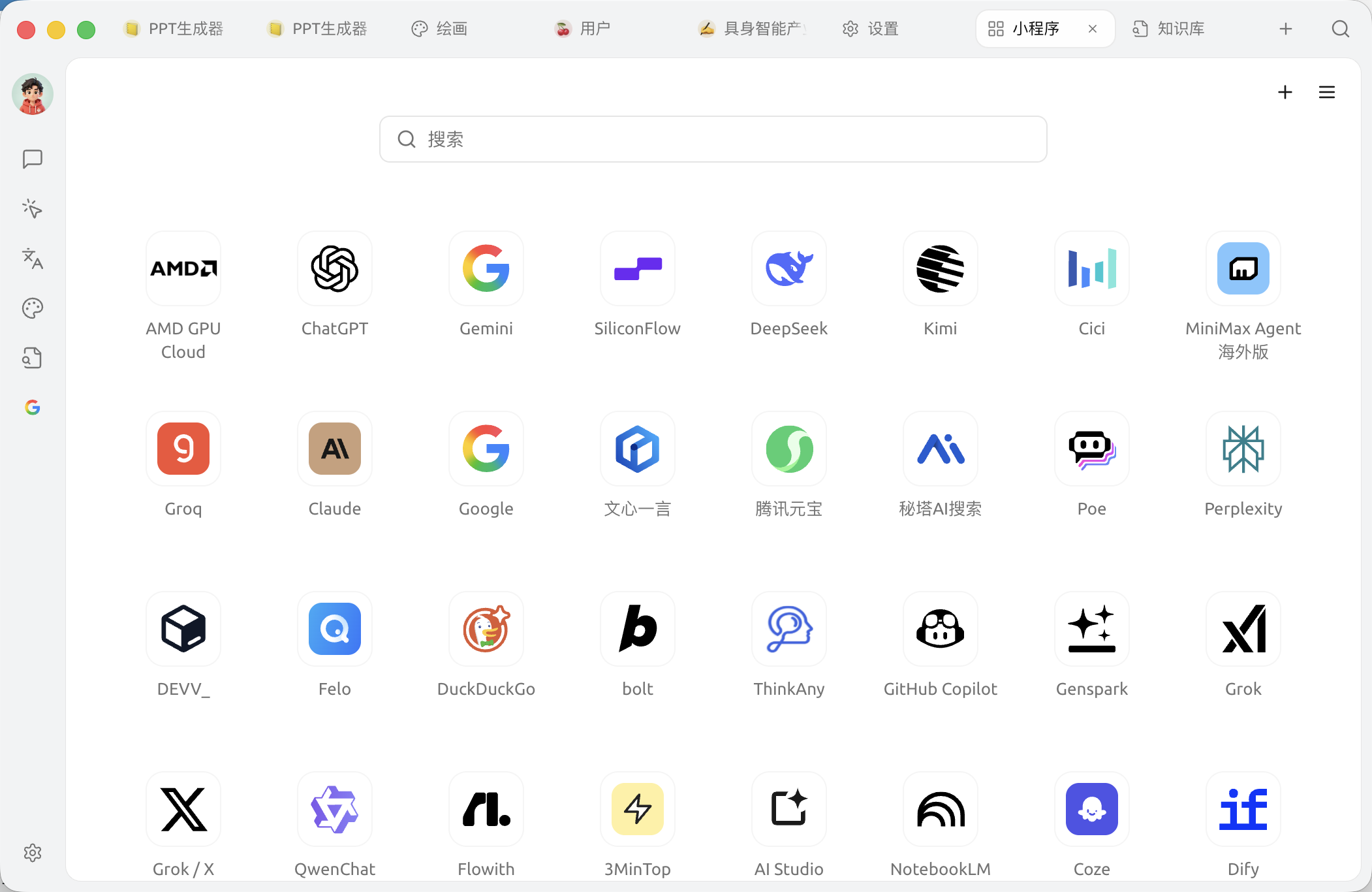
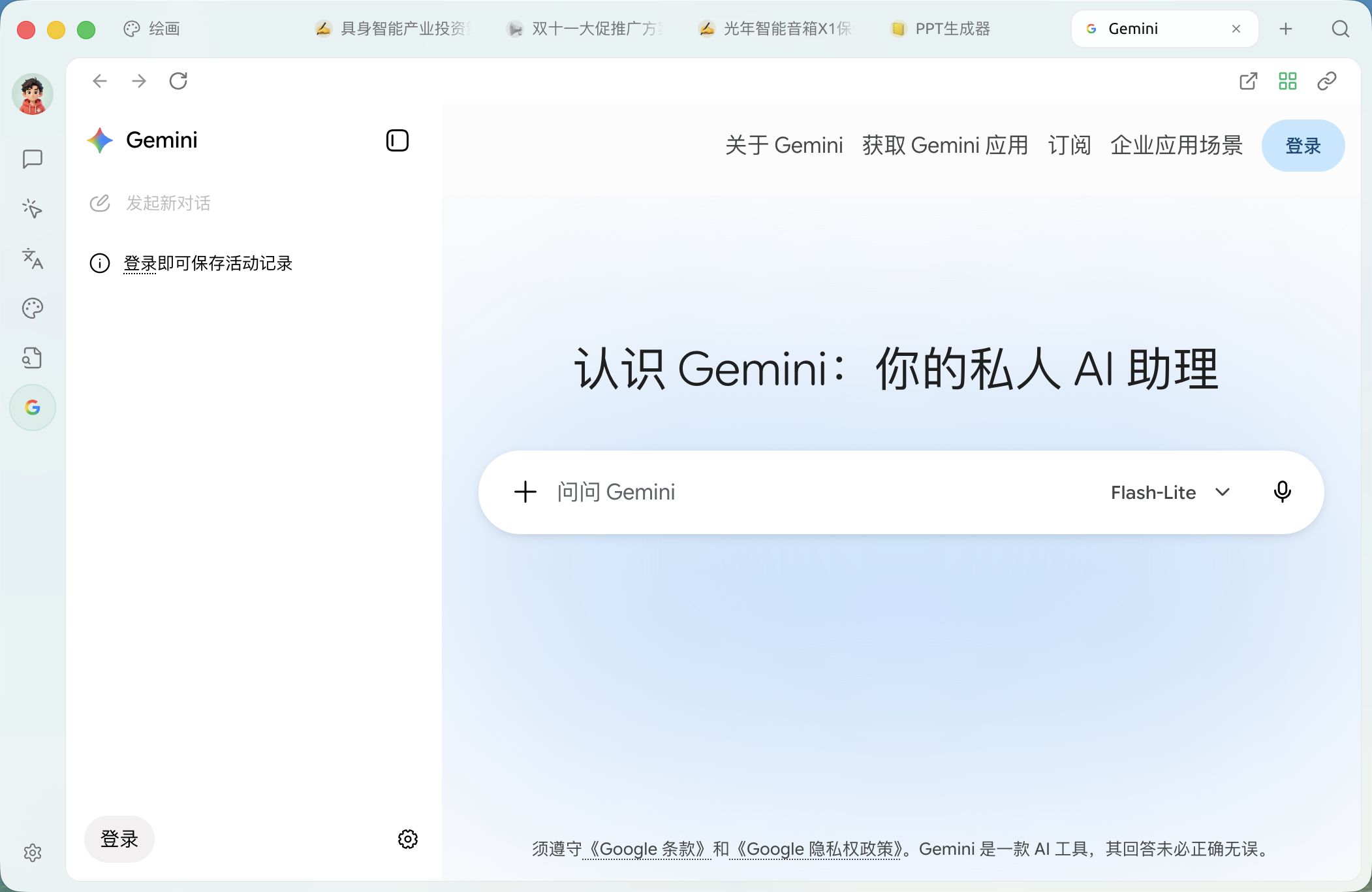
ミニプログラムページ（上部Tab `+` に進み **ランチャー** をクリック → `ミニアプリ`）は、クライアントのネイティブウィンドウとして各社AIベンダーのWeb版（例：ChatGPT、Claude、文心一言、Kimi など）を開き、Cherry Studio から離れずに異なるモデルのWeb体験を切り替えられます。

### ミニプログラムに入る

1. 上部のタブバーをクリック `+` または直接開く **ランチャー**
2. クリック `ミニアプリ` アプリアイコン
3. ミニプログラムのグリッドで開きたいサービスを選択する

<figure><img src="/files/ae48ca37b88f4830860e2faa084d7ba63f3beb6d" alt=""><figcaption><p>ミニプログラムのグリッド。40以上のサービスを内蔵；末尾の`カスタム`で任意のWebページを追加できます</p></figcaption></figure>

ページ上部に **検索ボックス** と **設定（⚙️）** への入口があり、リストの末尾に `カスタマイズ` 任意のWebページを追加するためのものです。

### 設定

Cherry Studio のミニプログラム設定では以下の操作が可能です：

* **ミニプログラムを表示 / 非表示**：ミニプログラムを左右にドラッグして2つの領域へ移動し、表示/非表示を制御できます
* **ミニプログラムを並べ替え**：上下にドラッグしてミニプログラムを並べ替えられます
* **ミニプログラム領域のフィルタ**：選択に応じて、アクセスできないミニプログラムを自動的に非表示にします
* **ミニプログラムのキャッシュ数**：同時に開いているミニプログラム数がこの数を超えると、一部のミニプログラムは非アクティブ状態になります

### カスタマイズと管理

Cherry Studio のミニプログラムでは以下の操作が可能です：

* **ランチパッドに追加**：よく使うミニプログラムをランチパッドに追加して、 `+` への入口からすばやく開けるようにします。で管理できます。または `設定 → ミニプログラム` で管理するか、ミニプログラムのアイコンを右クリックして **ランチパッドに追加**
* **常駐（Keep Alive）**：ミニプログラムのウィンドウを切り替えてもすぐには破棄せず、再度開くときに再ログインや再読み込みが不要になります
* **カスタムWebページを追加**：リスト末尾の `カスタマイズ` アイコンをクリックし、名前、URL、アイコンを入力すればグリッドに追加できます
* **削除 / 編集**：各ミニプログラムアイコンを右クリックするだけです

### ヒントとコツ

* ミニプログラムは各サービスの**Web版**、ログイン状態、Cookie、設定はすべてローカルに保存され、システムブラウザとは分離されています
* あるミニプログラムの読み込みに失敗した場合は、右クリック → 再読み込み、またはプロキシ設定を確認してください（参考 [一般設定](/docs/jp/pre-basic/settings/general.md)）
* 現在、ミニプログラムと会話パネルはまだ連携していません。AIにミニプログラム内の内容を読み取らせる必要がある場合は、手動でコピーするかスクリーンショットを撮ってください

問題が発生した場合は、 [フィードバックと提案](/docs/jp/question-contact/suggestions.md) でフィードバックを送信してください。

***

### 💡 ヘルプの取得とフィードバックの送信

設定や使用の過程で疑問、Bug、機能改善の提案がある場合は、 [フィードバックと提案](/docs/jp/question-contact/suggestions.md) に記載の公式チャネルをご参照ください。


---

# Agent Instructions
This documentation is published with GitBook. GitBook is the documentation platform designed so that both humans and AI agents can read, navigate, and reason over technical content effectively. Learn more at gitbook.com.

## Querying This Documentation
If you need additional information that is not directly available in this page, you can query the documentation dynamically by asking a question.

Perform an HTTP GET request on the current page URL with the `ask` query parameter, and the optional `goal` query parameter:

```
GET https://docs.cherryai.com.cn/docs/jp/cherry-studio/preview/app.md?ask=<question>&goal=<endgoal>
```

`ask` is the immediate question: it should be specific, self-contained, and written in natural language.
`goal` is optional and describes the broader end goal you are ultimately trying to accomplish on behalf of the user. GitBook uses it to tailor the answer towards what is most useful for that goal.

The response will contain a direct answer to the question and relevant excerpts and sources from the documentation.

Use this mechanism when the answer is not explicitly present in the current page, you need clarification or additional context, or you want to retrieve related documentation sections.