> For the complete documentation index, see [llms.txt](https://docs.cherryai.com.cn/llms.txt). Markdown versions of documentation pages are available by appending `.md` to page URLs; this page is available as [Markdown](https://docs.cherryai.com.cn/docs/jp/advanced-basic/cases/brand-image-kit.md).
# ブランド用画像セット
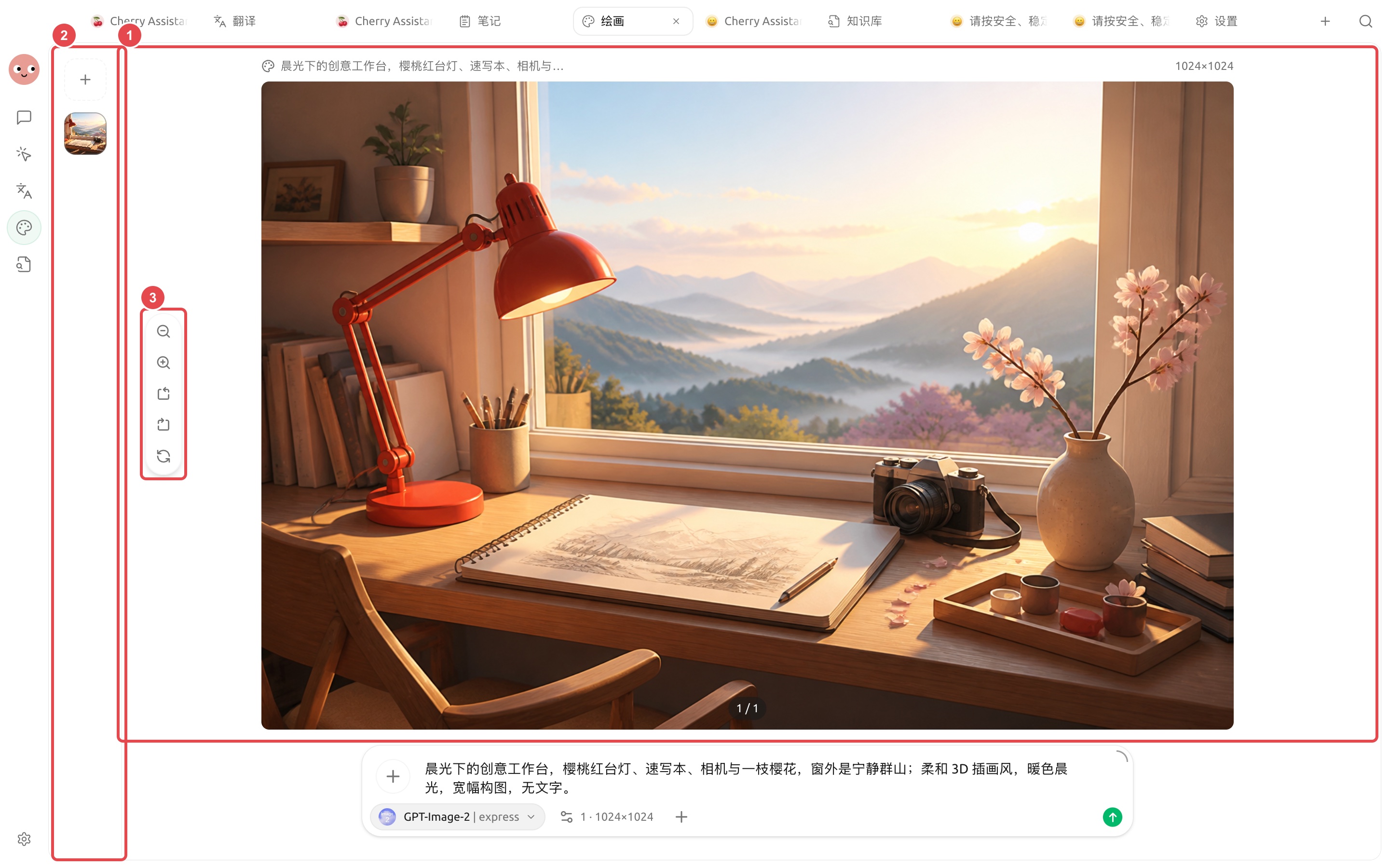
コンテンツチームは、同じイベント向けに横長・正方形・縦長の配図を制作し、主体、トーン、ブランドルールを統一しておく必要があります。まずメインビジュアルを決めてからサイズ展開するほうが、各画像を最初から生成するより一貫性を保ちやすいです。
## 準備する素材
* コンテンツのテーマと使用プラットフォーム;
* 使用許可のあるブランドカラーと参考画像;
* 表示してはいけない文字、ロゴ、要素;
* 3種類の画像比率と余白要件。
## 操作手順
{% stepper %}
{% step %}
### 1. Agent に視覚的な方向性を整理させる
記事やイベント説明を作業ディレクトリに入れ、Agent には主体、シーン、色調、画角、余白の提案だけを出力させ、まずは画像を生成しないようにします。
{% endstep %}
{% step %}
### 2. 【描画】でメインビジュアルを検証する
適切なテンプレートとモデルを選び、まず横長の小サンプルを生成します。製品の見た目、人物の細部、ブランド面のリスクを確認します。
{% endstep %}
{% step %}
### 3. 参考画像を使ってサイズを展開する
メインビジュアルを決めたら、それを参考にして正方形と縦長をそれぞれ生成します。毎回、必ず保持する主体と調整可能な構図を明記します。
{% endstep %}
{% step %}
### 4. 部分修正して強化する
問題のある部分にのみ編集またはマスクを使用し、最終版で強化を行います。ファイル名には用途と比率を含め、混同を避けます。
{% endstep %}
{% endstepper %}
## 結果確認
* 3枚の画像のトーンと主体が一致している;
* モデル生成の誤字が含まれていない;
* ブランドロゴ、人物、機密情報が意図せず表示されていない;
* サイズが公開プラットフォームの要件を満たしている;
* 参考画像の使用許可を得ている。
## 推奨の組み合わせと完成基準
| 項目 | 推奨方法 |
| ------- | ---------------------------------------------------- |
| 描画モデル | まず Agent でサンプル画像を1枚生成して接続を確認し、その後描画テンプレートを保存します |
| 入力素材 | ブランドカラー、フォント、サイズ、参考画像、禁止要素を同じプロジェクトディレクトリにまとめます |
| 一括生成の方法 | まず1枚を確認してから、同シリーズの画像を生成します |
| 完成基準 | サイズが正しく、文字が読みやすく、ブランド要素が統一され、余計な表示がなく、元の参考画像も保持されている |
記事の表紙、SNS用の配図、イベント素材に適しています。正確なレイアウトが必要な最終ポスターは、デザインツールで最終校正することをおすすめします。
{% hint style="info" %}
Agent の会話内で直接画像を出力したい場合は、まず全体設定の【描画モデル】を構成し、Agent の【画像生成】ツールを有効にします。細かな編集が必要な場合は、引き続き【描画】ページに戻ることをおすすめします。
{% endhint %}
---
# Agent Instructions
This documentation is published with GitBook. GitBook is the documentation platform designed so that both humans and AI agents can read, navigate, and reason over technical content effectively. Learn more at gitbook.com.
## Querying This Documentation
If you need additional information that is not directly available in this page, you can query the documentation dynamically by asking a question.
Perform an HTTP GET request on the current page URL with the `ask` query parameter, and the optional `goal` query parameter:
```
GET https://docs.cherryai.com.cn/docs/jp/advanced-basic/cases/brand-image-kit.md?ask=&goal=
```
`ask` is the immediate question: it should be specific, self-contained, and written in natural language.
`goal` is optional and describes the broader end goal you are ultimately trying to accomplish on behalf of the user. GitBook uses it to tailor the answer towards what is most useful for that goal.
The response will contain a direct answer to the question and relevant excerpts and sources from the documentation.
Use this mechanism when the answer is not explicitly present in the current page, you need clarification or additional context, or you want to retrieve related documentation sections.