> For the complete documentation index, see [llms.txt](https://docs.cherryai.com.cn/llms.txt). Markdown versions of documentation pages are available by appending `.md` to page URLs; this page is available as [Markdown](https://docs.cherryai.com.cn/docs/en-us/pre-basic/settings/websearch.md).

# Online Mode

{% hint style="info" %}
The online mode lets the AI search for the latest content before answering, which is suitable for the following scenarios:

* **Time-sensitive information**: news, prices, exchange rates, etc. from today / this week / just now
* **Real-time data**: dynamic values such as weather, stock prices, and product inventory
* **Emerging knowledge**: newly emerged tools, concepts, and technologies
  {% endhint %}

## How to enable online mode

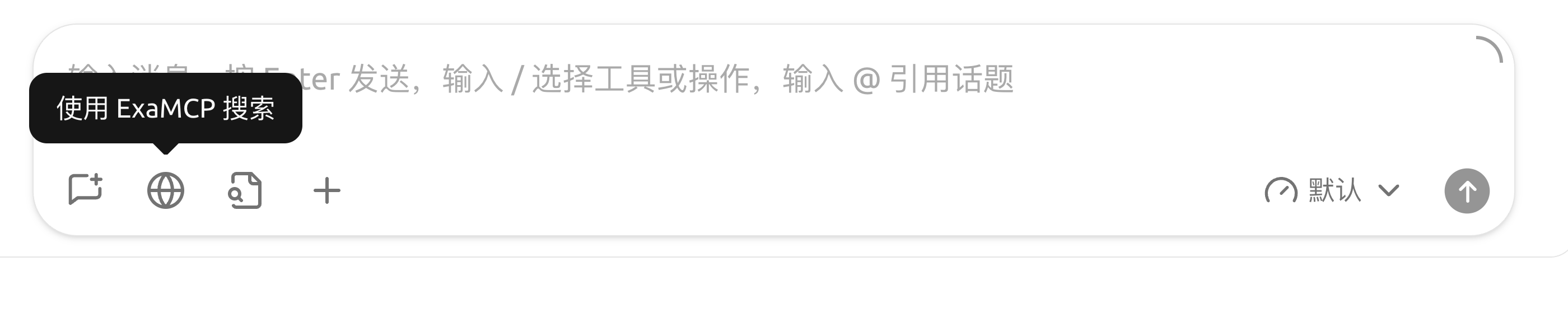
Click 🌐 in the toolbar of the chat input box **globe** icon to enable online mode for the current conversation.

<figure><img src="/files/afb7f35a2225225bd23d37176fbb6929cad376c1" alt=""><figcaption><p>The globe icon in the chat input bar: click it to enable online mode for the current conversation (the prompt will show the current search service provider)</p></figcaption></figure>

**Ready to use out of the box**: Cherry Studio already has built-in **Exa MCP** as the search service provider,**no API key configuration is required**(using the public MCP endpoint `mcp.exa.ai`), and the default URL fetching provider is **Jina**. So after installation, you can click 🌐 to search online directly.

## Whether it uses the configured service or the model's built-in

path for online access is determined by the “Prefer configured search service” toggle; it **is enabled by default**:

* **On (default)**: clicking 🌐 will use the service you configured in `Settings → Web Search` — initially, this is the key-free Exa MCP.
* **Disable**: if the model itself **natively includes search**(there is a small globe icon 🌐 next to the model name), then the model handles online access itself.

For native online support, refer to the 🌐 icon next to the model name; do not rely on a fixed model list. Common current cases include:

* **DeepSeek**: models that support this capability can use native web search;
* **OpenRouter**: chat models can use native web search and URL content retrieval;
* **Alibaba Cloud Bailian**: models that support this capability can use native web search, and some Qwen models also support URL content retrieval;
* Some models from providers such as Google Gemini, Zhipu AI, and xAI Grok also support native online access.

Model capabilities vary by provider. When choosing a model, look for the 🌐 icon; if there is no icon, using the configured search service is safer.

{% hint style="info" %}
A few models can still go online even without showing the small globe icon (depending on provider configuration). For example [Volcengine online access integration](/docs/en-us/pre-basic/settings/websearch/volcengine.md) describes one such case.
{% endhint %}

## Configure services in Settings

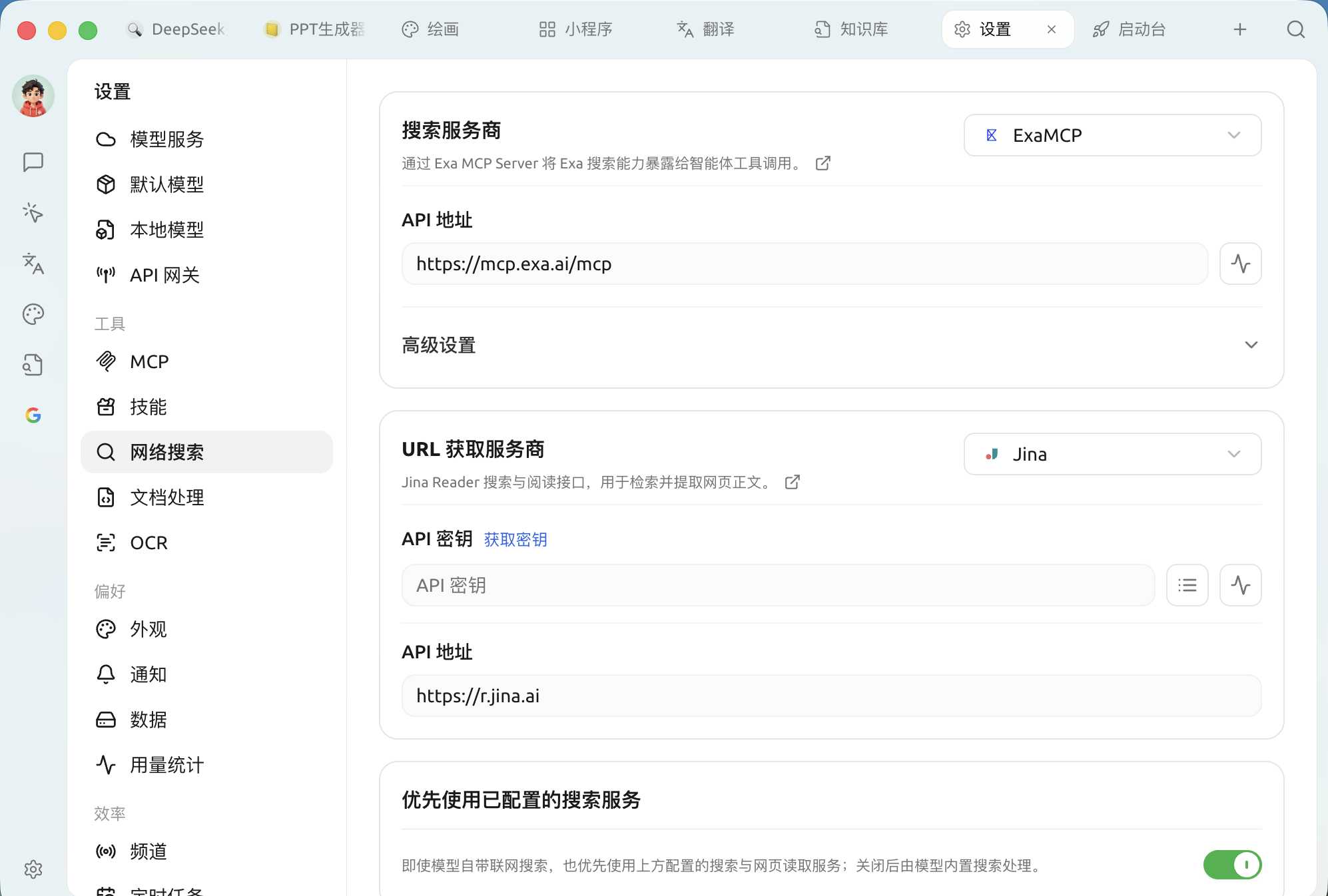
After opening `Settings → Web Search`, configuration is split into two parts, and each part uses a dropdown to choose the service provider,**the selected one will serve as the default for that capability**:

| section                | Effect                                                                                 |
| ---------------------- | -------------------------------------------------------------------------------------- |
| **Search provider**    | Search web pages based on your question and return summary results                     |
| **URL fetch provider** | Fetch the main text of a webpage from a specified URL to supplement the search results |

<figure><img src="/files/70acb891d2b40c7d079746b441bd08b126bd5edb" alt=""><figcaption><p>Web search settings: the two sections, Search provider / URL fetch provider, and the bottom “Prefer configured search service” toggle</p></figcaption></figure>

### Built-in providers

The following services are built in, divided into **API** and **MCP** two types:

| service       | Type | Capability         | Explanation                                                                          |
| ------------- | ---- | ------------------ | ------------------------------------------------------------------------------------ |
| **Exa MCP**   | MCP  | Search             | **By default**, ready to use without an API key                                      |
| **Tavily**    | API  | Search             | A search engine optimized for LLMs                                                   |
| **Bocha**     | API  | Search             | A Chinese search API for AI scenarios, with real-time web pages + structured results |
| **Exa**       | API  | Search             | Neural search designed for AI applications, good at semantic retrieval               |
| **Zhipu**     | API  | Search             | Zhipu GLM Web Search, online search and real-time information                        |
| **Querit**    | API  | Search             | A web retrieval service for AI applications                                          |
| **SearXNG**   | API  | Search             | A free, self-hostable metasearch engine                                              |
| **Firecrawl** | API  | Search             | Web crawling and search, can convert results to Markdown                             |
| **Jina**      | API  | Search · URL fetch | Jina Reader; also the **default URL fetch provider**                                 |
| **Fetch**     | API  | URL fetch          | Built-in URL fetching, retrieves the main text from a specified URL                  |

> Besides the default **Exa MCP**(key-free), most API providers require their own API keys;**SearXNG** enter a self-hosted address,**Fetch** is built in and requires no configuration.

### Advanced settings

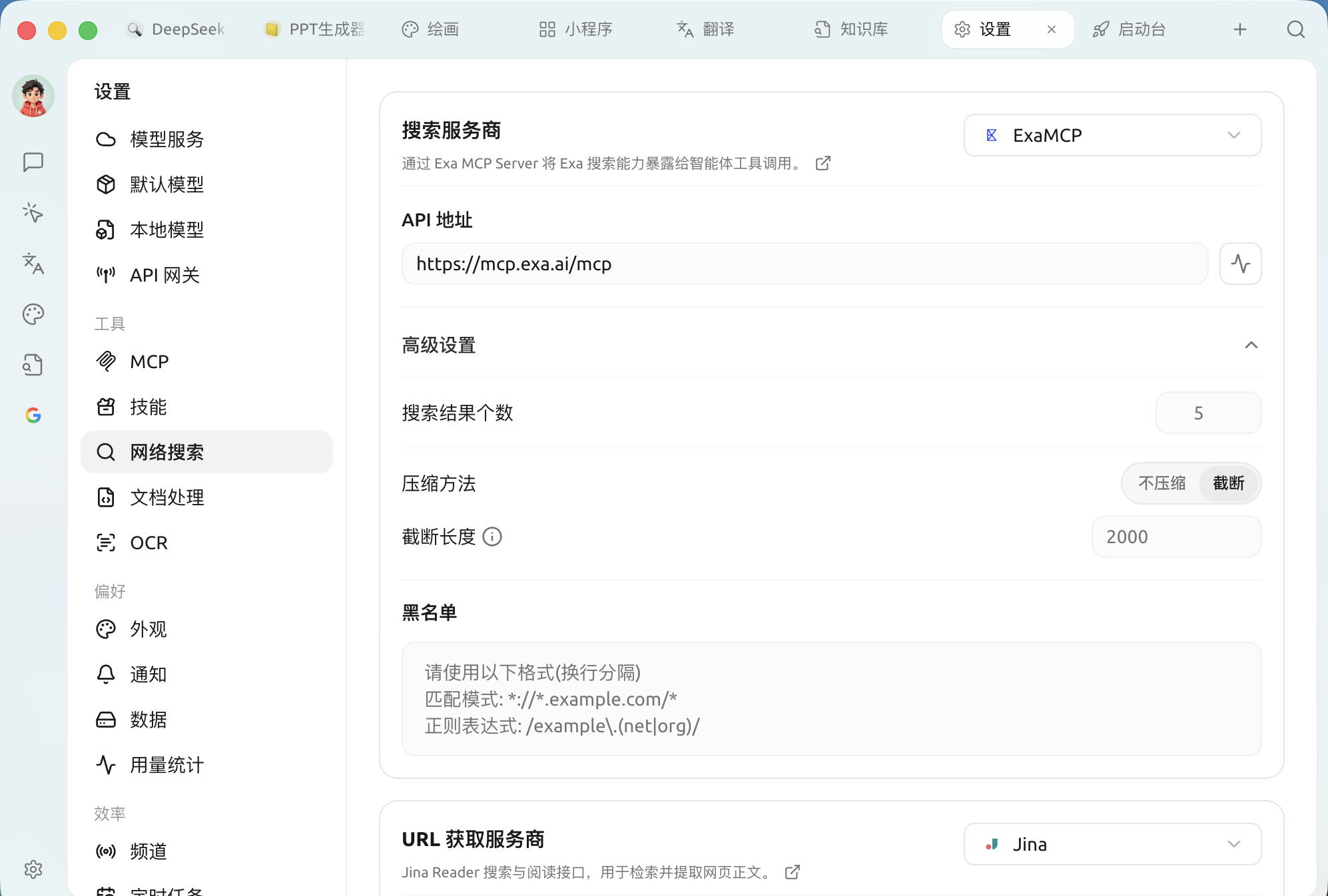
* **Number of search results**: how many items to return per request (default 5, maximum 100). If compression is not enabled, a larger number will consume more tokens.
* **Search result compression**: compress the returned content before feeding it to the model to save tokens. The default is “truncation,” with a default truncation length of 2000 characters; you can also switch to “no compression” or adjust the truncation length.
* **Search result blocklist**: block websites you don't want to appear; see [Web search blocklist configuration](/docs/en-us/pre-basic/settings/websearch/blacklist.md).

<figure><img src="/files/d368e4e660800a2dc52c7b688beaca20a64aadf8" alt=""><figcaption><p>Advanced settings: number of search results, compression method (no compression / truncation), blocklist</p></figcaption></figure>

## Related configuration

The default Exa MCP can be used without an API key; if you want to switch to other services or dive into advanced configuration, see the articles below:

* [Free online mode](/docs/en-us/pre-basic/settings/websearch/free-search.md) — use search capabilities without spending money
* [Tavily online login and registration tutorial](/docs/en-us/pre-basic/settings/websearch/tavily.md) — how to register and obtain a key when switching to Tavily
* [SearXNG local deployment and configuration](/docs/en-us/pre-basic/settings/websearch/searxng.md) — self-hosted, fully local
* [Web search blocklist configuration](/docs/en-us/pre-basic/settings/websearch/blacklist.md) — block unwanted websites

## How it works

No matter which method is used, the conversation flow is:

1. You ask, “How's the weather in Shanghai today?”
2. Cherry Studio first sends the question to the search service
3. The search service returns relevant webpage summaries
4. Cherry Studio adds these summaries to the prompt and sends them to the AI model
5. The AI answers you based on real-time data

***

### Get help and submit feedback

If you encounter any questions, bugs, or have suggestions for feature improvements during configuration or use, please refer to [Feedback and Suggestions](/docs/en-us/question-contact/suggestions.md) for the official channels provided.


---

# Agent Instructions
This documentation is published with GitBook. GitBook is the documentation platform designed so that both humans and AI agents can read, navigate, and reason over technical content effectively. Learn more at gitbook.com.

## Querying This Documentation
If you need additional information that is not directly available in this page, you can query the documentation dynamically by asking a question.

Perform an HTTP GET request on the current page URL with the `ask` query parameter, and the optional `goal` query parameter:

```
GET https://docs.cherryai.com.cn/docs/en-us/pre-basic/settings/websearch.md?ask=<question>&goal=<endgoal>
```

`ask` is the immediate question: it should be specific, self-contained, and written in natural language.
`goal` is optional and describes the broader end goal you are ultimately trying to accomplish on behalf of the user. GitBook uses it to tailor the answer towards what is most useful for that goal.

The response will contain a direct answer to the question and relevant excerpts and sources from the documentation.

Use this mechanism when the answer is not explicitly present in the current page, you need clarification or additional context, or you want to retrieve related documentation sections.