> For the complete documentation index, see [llms.txt](https://docs.cherryai.com.cn/llms.txt). Markdown versions of documentation pages are available by appending `.md` to page URLs; this page is available as [Markdown](https://docs.cherryai.com.cn/docs/en-us/pre-basic/settings/ocr.md).

# OCR

OCR (Optical Character Recognition, optical character recognition) is responsible for converting **the text in images into copyable text that AI can read**. The following all depend on it:

* Drag a screenshot/scanned document into the chat box and want AI to understand the text inside
* Put image-format invoices and materials into [Knowledge base](/docs/en-us/knowledge-base/knowledge-base.md)and hope to be able to search for them later
* [agent](/docs/en-us/cherry-studio/preview/agent.md) Open a local image for analysis

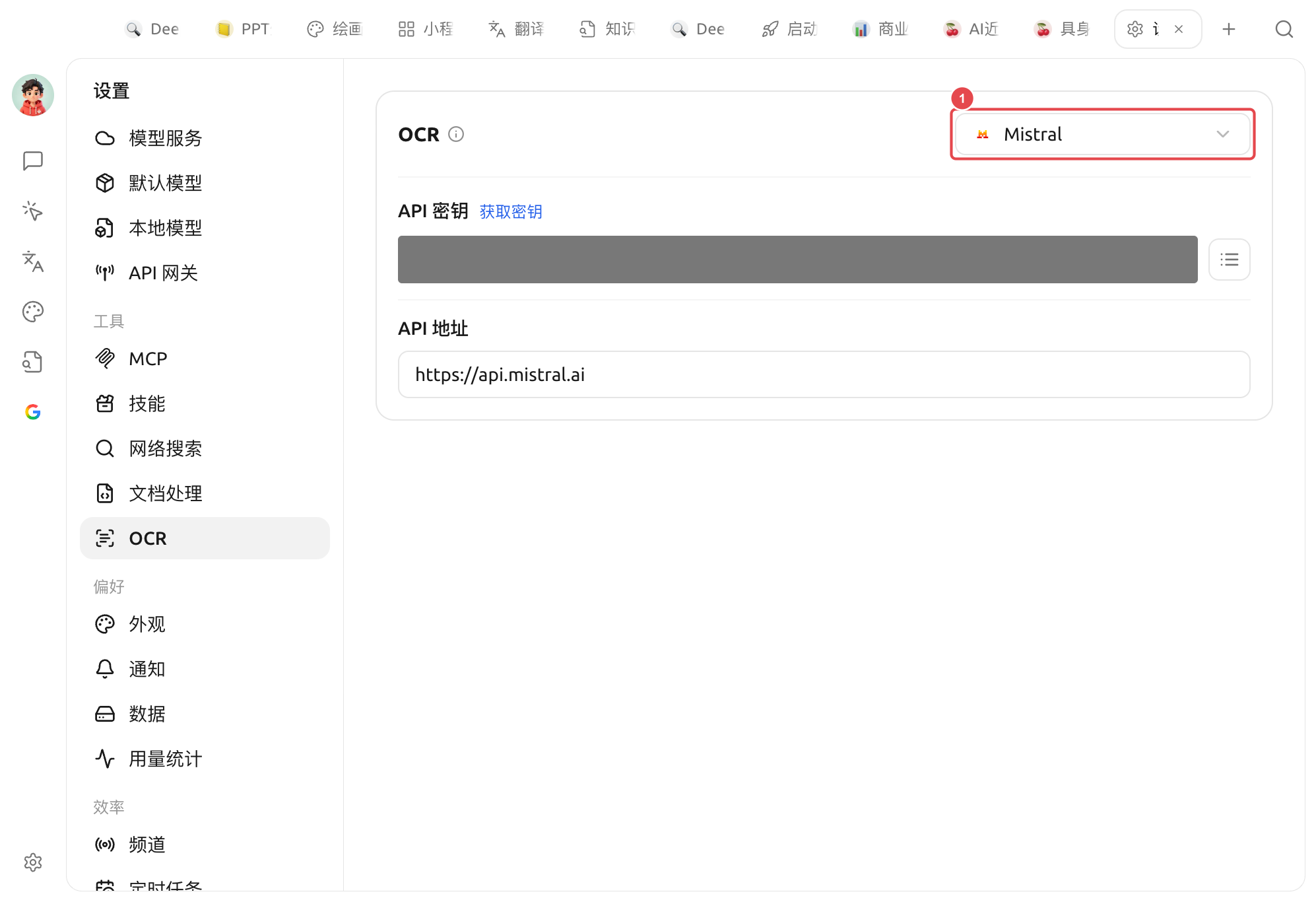
OCR is a separate settings page. In 【Settings】→【OCR】, configure the recognition engine once, and all places that use image text recognition will use the same configuration.

<figure><img src="/files/b982f009edf4ffff1acf0e75de60ea7849d9b684" alt=""><figcaption><p>OCR settings: ① Use the dropdown in the top-right corner to select the recognition engine (the illustration shows Mistral). Fill in the selected engine's API key and API address below</p></figcaption></figure>

### Select recognition engine

The dropdown in the panel's top-right corner is used to switch OCR engines,**the selected engine will be used as the default**. Built-in engines:

| engine              | Integration / operation method                                                                                                                                              | Who it's for                                                                                                                           |
| ------------------- | --------------------------------------------------------------------------------------------------------------------------------------------------------------------------- | -------------------------------------------------------------------------------------------------------------------------------------- |
| **System OCR**      | Offline, no configuration required                                                                                                                                          | Borrow the system's built-in recognition (macOS Live Text / Windows OCR), out of the box and fastest                                   |
| **PaddleOCR**       | Fill in API key ([PaddlePaddle Star River Community](https://aistudio.baidu.com/paddleocr/)); if self-hosted, point the API address to your service. Optional parsing model | Don't want to use local resources, but want Paddle's recognition results                                                               |
| **Local PaddleOCR** | Offline, you need to first download the local OCR model (about 140 MB) in 【Settings】→【Local Models】                                                                         | Good Chinese recognition and runs fully on the local machine, privacy first                                                            |
| **Tesseract OCR**   | Offline, built-in                                                                                                                                                           | Classic open-source OCR, supports multiple languages, can be used as a fallback                                                        |
| **Mistral**         | Mistral API key                                                                                                                                                             | Recognition powered by multimodal large models, smarter for complex layouts / handwriting, etc.                                        |
| **Intel OV OCR**    | Runs locally (Intel OpenVINO, NPU acceleration)                                                                                                                             | **Only appears on Windows + Intel Core Ultra (with NPU), and when the OV model has been deployed**other devices will not see this item |

{% hint style="success" %}
Not sure which to choose? Start with **System OCR**—Most screenshots and clear scans can be handled directly, with no configuration required. If the recognition results are unsatisfactory, switch to Local PaddleOCR or Mistral.
{% endhint %}

When System OCR is selected, the panel will show <mark style="color:green;">Detected available macOS Live Text / Windows OCR engine</mark>(If the system doesn't support it, this item will not appear in the dropdown.)

{% hint style="warning" %}

* Before selecting 'Local PaddleOCR', please first download the 'Local OCR Model' in 【Settings】→【Local Models】, otherwise it cannot be called.
* **Tesseract**(and System OCR on Windows) can select the languages to recognize in the panel's 'Language' dropdown.
  {% endhint %}

### Difference from document processing

Many people confuse OCR and [Document processing](/docs/en-us/pre-basic/settings/doc-process.md) document processing,

* **OCR**: handles **images / scans** text recognition in images (image → text).
* **Document processing**: handles **PDF / complex-layout documents** structured parsing of documents (PDFs with tables and multiple columns → clean text).

The two are independent and configured separately. Pure text PDFs,`.md`/`.txt`/`.docx` text paragraphs in documents don't go through either; just read them directly.

***

### Get help and submit feedback

If you encounter any questions, bugs, or have suggestions for feature improvements during configuration or use, please refer to [Feedback and Suggestions](/docs/en-us/question-contact/suggestions.md) for the official channels provided.


---

# Agent Instructions
This documentation is published with GitBook. GitBook is the documentation platform designed so that both humans and AI agents can read, navigate, and reason over technical content effectively. Learn more at gitbook.com.

## Querying This Documentation
If you need additional information that is not directly available in this page, you can query the documentation dynamically by asking a question.

Perform an HTTP GET request on the current page URL with the `ask` query parameter, and the optional `goal` query parameter:

```
GET https://docs.cherryai.com.cn/docs/en-us/pre-basic/settings/ocr.md?ask=<question>&goal=<endgoal>
```

`ask` is the immediate question: it should be specific, self-contained, and written in natural language.
`goal` is optional and describes the broader end goal you are ultimately trying to accomplish on behalf of the user. GitBook uses it to tailor the answer towards what is most useful for that goal.

The response will contain a direct answer to the question and relevant excerpts and sources from the documentation.

Use this mechanism when the answer is not explicitly present in the current page, you need clarification or additional context, or you want to retrieve related documentation sections.
