> For the complete documentation index, see [llms.txt](https://docs.cherryai.com.cn/llms.txt). Markdown versions of documentation pages are available by appending `.md` to page URLs; this page is available as [Markdown](https://docs.cherryai.com.cn/docs/en-us/pre-basic/settings/notification.md).
# Notifications
Notification Settings Control **How the app notifies you when it runs in the background**. When you switch to another window to work, Cherry Studio can pop up system notifications when key events are completed, so you don't have to wait around or miss results.
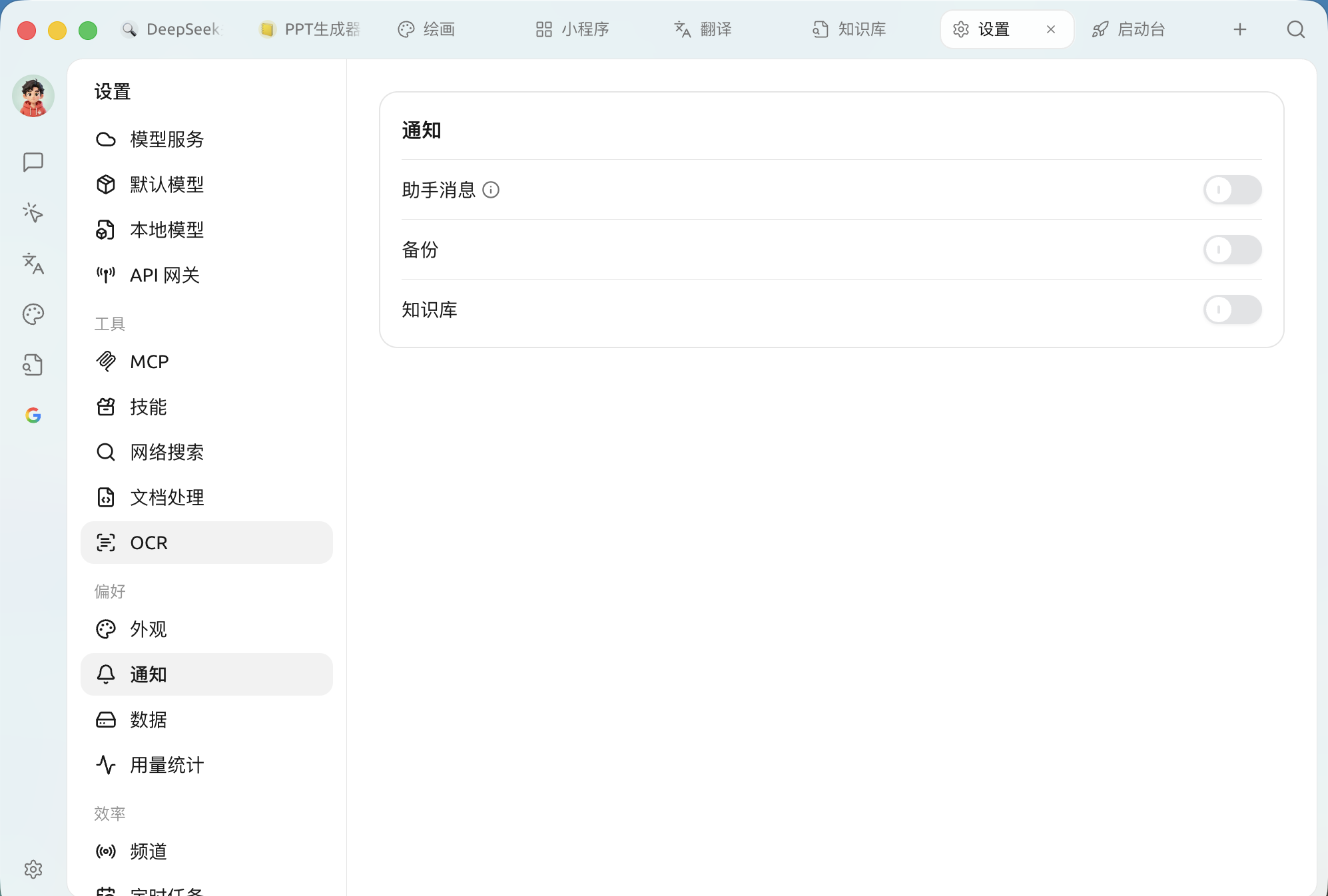
After opening `Settings → Notifications`, there are three independent switches:
Notification Settings Panel
| Switch | When to notify you | Recommendation |
| ---------------------- | ------------------------------------------------------------------------------------------------------------------------------------ | ----------------------------------------------------------------------------------------------------------------------------- |
| **Assistant messages** | AI replies **Success**, and generated **takes more than 30 seconds** only notify then (there is an ⓘ explanation next to the switch) | **Enable**. When using reasoning models or generating long text, you don't need to stare at the screen and wait |
| **Backup** | When automatic / manual backup is complete | **Enable**. Confirm that the data has been safely archived |
| **Knowledge base** | Used to notify you when knowledge base-related tasks (such as index building) are complete | **Enable**. Building a knowledge base usually takes a while, so it's more reassuring to receive a notification when it's done |
{% hint style="info" %}
These notifications go through the operating system's notification center. If you don't receive any notifications at all, please check whether Cherry Studio is allowed to send notifications at the system level (macOS 'Notifications', Windows 'Notifications & actions').
{% endhint %}
***
### Get help and submit feedback
If you encounter any questions, bugs, or have suggestions for feature improvements during configuration or use, please refer to [Feedback and Suggestions](/docs/en-us/question-contact/suggestions.md) for the official channels provided.
---
# Agent Instructions
This documentation is published with GitBook. GitBook is the documentation platform designed so that both humans and AI agents can read, navigate, and reason over technical content effectively. Learn more at gitbook.com.
## Querying This Documentation
If you need additional information that is not directly available in this page, you can query the documentation dynamically by asking a question.
Perform an HTTP GET request on the current page URL with the `ask` query parameter, and the optional `goal` query parameter:
```
GET https://docs.cherryai.com.cn/docs/en-us/pre-basic/settings/notification.md?ask=&goal=
```
`ask` is the immediate question: it should be specific, self-contained, and written in natural language.
`goal` is optional and describes the broader end goal you are ultimately trying to accomplish on behalf of the user. GitBook uses it to tailor the answer towards what is most useful for that goal.
The response will contain a direct answer to the question and relevant excerpts and sources from the documentation.
Use this mechanism when the answer is not explicitly present in the current page, you need clarification or additional context, or you want to retrieve related documentation sections.