> For the complete documentation index, see [llms.txt](https://docs.cherryai.com.cn/llms.txt). Markdown versions of documentation pages are available by appending `.md` to page URLs; this page is available as [Markdown](https://docs.cherryai.com.cn/docs/en-us/pre-basic/settings/key-shortcut.md).
# Shortcut Key Settings
Shortcut keys are the core of improving AI interaction efficiency. By mastering these key combinations, you can achieve efficient operation without ever leaving the keyboard.
### 1. Enter Shortcut Settings
* **Path:** `Settings` > Left navigation bar `Shortcuts`.
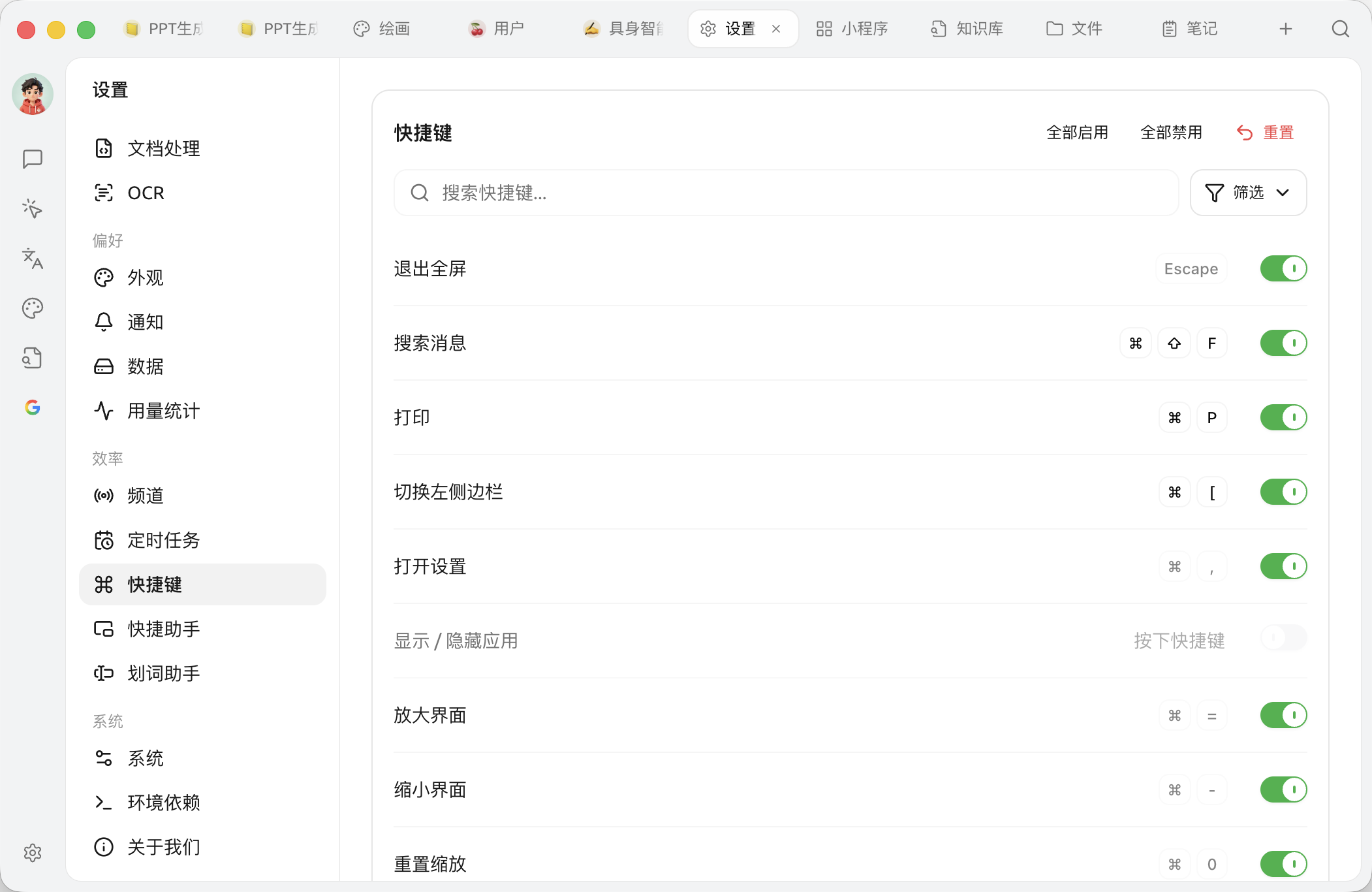
* **Purpose:** On this page, you can filter shortcuts by category, search them, view default key bindings, change key combinations, or enable/disable specific shortcuts.
### 2. Interface Operation Logic Explained
The page consists of four sections from top to bottom:
#### 2.1 Top Toolbar
There are three buttons on the right side of the title:
* **Enable All:** Enable all shortcuts with assigned keys in the current list (affected by filters/search) with one click.
* **Disable All:** Disable all shortcuts in the current list with one click.
* **Reset:** Restore **all** shortcuts to their original default values. Clicking it will open a confirmation dialog, “Are you sure you want to reset all shortcuts?”, and the change takes effect after confirmation.
> **Note:** “Enable All / Disable All” only applies to the current **visible** shortcuts. If you narrow the scope with filters or search first, these two buttons will only affect the filtered results.
#### 2.2 Search Box and Filters
* **Search box:** The placeholder is “Search shortcuts...”. You can filter by function name or key combination.
* **Filter button:** Click to open a category menu and view shortcuts by group. Groups include:**All**,**Global & Window**,**Message Interaction**,**Sessions & Conversations**,**AI Assistant Tools**and the number of shortcuts in each group will be shown on the right.
#### 2.3 Shortcut List
Each row in the list is divided into three parts from left to right:
1. **Function name:** The action corresponding to the shortcut.
2. **Key combination (middle):** Displays the currently assigned keys. Click to enter recording mode, prompt “Press shortcut keys”, then press the new combination you want to complete **customization**.
* If you have modified a shortcut, a **reset icon (↺)**will appear on its left; click it to restore this item to the default value individually.
* Some system-level shortcuts (such as exit fullscreen, open settings, and zoom-related ones)**cannot be modified**and appear grayed out and unclickable in the interface.
3. **Toggle switch (right):** Enable/disable this shortcut.
* When an item **has no key bound yet** the switch cannot be toggled, and hovering will show “Please bind a shortcut first, then adjust the enabled state”.
> **Conflict notice:** If the combination you set duplicates another function, the interface will show “Already used by “xxx””; if it is occupied by the system or another app, it will show “This shortcut is already occupied by the system or another app”.
***
### 3. Core Shortcut Details
Below are the **groups** listed default key bindings for each function.
> **💡 Platform differences:** The table below uses macOS key symbols (`⌘` = Command,`⇧` = Shift) as examples.**Windows / Linux users** Restore `⌘` replace with `Ctrl`,`⇧` replace with `Shift` and you're good to go.
#### 3.1 Global & Window
| Function | macOS | Windows / Linux | Default state | Notes |
| --------------- | ----------- | ------------------ | ------------------ | ------------------------------------------------ |
| Exit fullscreen | `Escape` | `Escape` | Enabled | cannot be modified |
| Search messages | `⌘ + ⇧ + F` | `Ctrl + Shift + F` | Enabled | Global search all conversations |
| Print | `⌘ + P` | `Ctrl + P` | Enabled | Print current conversation |
| Open settings | `⌘ + ,` | `Ctrl + ,` | Enabled | cannot be modified |
| Show / hide app | Not set | Not set | **Off by default** | Global shortcut, must be bound manually |
| Zoom in | `⌘ + =` | `Ctrl + =` | Enabled | Numpad supported as well `+`; cannot be modified |
| Zoom out | `⌘ + -` | `Ctrl + -` | Enabled | Numpad supported as well `-`; cannot be modified |
| Reset zoom | `⌘ + 0` | `Ctrl + 0` | Enabled | cannot be modified |
> **Boss key:** “Show / hide app” is a **global** shortcut (not bound by default), which can be triggered even when Cherry Studio is in the background. After binding a convenient combination, you can bring up or hide the window with one click.
#### 3.2 Message Interaction
| Function | macOS | Windows / Linux | Default state |
| --------------------------------------- | ----------- | ------------------ | ------------------ |
| Clear context | `⌘ + K` | `Ctrl + K` | Enabled |
| Copy previous message | `⌘ + ⇧ + C` | `Ctrl + Shift + C` | **Off by default** |
| Edit the last user message | `⌘ + ⇧ + E` | `Ctrl + Shift + E` | **Off by default** |
| Search messages in current conversation | `⌘ + F` | `Ctrl + F` | Enabled |
| Select model | `⌘ + ⇧ + M` | `Ctrl + Shift + M` | Enabled |
> **🔥 Clear context (`⌘ + K`) :** It **will not delete** chat history, but it will make the AI **“forget”** the previous conversation content. It is very useful when the AI gets stuck in a logical loop, or when you want to start an unrelated new topic in the same window without being affected by prior content.
#### 3.3 Sessions and Conversations
| Function | macOS | Windows / Linux | Default state |
| -------------------- | ------- | --------------- | ------------------ |
| Toggle left sidebar | `⌘ + [` | `Ctrl + [` | Enabled |
| New conversation | `⌘ + N` | `Ctrl + N` | Enabled |
| Rename conversation | `⌘ + T` | `Ctrl + T` | **Off by default** |
| Toggle right sidebar | `⌘ + ]` | `Ctrl + ]` | Enabled |
#### 3.4 AI Assistant Tools
| Function | macOS | Windows / Linux | Default state | Notes |
| --------------------------------- | ------- | --------------- | ------------------ | --------------------------------------------------------------- |
| Quick Assistant | `⌘ + E` | `Ctrl + E` | **Off by default** | Global; the “Quick Assistant” feature must be enabled first |
| Selection Assistant: Capture Text | Not set | Not set | **Off by default** | Global; the “Selection Assistant” feature must be enabled first |
| Toggle Selection Assistant | Not set | Not set | **Off by default** | Global; the “Selection Assistant” feature must be enabled first |
> **Note:** This set of shortcuts appears in the shortcut list only when the corresponding feature (Quick Assistant / Selection Assistant) is enabled; if not enabled, these entries will not be shown in the list.
***
### Efficiency expert tips (Pro Tips)
1. **Set a “boss key”:** For **“Show / hide app”** bind a convenient global shortcut so you can bring up or hide the AI at any time without having to find the icon in the taskbar.
2. **Distinguish `⌘ + K` and `⌘ + N`:**
* Want to start completely fresh? Use `⌘ + N` New conversation.
* Want to keep the chat history as notes but have the AI start thinking from scratch again? Use `⌘ + K` Clear context.
3. **If you've messed things up, don't panic:** If a single item is wrong, click that row’s reset icon (↺) to restore that item; if things are generally messy or conflicts are severe, use the top “Reset” button to restore all default key bindings with one click.
***
### Get help and submit feedback
If you encounter any questions, bugs, or have suggestions for feature improvements during configuration or use, please refer to [Feedback and Suggestions](/docs/en-us/question-contact/suggestions.md) for the official channels provided.
---
# Agent Instructions
This documentation is published with GitBook. GitBook is the documentation platform designed so that both humans and AI agents can read, navigate, and reason over technical content effectively. Learn more at gitbook.com.
## Querying This Documentation
If you need additional information that is not directly available in this page, you can query the documentation dynamically by asking a question.
Perform an HTTP GET request on the current page URL with the `ask` query parameter, and the optional `goal` query parameter:
```
GET https://docs.cherryai.com.cn/docs/en-us/pre-basic/settings/key-shortcut.md?ask=&goal=
```
`ask` is the immediate question: it should be specific, self-contained, and written in natural language.
`goal` is optional and describes the broader end goal you are ultimately trying to accomplish on behalf of the user. GitBook uses it to tailor the answer towards what is most useful for that goal.
The response will contain a direct answer to the question and relevant excerpts and sources from the documentation.
Use this mechanism when the answer is not explicitly present in the current page, you need clarification or additional context, or you want to retrieve related documentation sections.