> For the complete documentation index, see [llms.txt](https://docs.cherryai.com.cn/llms.txt). Markdown versions of documentation pages are available by appending `.md` to page URLs; this page is available as [Markdown](https://docs.cherryai.com.cn/docs/en-us/pre-basic/settings/general.md).
# System
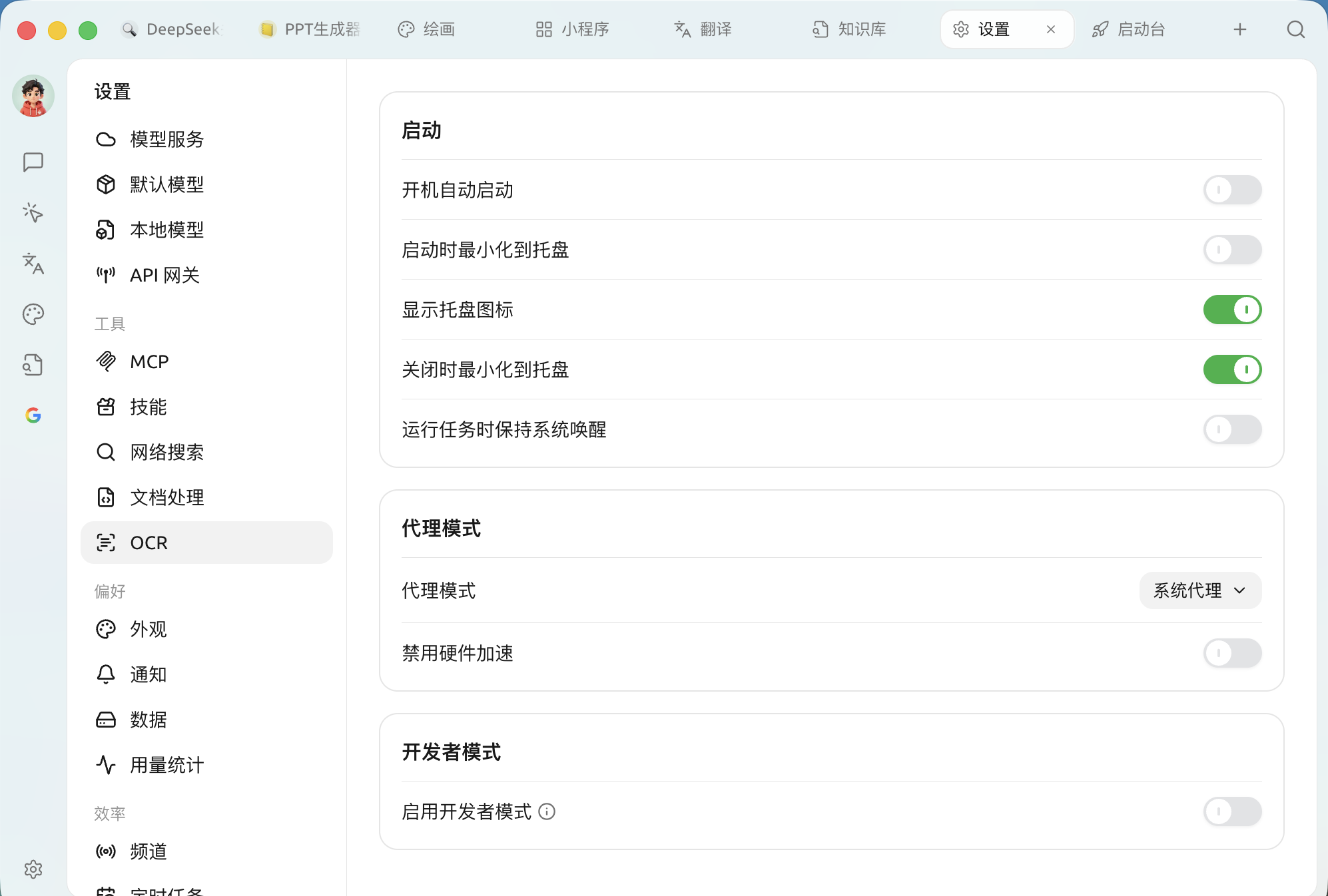
System settings determine Cherry Studio **how it starts with your computer, how it connects to the network, and whether to enable debugging capabilities**. Open `Settings → System`, divided into three sections:
System settings: startup, proxy mode, developer mode
### Start
Decides whether Cherry Studio stays running in the background like WeChat, or behaves like a normal app that exits when you're done.
| Settings item | Effect | Recommendation |
| --------------------------------------------- | ------------------------------------------------------------------------------------------------------------- | ---------------------------------------------------------------------------------------------------------- |
| **Start automatically on boot** | Automatically launch Cherry Studio at startup | Can be enabled for a primary tool, ready to use as soon as the computer starts |
| **Minimize to the tray on startup** | When auto-starting at boot, quietly go to the background without showing the main window | Use it together with "Start automatically on boot" to keep the desktop tidy |
| **Show tray icon** | Display an icon in the system tray | Recommended to enable, for quick access and status viewing |
| **Minimize to tray when closing** | Click `X` to minimize to the tray instead of exiting | Strongly recommended: the next time it will open instantly, and ongoing conversations won't be interrupted |
| **Keep the system awake while running tasks** | Prevent the system from sleeping while background tasks (such as scheduled tasks or long replies) are running | Enable it when you need to run tasks unattended for a long time |
{% hint style="info" %}
Disable **Minimize to tray when closing** Afterward, click `X` to completely exit the process. If you want to fully quit every time, only then do you need to turn it off.
{% endhint %}
### Proxy mode
Cherry Studio often needs to call overseas model APIs; this determines how network traffic is routed.
| Option | Explanation |
| ------------------------- | ------------------------------------------------------------------------------------------------------------------------------------------------------------------------------------------------------------------------------------------------------- |
| **System proxy**(default) | Follow the operating system's network/proxy settings. It will be used automatically when a system-wide accelerator is enabled on the computer |
| **Custom proxy** | Manually enter the proxy address (e.g. `http://127.0.0.1:7890`); you can also set **Proxy bypass rules**—which addresses should not use the proxy, by default `localhost,127.0.0.1,::1`, supports `*.test.com`,`192.168.0.0/16` and other fuzzy matches |
| **Do not use proxy** | Force direct connection |
* **Disable hardware acceleration**: normally keep it off. Only if the interface shows **black screen, white screen, flickering, or font tearing** or obvious lag, enable it and restart the software to troubleshoot (force CPU rendering).
{% hint style="warning" %}
When you encounter red errors such as "connection timed out" or "API request failed", first make sure your accelerator is enabled, and check whether this is set to **System proxy**—this is the most common cause.
{% endhint %}
### Developer mode
* **Enable developer mode**: after enabling, you can use **call chain** features to view the data flow during model calls, making troubleshooting easier; changes will take effect after **restarting the app** takes effect. Ordinary users generally do not need to enable it.
{% hint style="info" %}
Interface language and spell check are set in [Appearance](/docs/en-us/pre-basic/settings/display.md) ; message and backup reminders are set in [Notifications](/docs/en-us/pre-basic/settings/notification.md) .
{% endhint %}
***
### Get help and submit feedback
If you encounter any questions, bugs, or have suggestions for feature improvements during configuration or use, please refer to [Feedback and Suggestions](/docs/en-us/question-contact/suggestions.md) for the official channels provided.
---
# Agent Instructions
This documentation is published with GitBook. GitBook is the documentation platform designed so that both humans and AI agents can read, navigate, and reason over technical content effectively. Learn more at gitbook.com.
## Querying This Documentation
If you need additional information that is not directly available in this page, you can query the documentation dynamically by asking a question.
Perform an HTTP GET request on the current page URL with the `ask` query parameter, and the optional `goal` query parameter:
```
GET https://docs.cherryai.com.cn/docs/en-us/pre-basic/settings/general.md?ask=&goal=
```
`ask` is the immediate question: it should be specific, self-contained, and written in natural language.
`goal` is optional and describes the broader end goal you are ultimately trying to accomplish on behalf of the user. GitBook uses it to tailor the answer towards what is most useful for that goal.
The response will contain a direct answer to the question and relevant excerpts and sources from the documentation.
Use this mechanism when the answer is not explicitly present in the current page, you need clarification or additional context, or you want to retrieve related documentation sections.