> For the complete documentation index, see [llms.txt](https://docs.cherryai.com.cn/llms.txt). Markdown versions of documentation pages are available by appending `.md` to page URLs; this page is available as [Markdown](https://docs.cherryai.com.cn/docs/en-us/pre-basic/settings/doc-process.md).

# Document Processing

In short:**This is Cherry Studio's central configuration for "recognizing text in PDFs / images / scans".**

For example, the following all depend on it:

* You drag a scanned contract PDF into the chat box and want the AI to understand its contents
* You put a pile of invoice images into[Knowledge Base](/docs/en-us/knowledge-base/knowledge-base.md), hoping to be able to search them later
* your [Agent](/docs/en-us/cherry-studio/preview/agent.md) needs to open a screenshot in the local folder for analysis

Behind these scenarios, you first need to turn "text in images" into "text the AI can read"; this step is technically called **OCR**(Optical Character Recognition, optical character recognition).

Cherry Studio centralizes OCR configuration in**a single settings page**: configure it once here, and all places that use OCR will share the same configuration.

### Configuration entry

Open `Settings → Document Processing`:

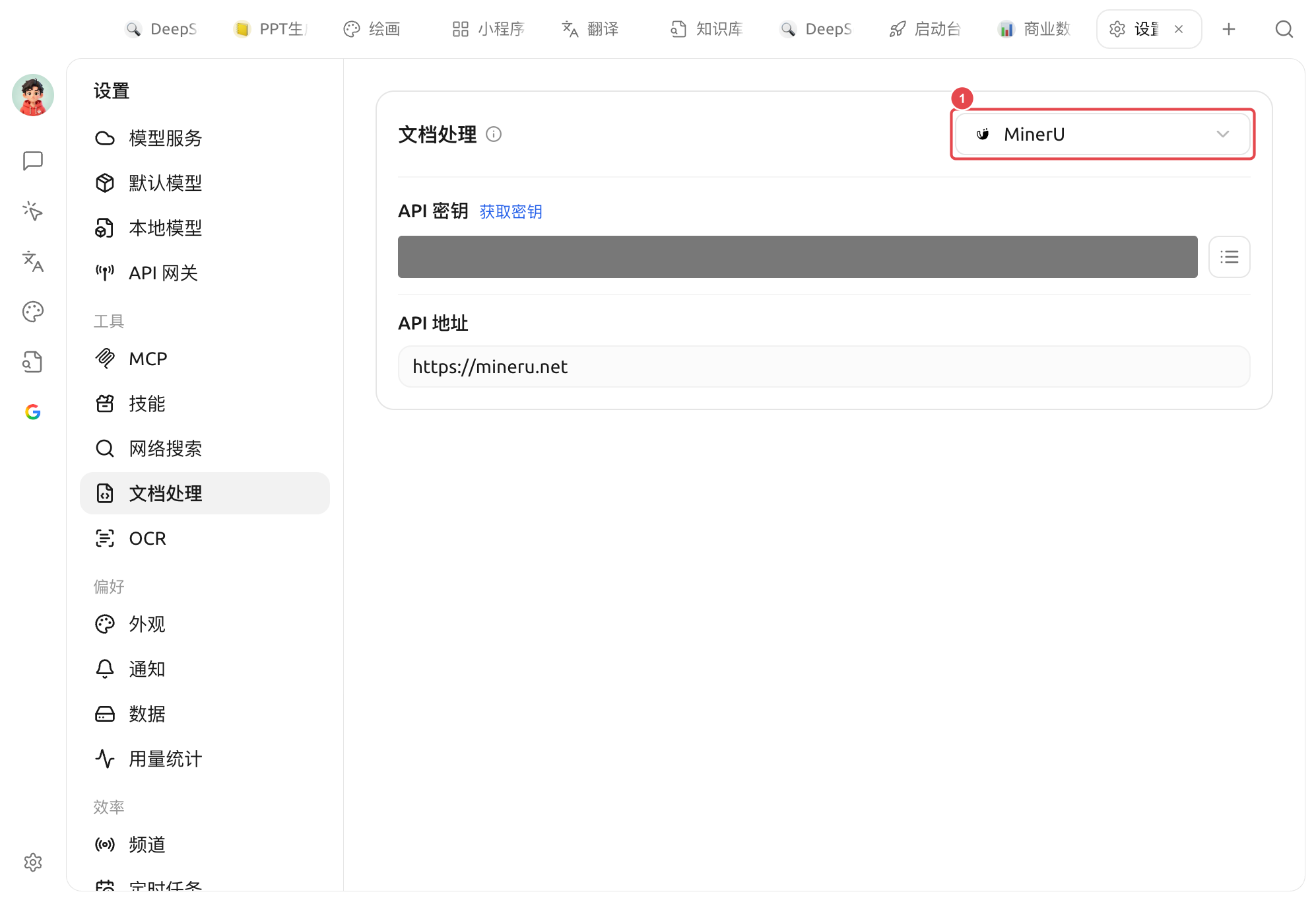
<figure><img src="/files/b0e51a03f9ca4b89a7e996a560d7d96c90c9942f" alt=""><figcaption><p>Document Processing settings panel</p></figcaption></figure>

The panel is divided into two parts, handling "image text recognition" and "PDF parsing" respectively.

#### 1. OCR Service — recognize text from images

Applicable to: images (screenshots, scans), content that must be recognized as text before AI can read it.

* **macOS**: choose "System OCR" and you're good to go,**no configuration required**, using the system's built-in image recognition capability, offline and free ✅
* **Windows**: choose "System OCR" out of the box; if you need to recognize languages other than English/Chinese, you need to download the corresponding language pack in Windows
* **Linux / Advanced**: optional Tesseract, Paddle OCR, OpenVINO, etc.

<details>

<summary>OCR engine comparison</summary>

| Engine         | Who is it for                                                                                              |
| -------------- | ---------------------------------------------------------------------------------------------------------- |
| **System OCR** | The simplest, no configuration, usually good enough                                                        |
| **Tesseract**  | Classic open-source OCR, built into Cherry Studio, supports custom languages                               |
| **Paddle OCR** | Better Chinese recognition (open-sourced by Baidu), requires "Star River Community access token + API URL" |
| **OpenVINO**   | Intel graphics can accelerate it                                                                           |

If unsure, use the default System OCR; switch only if recognition is poor.

</details>

#### 2. Document Processing provider — structured parsing for PDFs / complex documents

Applicable to: PDFs with tables / multi-column layouts / scanned pages, long documents. Ordinary plain-text PDFs can be read directly, no need to go through here.

| Provider                 | Simple description                                                                                                                                                              |
| ------------------------ | ------------------------------------------------------------------------------------------------------------------------------------------------------------------------------- |
| **MinerU**(default)      | Free cloud service, specialized in complex-layout PDFs (academic papers, contracts, etc.), requires going to [mineru.net](https://mineru.net) to register and obtain an API Key |
| **Paddle OCR**           | Offline solution, requires configuring a Star River Community access token                                                                                                      |
| **Third-party provider** | Uses the vision model of a configured AI service provider to recognize them (smarter results but paid)                                                                          |

### Configure MinerU (default option)

1. in **API Key** Fill in the key obtained from MinerU in the field
2. **API Host** Keep default `https://mineru.net`
3. When switching to the knowledge base or Agent, no additional configuration is needed; it will automatically use the settings here

### Relationship with the knowledge base

* Document processing only handles the step "non-text → text"
* The converted text then continues to [embedding model](/docs/en-us/knowledge-base/emb-models-info.md) vectorization, storage into the database
* See the detailed "enable in knowledge base" process at [Knowledge base document preprocessing](/docs/en-us/knowledge-base/document-preprocessing.md)

### When configuration is not needed

* You only import plain text into the knowledge base (`.md` / `.txt` / `.docx` plain text paragraphs in) → does not go through document processing at all
* You only use chat, without uploading files → same as above

### Tips and tricks

* MinerU is significantly better than Tesseract for PDFs with tables / multi-column layouts; it is the first choice for academic papers and the like
* For offline scenarios, use Paddle OCR or Tesseract (works without internet)
* After switching processors, previously vectorized materials **will not be automatically reprocessed** — need to re-import manually

***

### 💡 Get help and submit feedback

If you encounter any questions, bugs, or have suggestions for feature improvements during configuration or use, please refer to [Feedback and Suggestions](/docs/en-us/question-contact/suggestions.md) the official channels provided there.


---

# Agent Instructions
This documentation is published with GitBook. GitBook is the documentation platform designed so that both humans and AI agents can read, navigate, and reason over technical content effectively. Learn more at gitbook.com.

## Querying This Documentation
If you need additional information that is not directly available in this page, you can query the documentation dynamically by asking a question.

Perform an HTTP GET request on the current page URL with the `ask` query parameter, and the optional `goal` query parameter:

```
GET https://docs.cherryai.com.cn/docs/en-us/pre-basic/settings/doc-process.md?ask=<question>&goal=<endgoal>
```

`ask` is the immediate question: it should be specific, self-contained, and written in natural language.
`goal` is optional and describes the broader end goal you are ultimately trying to accomplish on behalf of the user. GitBook uses it to tailor the answer towards what is most useful for that goal.

The response will contain a direct answer to the question and relevant excerpts and sources from the documentation.

Use this mechanism when the answer is not explicitly present in the current page, you need clarification or additional context, or you want to retrieve related documentation sections.
