> For the complete documentation index, see [llms.txt](https://docs.cherryai.com.cn/llms.txt). Markdown versions of documentation pages are available by appending `.md` to page URLs; this page is available as [Markdown](https://docs.cherryai.com.cn/docs/en-us/pre-basic/settings/display.md).
# Appearance
Appearance settings bring together **what the interface looks like, how messages are displayed, and how code and formulas are rendered** all of these preferences. Open `Settings → Appearance`, and from top to bottom you’ll see sections for Theme, Display & Language, Fonts, Input, Messages, Formulas, Code Blocks, and more.
> Not satisfied with the options here? You can also go to [Custom CSS](/docs/en-us/pre-basic/settings/display/custom-css.md) for deeper customization.
### Theme and theme colors
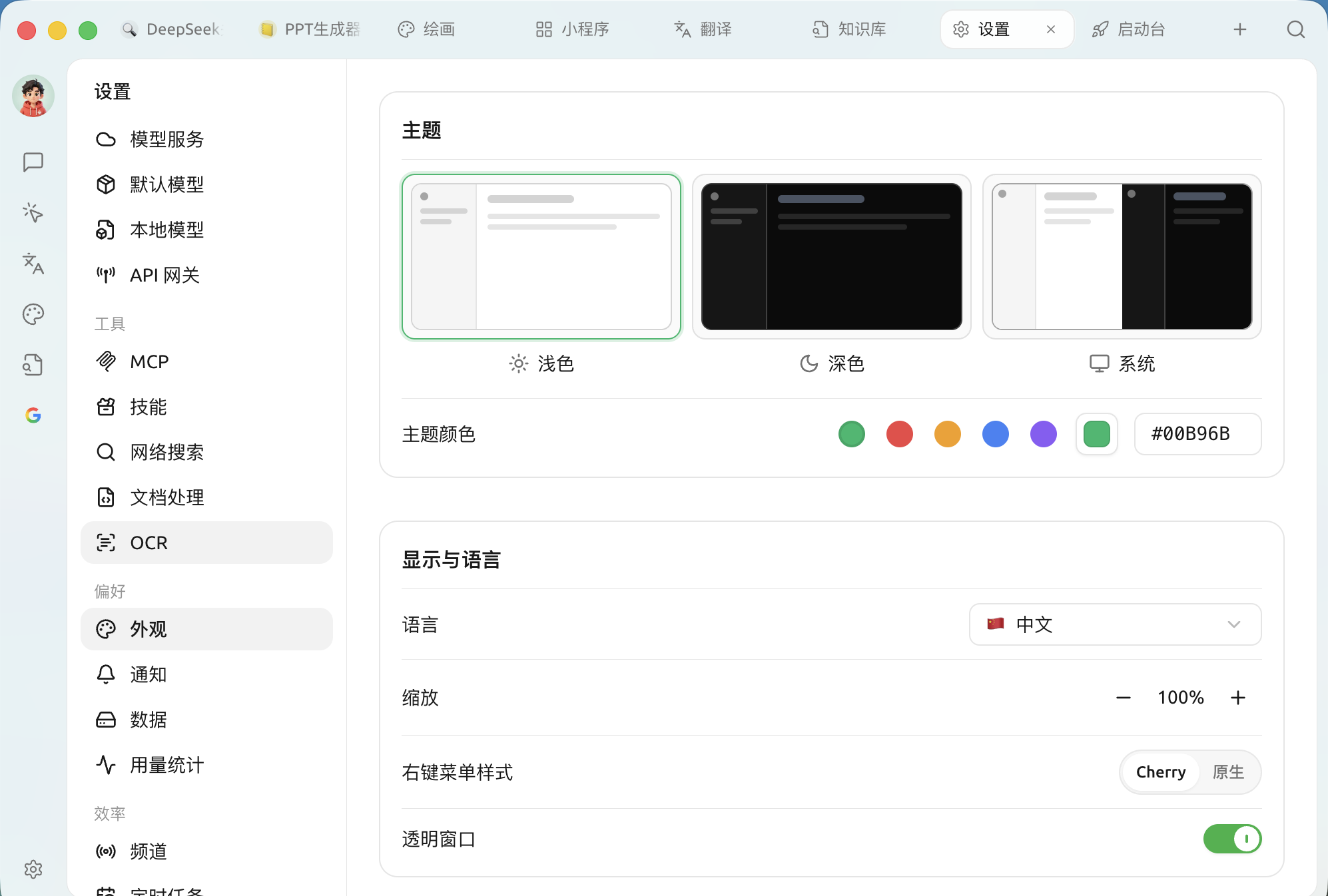
Theme, theme colors, and display language
* **Theme**: switch between **Light / Dark / System** ("System" follows the operating system’s light/dark mode).
* **Theme color**: choose the interface’s primary color. Multiple preset colors are available, or you can enter a hex color value on the right (for example `#00B96B`) to customize it.
### Display and language
| Settings item | Explanation |
| -------------------------- | ----------------------------------------------------------------------------------------------------------------------------------- |
| **Language** | The interface display language supports Simplified Chinese, Traditional Chinese, English, Japanese, German, French, and many others |
| **Scaling** | Overall interface scale. Adjust it if your screen is large/small or the text feels too small |
| **Right-click menu style** | Switch between Cherry’s custom-drawn menu and the system **native** right-click menu |
| **Transparent window** | Enable a semi-transparent frosted-glass effect for the window (**macOS only**; may affect performance on some graphics cards) |
### Font settings
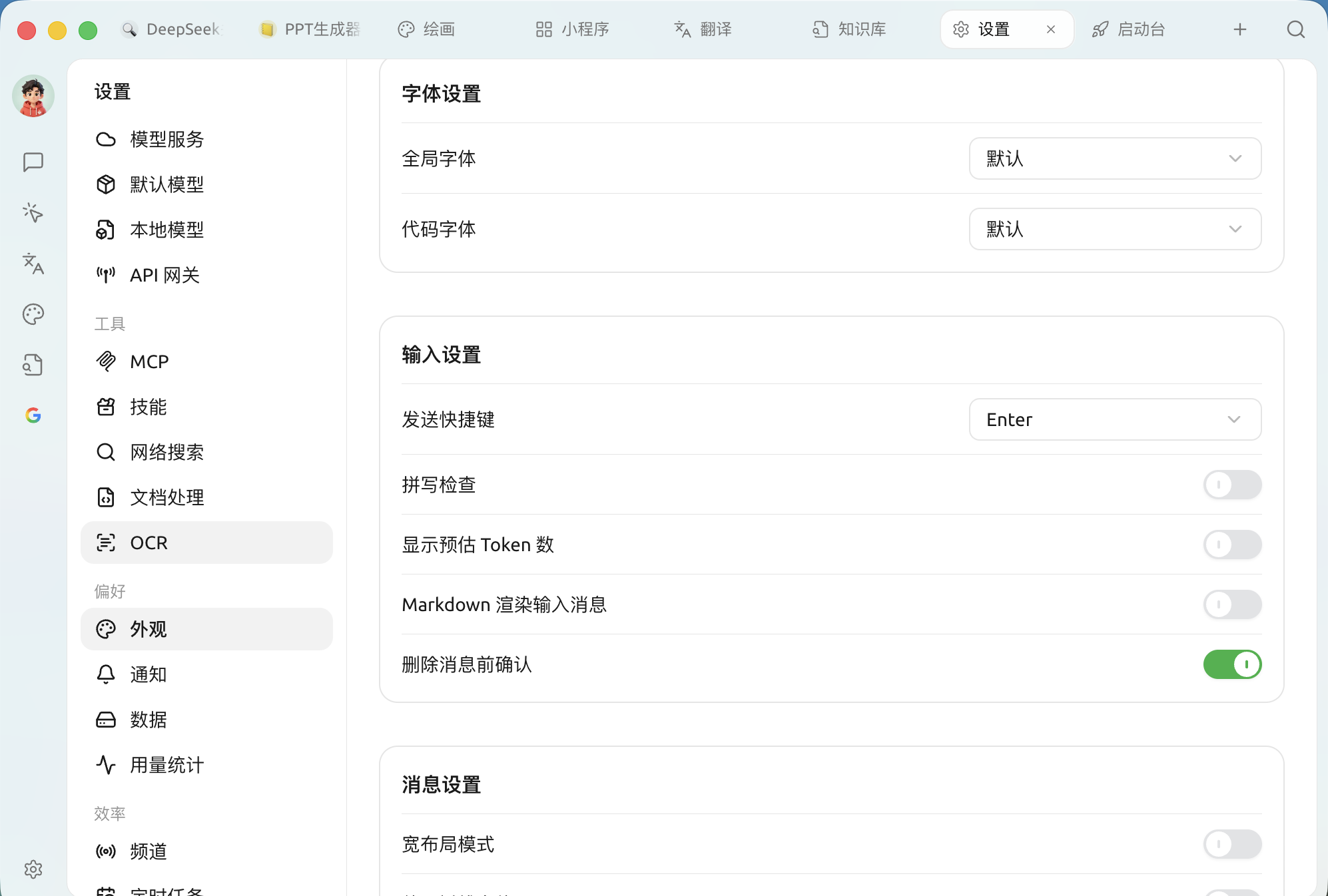
* **Global font**: the overall interface font. It uses the system font by default, but you can change it to a font you like.
* **Code font**: the monospace font used in code blocks.
Font recommendations see [Font recommendations](/docs/en-us/pre-basic/settings/display/font.md).
### Input settings
Font, input, and message display settings
| Settings item | Explanation |
| ------------------------------------- | ---------------------------------------------------------------------------------------------------------------------------------------------- |
| **Send shortcut key** | Set the key used to send messages (such as `Enter`,`Shift+Enter` and others) |
| **Spell check** | When typing in English, show red wavy underlines for spelling mistakes; if you mainly use Chinese, you can turn this off to avoid false alarms |
| **Show estimated token count** | Show the estimated number of tokens consumed by the input in the text box (for reference only, not actual billing) |
| **Render input messages as Markdown** | When turned off, messages you send will not be rendered as Markdown; only model replies will be rendered |
| **Confirm before deleting messages** | Prompt for confirmation before deleting messages to prevent accidental deletion |
### Message settings
Control how AI replies appear in the conversation area:
| Settings item | Explanation |
| ----------------------------------- | --------------------------------------------------------------------------------------------------- |
| **Wide layout mode** | Make message content take up a wider area |
| **Use serif font** | Switch body text to a serif font for more comfortable long-form reading |
| **Auto-collapse thinking content** | Models with reasoning support will automatically collapse the thinking process after it is complete |
| **Show message outline** | Generate a jumpable outline for longer replies |
| **Message style** | Switch between **bubble** and **simple** the two styles |
| **Multi-model answer style** | Layout used when comparing multiple models, such as **horizontal arrangement** |
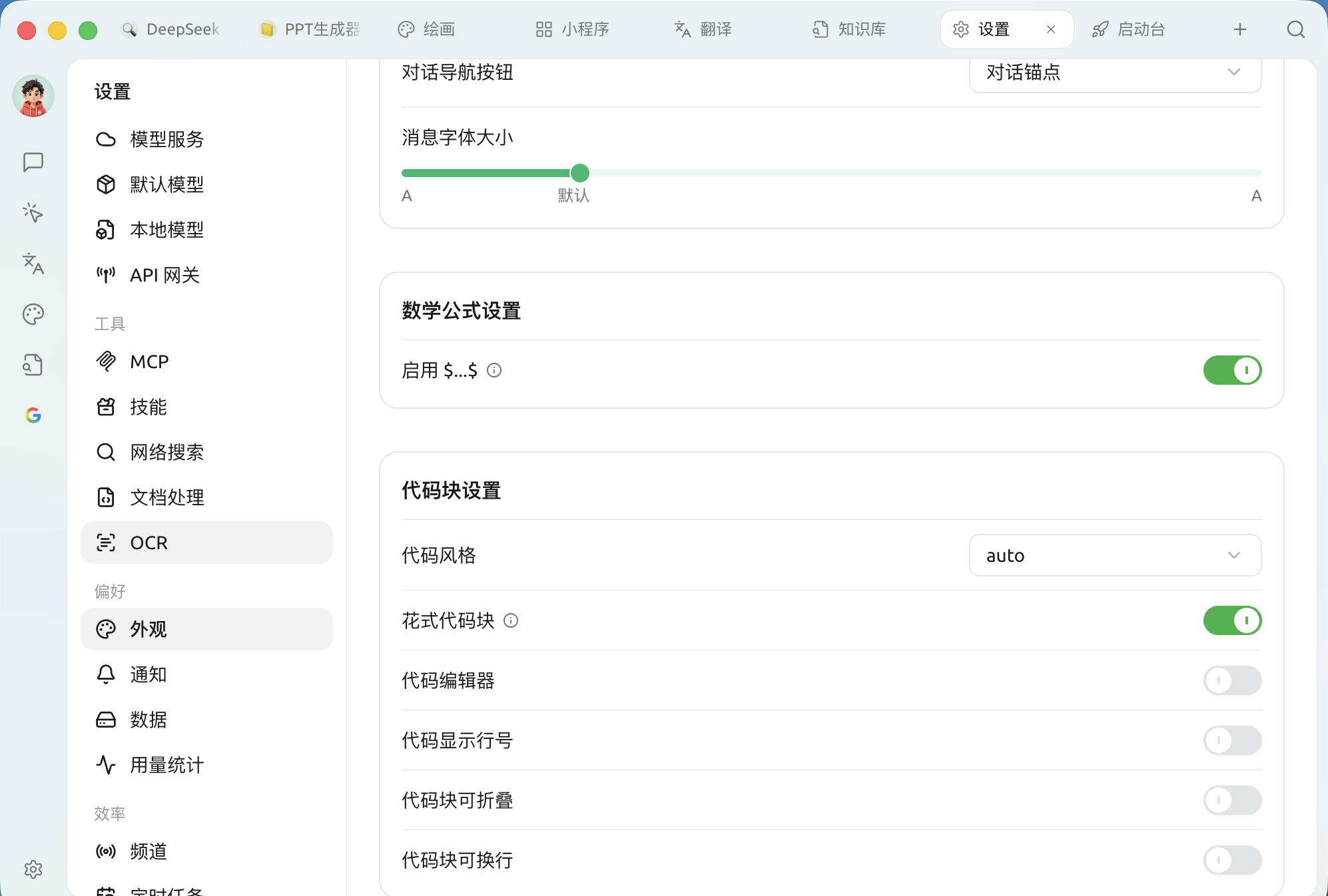
| **Conversation navigation buttons** | A quick way to locate content in long conversations, such as **conversation anchors** |
| **Message font size** | Drag the slider to adjust the font size in the conversation area |
### Mathematical formulas
* **Enable `$...$`**: after enabling, inline math formulas (content wrapped with `$` ) will be recognized and rendered as formulas.
### Code block settings
Mathematical formula and code block settings
| Settings item | Explanation |
| ----------------------------- | ------------------------------------------------------------------------------------- |
| **Code style** | Code highlighting color scheme (default `auto` follows theme) |
| **Fancy code blocks** | A more refined code block appearance |
| **Code editor** | Display code in an editable code editor style |
| **Show line numbers in code** | Show line numbers on the left side of code blocks |
| **Collapsible code blocks** | Automatically collapse long code |
| **Code blocks can wrap** | Automatically wrap lines when a single line is too long to avoid horizontal scrolling |
> After opening **Code editor** , there will also be **four additional sub-switches: highlight current line / fold controls / auto-completion / shortcuts** to further control editor behavior.
### Code execution
* **Code execution**: allow running model-generated code snippets directly in the conversation.
* **Enable preview tools**: provide instant previews for rendered diagram outputs from code blocks such as mermaid.
{% hint style="warning" %}
Code execution runs model-generated code on your computer. Enable it only when you understand and trust the related content.
{% endhint %}
### Custom CSS
The editor at the bottom of the panel lets you write custom CSS directly for finer interface personalization. See the writing format and examples [Custom CSS](/docs/en-us/pre-basic/settings/display/custom-css.md); to restore defaults, see [Clear CSS settings](/docs/en-us/pre-basic/settings/display/clear-css.md).
***
### Get help and submit feedback
If you encounter any questions, bugs, or have suggestions for feature improvements during configuration or use, please refer to [Feedback and Suggestions](/docs/en-us/question-contact/suggestions.md) for the official channels provided.
---
# Agent Instructions
This documentation is published with GitBook. GitBook is the documentation platform designed so that both humans and AI agents can read, navigate, and reason over technical content effectively. Learn more at gitbook.com.
## Querying This Documentation
If you need additional information that is not directly available in this page, you can query the documentation dynamically by asking a question.
Perform an HTTP GET request on the current page URL with the `ask` query parameter, and the optional `goal` query parameter:
```
GET https://docs.cherryai.com.cn/docs/en-us/pre-basic/settings/display.md?ask=&goal=
```
`ask` is the immediate question: it should be specific, self-contained, and written in natural language.
`goal` is optional and describes the broader end goal you are ultimately trying to accomplish on behalf of the user. GitBook uses it to tailor the answer towards what is most useful for that goal.
The response will contain a direct answer to the question and relevant excerpts and sources from the documentation.
Use this mechanism when the answer is not explicitly present in the current page, you need clarification or additional context, or you want to retrieve related documentation sections.