> For the complete documentation index, see [llms.txt](https://docs.cherryai.com.cn/llms.txt). Markdown versions of documentation pages are available by appending `.md` to page URLs; this page is available as [Markdown](https://docs.cherryai.com.cn/docs/en-us/cherry-studio/preview/translation.md).
# Translation
Cherry Studio's translation feature provides fast, accurate text translation services, supporting mutual translation between multiple languages.
### Interface Overview
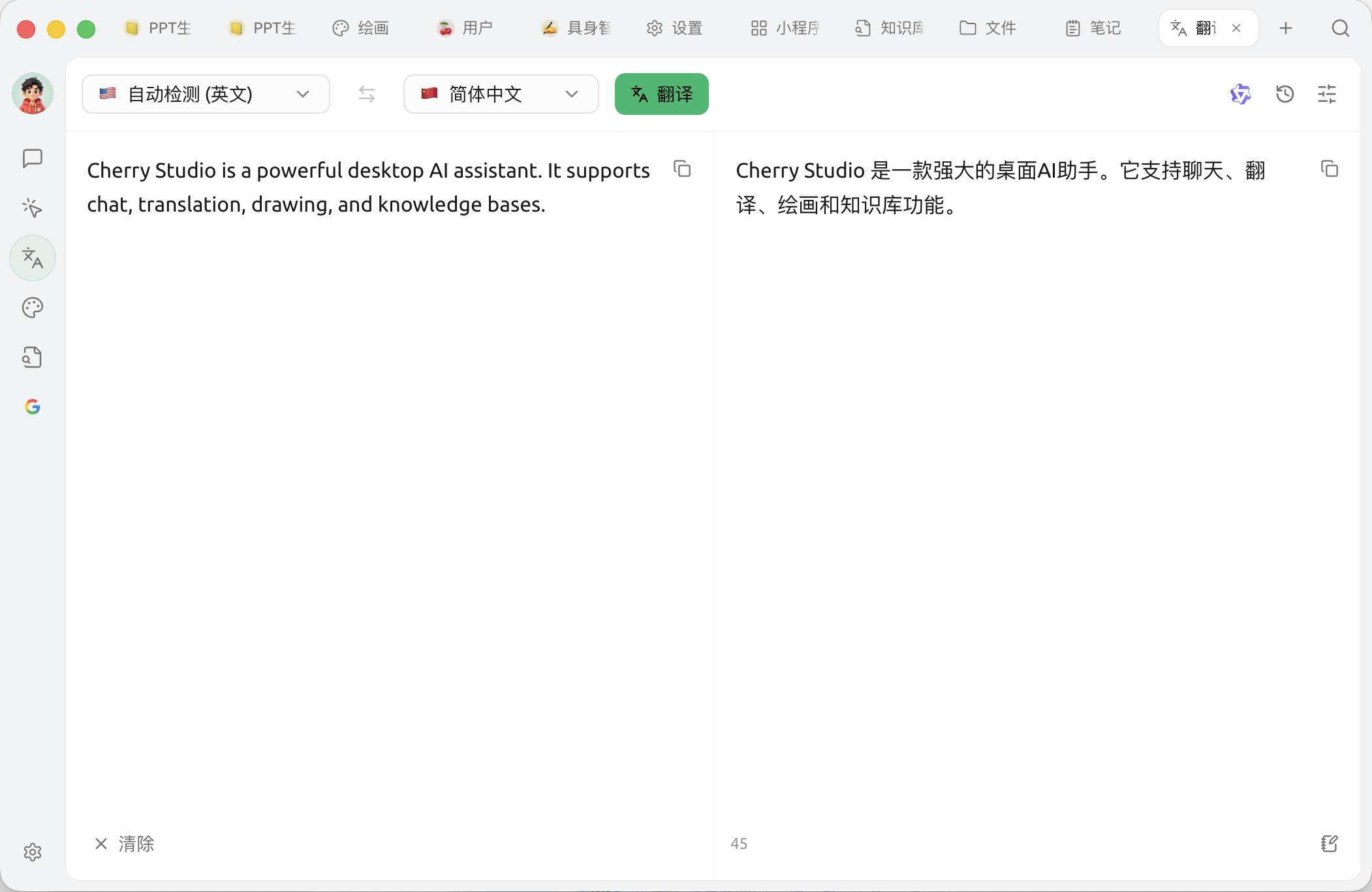
Translation page: input on the left, output on the right, switch language and model at the top
The top action bar is divided into two groups on the left and right.
**Left side (language and translation):**
1. **Source language dropdown**: default `Auto-detect`, when auto-detection succeeds, the specific language will be shown in the options
2. **Direction switch**(⇆): swap source / target languages (unavailable when the source language is \[Auto-detect])
3. **Target language dropdown**
4. **Translate button**: grayed out and not clickable when the input box is empty or no model is selected
**Right side (model and tools):**
5. **Model selection**(model avatar): switch the model used for translation
6. **Translation history**(clock icon): open the history panel, where you can search, filter by favorites, and click any record to quickly fill it back into the input/output box
7. **Settings**(slider icon): open the translation settings panel
The input box (left) supports pasting text, and also supports **dragging in or clicking to upload** files — text files (`.txt` / `.md`) are read directly, images go through **OCR** OCR recognition, and documents (PDF / Word / PPT / Excel, etc.) directly extract the main text; when hovering over the result box (right), a copy button appears.
{% hint style="info" %}
Dragging in images will first OCR-recognize the text and then translate; dragging in PDFs / Word and other documents will directly extract the main text. Image and text files are limited to 5 MB, documents to 20 MB.
{% endhint %}
### Usage steps
1. **Select the target language**
2. **Enter or paste text** into the left box — dragging in an image can directly OCR-recognize it and then translate
3. Click **Translation** button
4. Copy or continue editing the result on the right
### Translation settings
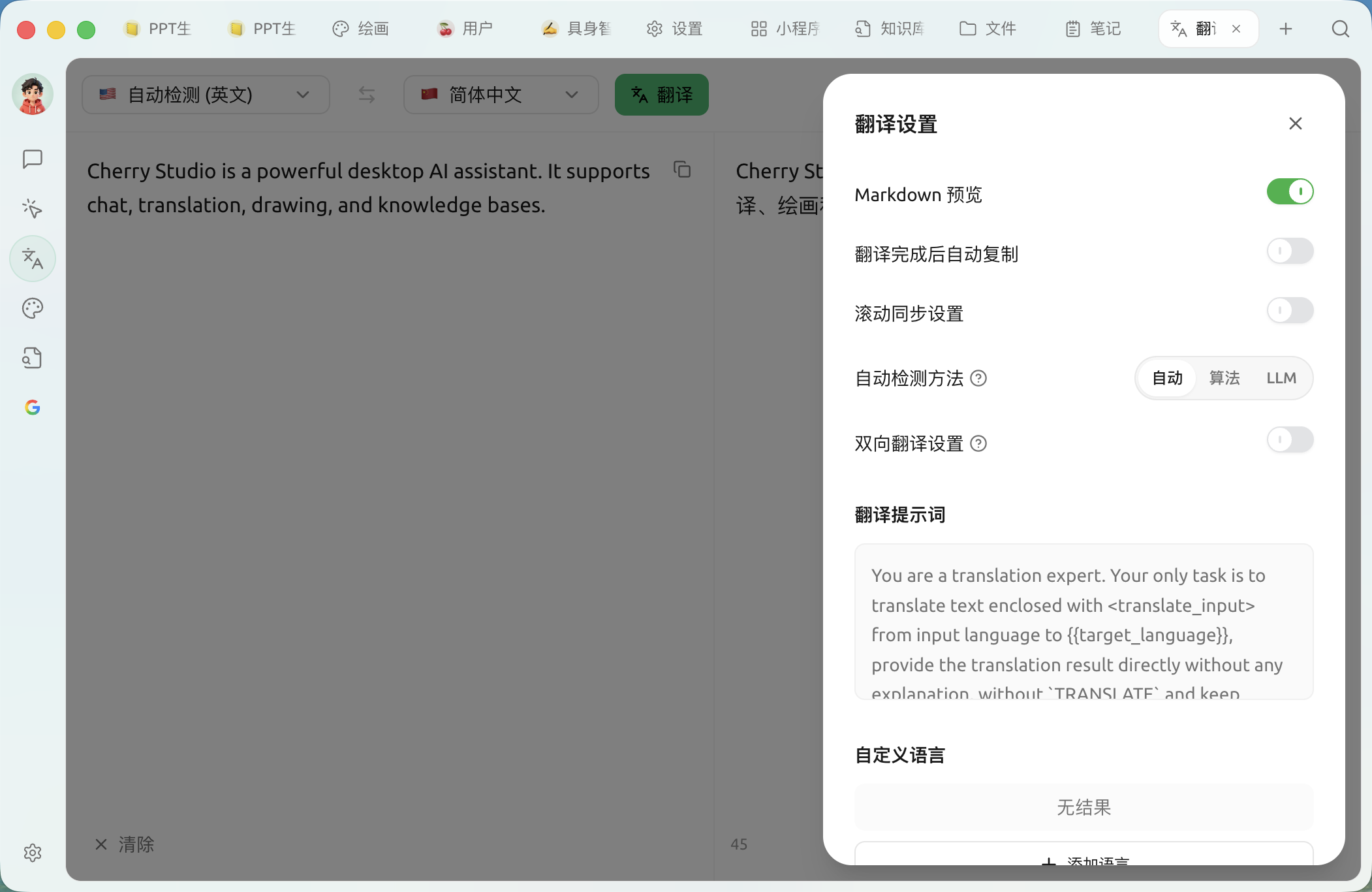
Click the **slider icon** in the upper right to open the translation settings panel:
Translation Settings Panel
* **Markdown preview**: when enabled, translation results are rendered as Markdown
* **Automatically copy after translation is complete**: copy to clipboard as soon as the result is generated
* **Scroll synchronization settings**: the two columns scroll in sync
* **Auto-detection method**: Auto / Algorithm (franc local) / LLM — LLM detection is more accurate but consumes a small amount of tokens
* **Bidirectional translation settings**: when enabled, translation only occurs between the specified two languages; the top language bar will be merged into a single 'source ⇆ target' language pair; you can choose the pair below
* **Translation prompt**: customize the system prompt used for translation; after changes, you can restore defaults with one click
* **Custom languages**: add, edit, or delete languages beyond the built-in ones (fill in the language name and language code, such as `zh-cn`)
### Frequently Asked Questions (FAQ)
* **Q: What should I do if the translation is inaccurate?**
* A: AI translation is powerful, but not perfect. For texts in specialized fields or complex contexts, manual proofreading is recommended. You can also try switching to a different model.
* **Q: Which languages are supported?**
* A: Cherry Studio's translation feature supports many mainstream languages. For the specific supported language list, please refer to Cherry Studio's official website or the in-app instructions.
* **Q: Can I translate an entire file / image?**
* A: Yes. The input box supports direct **dragging in or clicking to upload** images and documents: images will be recognized by OCR before translation, and PDFs / Word / PPT / Excel and other documents will have their main text extracted before translation. If a document is especially long, you can also go to the chat page and send the document as an attachment to the translation assistant for processing.
* **Q: What should I do if the translation is slow?**
* A: Translation speed may be affected by factors such as network connection, text length, and server load. Please ensure your network connection is stable and wait patiently.
***
### Get help and submit feedback
If you encounter any questions, bugs, or have suggestions for feature improvements during configuration or use, please refer to [Feedback and Suggestions](/docs/en-us/question-contact/suggestions.md) for the official channels provided.
---
# Agent Instructions
This documentation is published with GitBook. GitBook is the documentation platform designed so that both humans and AI agents can read, navigate, and reason over technical content effectively. Learn more at gitbook.com.
## Querying This Documentation
If you need additional information that is not directly available in this page, you can query the documentation dynamically by asking a question.
Perform an HTTP GET request on the current page URL with the `ask` query parameter, and the optional `goal` query parameter:
```
GET https://docs.cherryai.com.cn/docs/en-us/cherry-studio/preview/translation.md?ask=&goal=
```
`ask` is the immediate question: it should be specific, self-contained, and written in natural language.
`goal` is optional and describes the broader end goal you are ultimately trying to accomplish on behalf of the user. GitBook uses it to tailor the answer towards what is most useful for that goal.
The response will contain a direct answer to the question and relevant excerpts and sources from the documentation.
Use this mechanism when the answer is not explicitly present in the current page, you need clarification or additional context, or you want to retrieve related documentation sections.