> For the complete documentation index, see [llms.txt](https://docs.cherryai.com.cn/llms.txt). Markdown versions of documentation pages are available by appending `.md` to page URLs; this page is available as [Markdown](https://docs.cherryai.com.cn/docs/en-us/cherry-studio/preview/quick-assistant.md).
# Quick Assistant
Quick Assistant is a convenient tool provided by Cherry Studio, allowing you to quickly access AI features in any application, enabling instant question-asking, translation, summarization, and explanation.
### Enable Quick Assistant
1. **Open Settings:** Go to \[Settings] → \[Quick Assistant] (in the left menu).
2. **Enable the switch:** Turn on \[Enable Quick Assistant]. Once enabled, more options will appear on the page.
{% hint style="info" %}
**Quick Assistant vs Selection Assistant**: They are two different features.
* **Quick Assistant**: Invoke a mini window via a shortcut key to proactively ask questions, without depending on the content currently selected.
* **Text selection assistant**: After selecting text in any app, use the toolbar to translate/explain/rewrite the selected text.
* The configuration entries are \[Settings] → \[Quick Assistant] and \[Settings] → \[Selection Assistant], respectively.
{% endhint %}
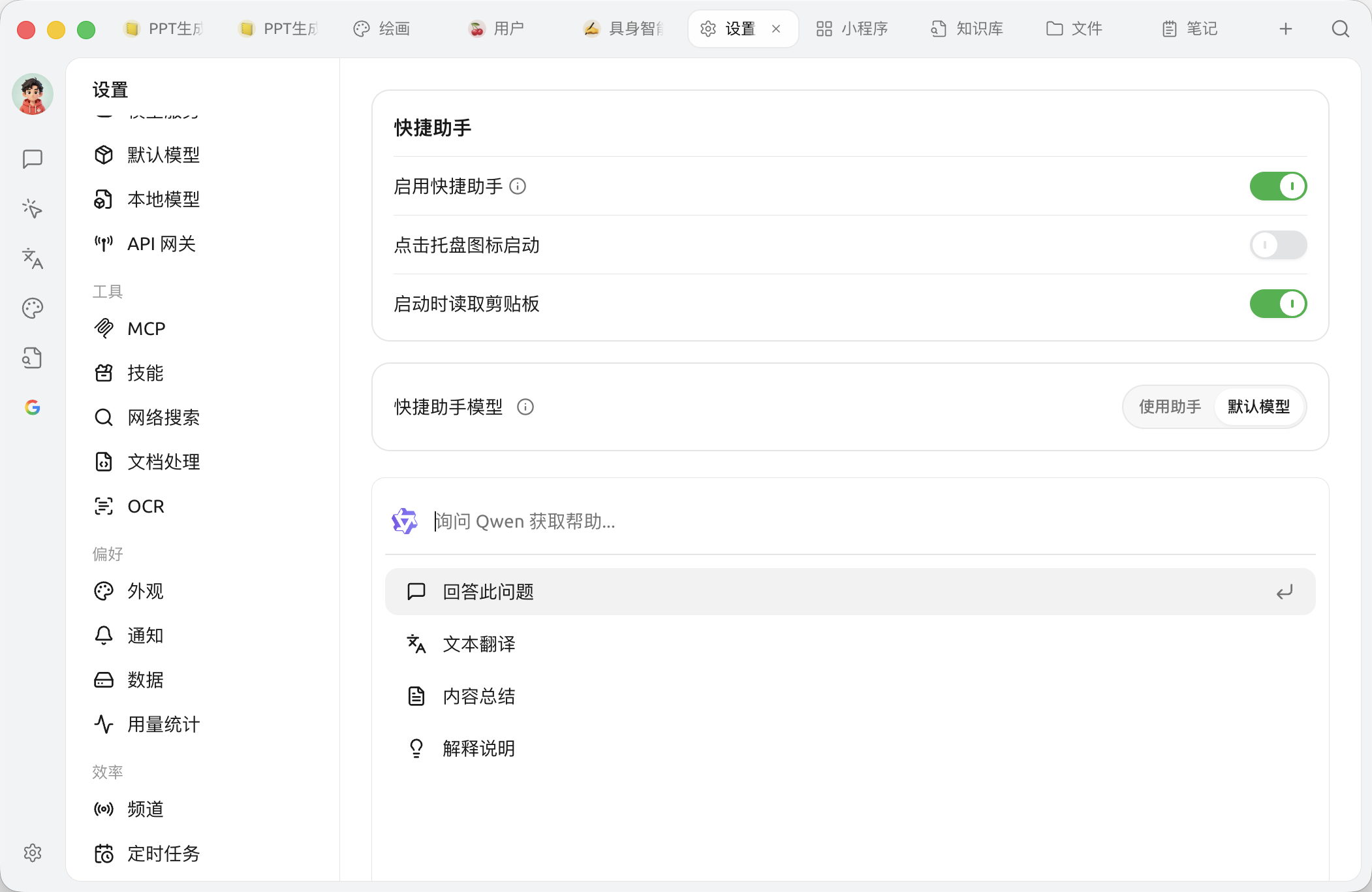
Quick Assistant settings after enabling
Switches visible after enabling:
* **Enable Quick Assistant**: Main switch
* **Launch by clicking the tray icon**: Left-click the Cherry Studio icon in the system tray to directly invoke Quick Assistant (enabled by default)
* **Read clipboard on startup**: Automatically use clipboard content as input each time Quick Assistant is invoked
* **Quick Assistant model**:\[Use Assistant] follows the model of the selected assistant; \[Default Model] uses [the global default fast model](/docs/en-us/pre-basic/settings/default-models.md)
3. **Set shortcut keys (on another page):**
* Shortcut keys are not configured on this page; you need to adjust them under \[Settings] → \[Shortcut Keys].
* Windows default Ctrl + E, macOS default ⌘ + E.
* You can customize shortcut keys to avoid conflicts or better match personal habits.
### Using Quick Assistant
1. **Invoke:** In any application, press the shortcut key you set (or the default shortcut key) to open Quick Assistant.
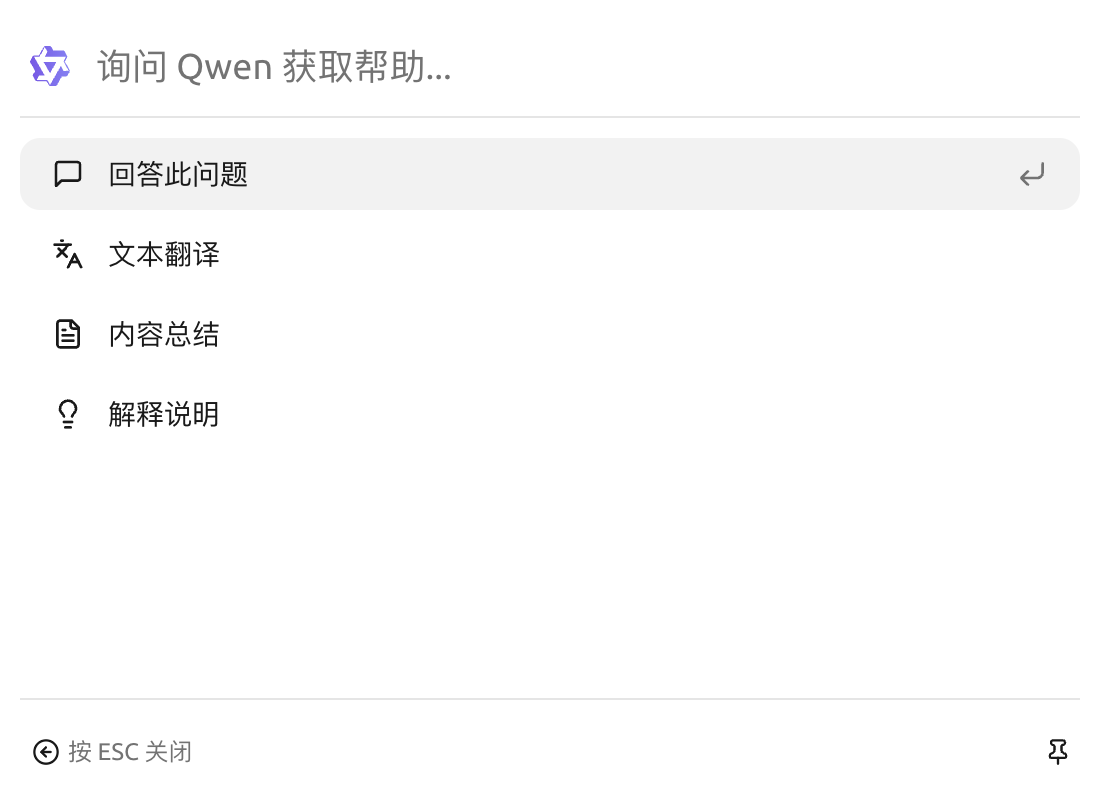
2. **Interaction:** In the Quick Assistant window, you can directly perform the following actions:
* **Quick question:** Ask AI any question.
* **Text translation:** Enter the text to be translated.
* **Content summarization:** Enter long text to summarize.
* **Explanation:** Enter the concept or term that needs explanation.
Quick Assistant interface illustration
3. **Close:** Press ESC key or click anywhere outside the Quick Assistant window to close it.
{% hint style="info" %}
Used when \[Quick Assistant Model] is set to \[Default Model] [the global default fast model](/docs/en-us/pre-basic/settings/default-models.md); after selecting \[Use Assistant], you can specify an existing assistant as the response model.
{% endhint %}
### Tips and tricks
* **Shortcut conflict:** If the default shortcut conflicts with other applications, please change it.
* **Explore more features:** In addition to the features mentioned in the documentation, Quick Assistant may also support other operations, such as code generation and style conversion. We recommend exploring it as you use it.
* **Feedback and improvement:** If you encounter any problems during use or have any suggestions for improvement, please promptly send feedback to the Cherry Studio team [Feedback](/docs/en-us/question-contact/suggestions.md).
***
### Get help and submit feedback
If you encounter any questions, bugs, or have suggestions for feature improvements during configuration or use, please refer to [Feedback and Suggestions](/docs/en-us/question-contact/suggestions.md) for the official channels provided.
---
# Agent Instructions
This documentation is published with GitBook. GitBook is the documentation platform designed so that both humans and AI agents can read, navigate, and reason over technical content effectively. Learn more at gitbook.com.
## Querying This Documentation
If you need additional information that is not directly available in this page, you can query the documentation dynamically by asking a question.
Perform an HTTP GET request on the current page URL with the `ask` query parameter, and the optional `goal` query parameter:
```
GET https://docs.cherryai.com.cn/docs/en-us/cherry-studio/preview/quick-assistant.md?ask=&goal=
```
`ask` is the immediate question: it should be specific, self-contained, and written in natural language.
`goal` is optional and describes the broader end goal you are ultimately trying to accomplish on behalf of the user. GitBook uses it to tailor the answer towards what is most useful for that goal.
The response will contain a direct answer to the question and relevant excerpts and sources from the documentation.
Use this mechanism when the answer is not explicitly present in the current page, you need clarification or additional context, or you want to retrieve related documentation sections.