> For the complete documentation index, see [llms.txt](https://docs.cherryai.com.cn/llms.txt). Markdown versions of documentation pages are available by appending `.md` to page URLs; this page is available as [Markdown](https://docs.cherryai.com.cn/docs/en-us/cherry-studio/preview/files.md).
# Files
The Files page is Cherry Studio's **central repository for attachments** — images, PDFs, and documents dragged into chats, images generated in drawing, and materials imported into the knowledge base can all be viewed and managed here in one place.
You can think of it as Cherry Studio's internal "My Computer."
## Go to the Files page
The top Tab's `+` → \[Launchpad] → click \[Files].
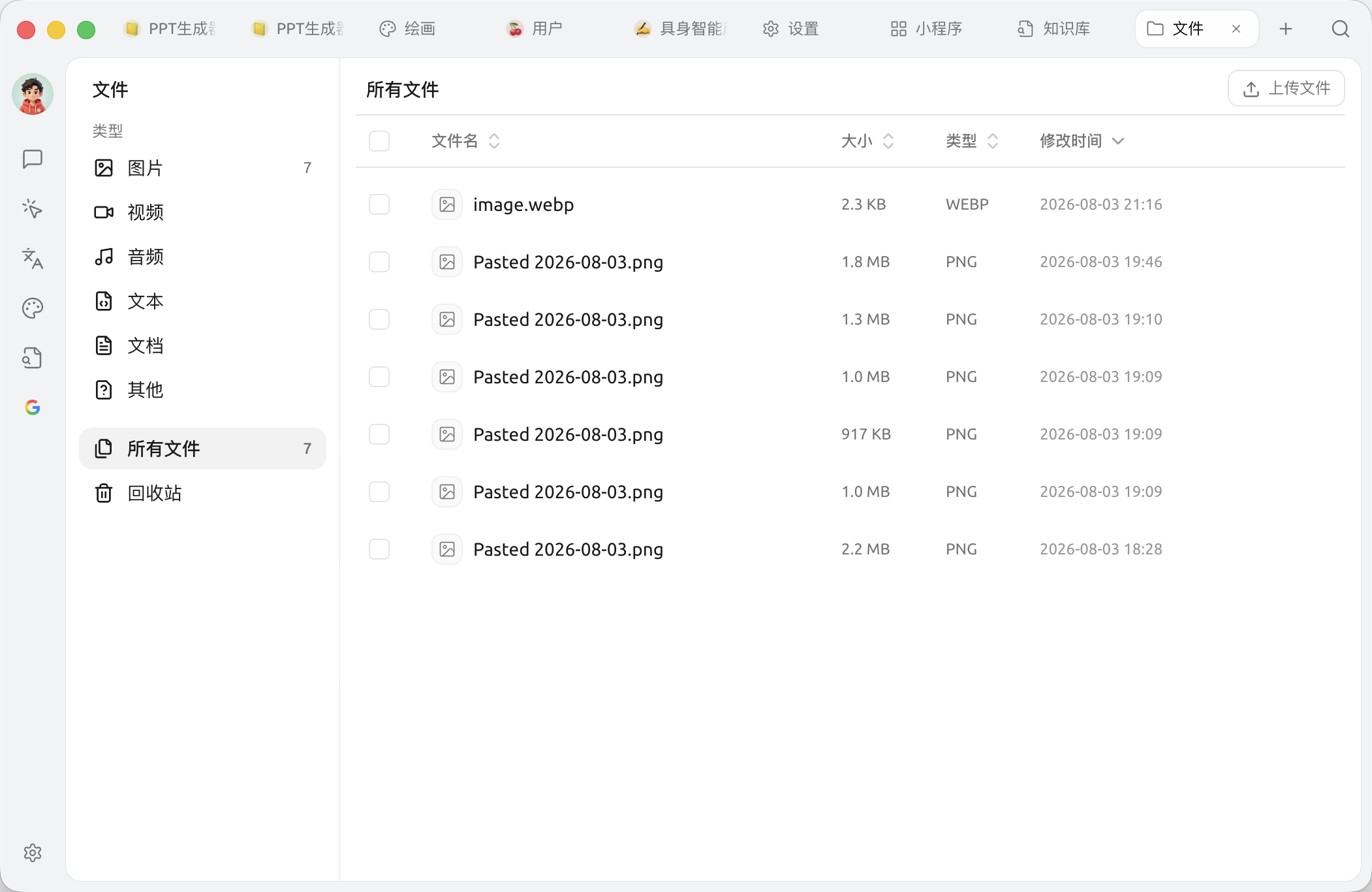
Files page: categorized by type on the left, sorting and select all / multi-select at the top
## What you can do here
* **Filter by type**: categorized by type on the left — `Documentation`,`Image`,`Text`,`Audio`,`Video`,`Other`,`All files`
* **Sort**: the top supports `File name` / `Size` / `Type` / `Modification time` four sorting options
* **Batch operations**: top right `Select all` with checkboxes `⋯` use the menu for batch deletion
* **Upload**: drag files directly into the page to upload, or click `Upload file`
* **Preview**: click a file to preview directly (supported formats such as images and PDFs)
* **Rename**: right-click → rename
* **Delete**: right-click → delete; deleted files will go to **Recycle Bin**(see details below)
* **Open containing location**: right-click → \[Open containing folder] (macOS = Finder, Windows = File Explorer)
{% hint style="info" %}
If a file is marked as **missing**, it means its local original file has been moved or deleted; such files can only be located or their records removed from the library.
{% endhint %}
## Recycle Bin
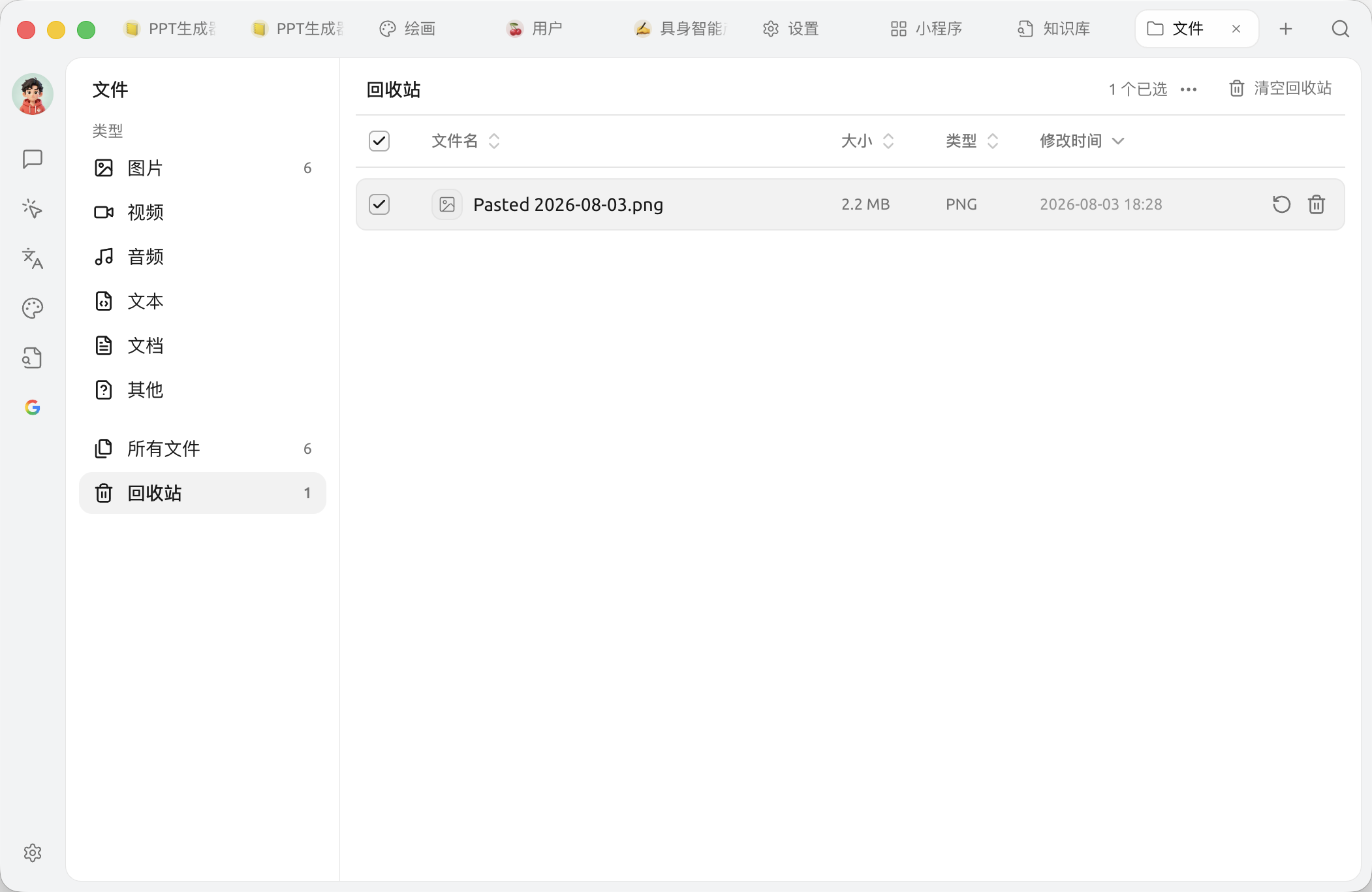
After deleting a file, it won't disappear immediately; it first goes to the \[Recycle Bin]. In the Recycle Bin, you can:
* **Restore**: put mistakenly deleted files back where they were
* **Permanently delete**: completely remove a specific file
* **Empty Recycle Bin**: permanently delete all files in the Recycle Bin at once
Recycle Bin: restore, permanently delete, or empty all
{% hint style="warning" %}
**Permanent deletion cannot be undone.** Deleting a file will also remove its references in all related messages, so confirm before proceeding.
{% endhint %}
## Where are files stored?
Cherry Studio stores all attachments in the local application data directory. Specific paths:
* **macOS**:`~/Library/Application Support/CherryStudio`
* **Windows**:`%APPDATA%\CherryStudio`
* **Linux**:`~/.config/CherryStudio`
Want to move it to another drive? See [Change storage location](/docs/en-us/pre-basic/settings/data-settings/storage.md).
## Tips and tricks
* Conversations / knowledge bases that aren't used for a long time will accumulate more and more files; cleaning them up here regularly can save a lot of disk space
* Important files are recommended to be backed up to cloud storage as well (WebDAV / S3, etc.); see [Data Settings](/docs/en-us/pre-basic/settings/data-settings.md)
* Garbled file names? Usually it's an encoding issue when dragging in from outside; it's recommended to rename them first before using
***
### Get help and submit feedback
If you encounter any questions, bugs, or have suggestions for feature improvements during configuration or use, please refer to [Feedback and Suggestions](/docs/en-us/question-contact/suggestions.md) for the official channels provided.
---
# Agent Instructions
This documentation is published with GitBook. GitBook is the documentation platform designed so that both humans and AI agents can read, navigate, and reason over technical content effectively. Learn more at gitbook.com.
## Querying This Documentation
If you need additional information that is not directly available in this page, you can query the documentation dynamically by asking a question.
Perform an HTTP GET request on the current page URL with the `ask` query parameter, and the optional `goal` query parameter:
```
GET https://docs.cherryai.com.cn/docs/en-us/cherry-studio/preview/files.md?ask=&goal=
```
`ask` is the immediate question: it should be specific, self-contained, and written in natural language.
`goal` is optional and describes the broader end goal you are ultimately trying to accomplish on behalf of the user. GitBook uses it to tailor the answer towards what is most useful for that goal.
The response will contain a direct answer to the question and relevant excerpts and sources from the documentation.
Use this mechanism when the answer is not explicitly present in the current page, you need clarification or additional context, or you want to retrieve related documentation sections.