Generative Mini Program
Create, install, and use custom mini programs that can call Cherry Studio AI capabilities
Generative MiniApps are local web applications that run inside Cherry Studio [MiniApps]. Their interface and business flow are defined by you, and they can be accessed through window.cherry to call the AI models configured in Cherry Studio and turn a general-purpose model into a writing assistant, information extractor, learning tool, or specialized business application.
The difference from ordinary website-style MiniApps is not in appearance, but in where their capabilities come from: website-style MiniApps simply open a URL; generative MiniApps must be packaged as .miniappand, after installation and authorization, can then use Cherry's AI, sandbox data, files, notifications, network, and clipboard capabilities.
Goals and prerequisites
After completing this page, you will be able to:
Install and use generative MiniApps provided by others;
Create your own
.miniapppackage from a simple requirement;Let the MiniApp call Cherry Studio's [Default Model] or [Quick Model];
Check permissions, activity logs, storage, updates, and uninstall status.
To use an existing MiniApp, you only need a trusted .miniapp file or installation URL. When making one yourself, you also need to be able to edit web files and create ZIP archives; if you want to test AI features, first configure an available chat model in Cherry Studio.
Terms
Generative MiniApp
[Generative MiniApp]
A MiniApp with customizable interface and workflow that can call Cherry Studio's AI capabilities
Local MiniApp
[Local MiniApp]
A type of MiniApp installed as a .miniapp package and run in an independent sandbox
Website-style MiniApp
[Website]
A web page opened through a URL that does not have window.cherry capabilities
Permissions
[Permissions]
The scope of capabilities requested when the MiniApp is installed and reviewed by the user
Model slots
[Default Model], [Quick Model]
Two model positions selected by the user for this MiniApp; the MiniApp cannot see the provider, model name, or API key
Path
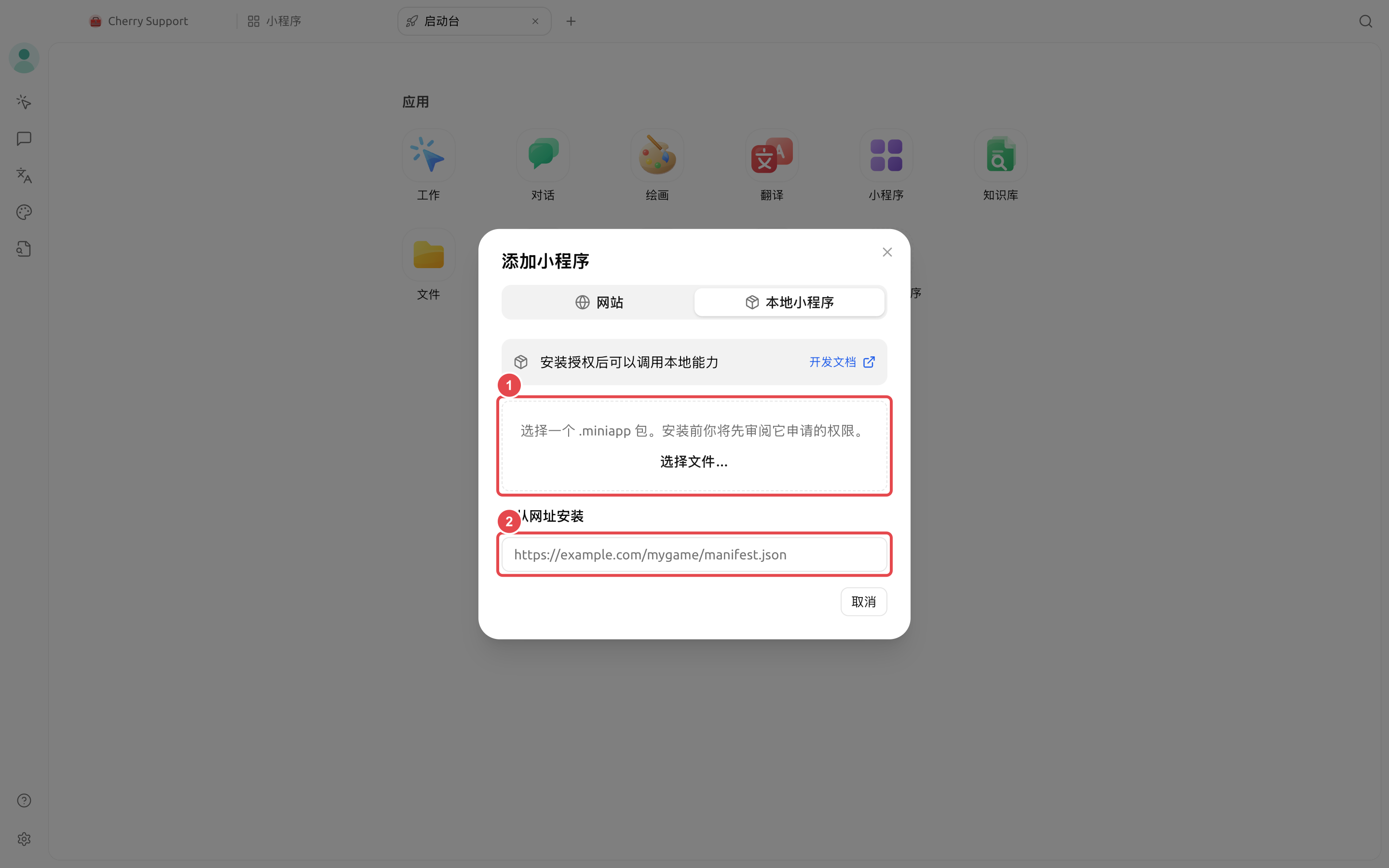
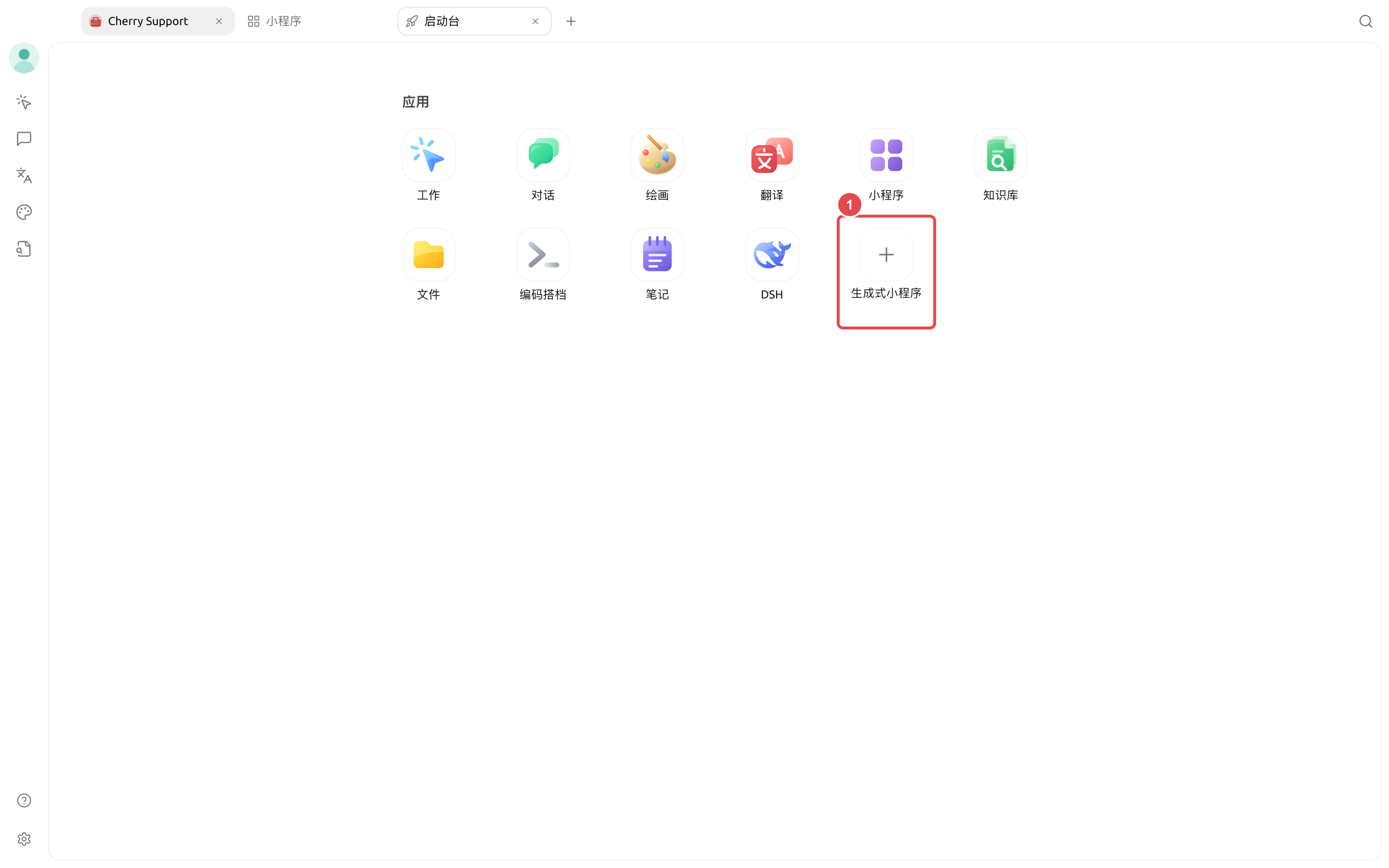
Using an existing MiniApp:[Launcher] → [Generative MiniApps] → [Local MiniApp] → select a file or enter an installation URL → review permissions → [Install]
You can also enter from the MiniApp page:[Launcher] → [MiniApps] → [Add MiniApp] in the upper-right corner → [Local MiniApp]
Manage installed MiniApps:[MiniApps] → right-click the target MiniApp → [View Details]
Steps
Install and use for the first time
Review permissions
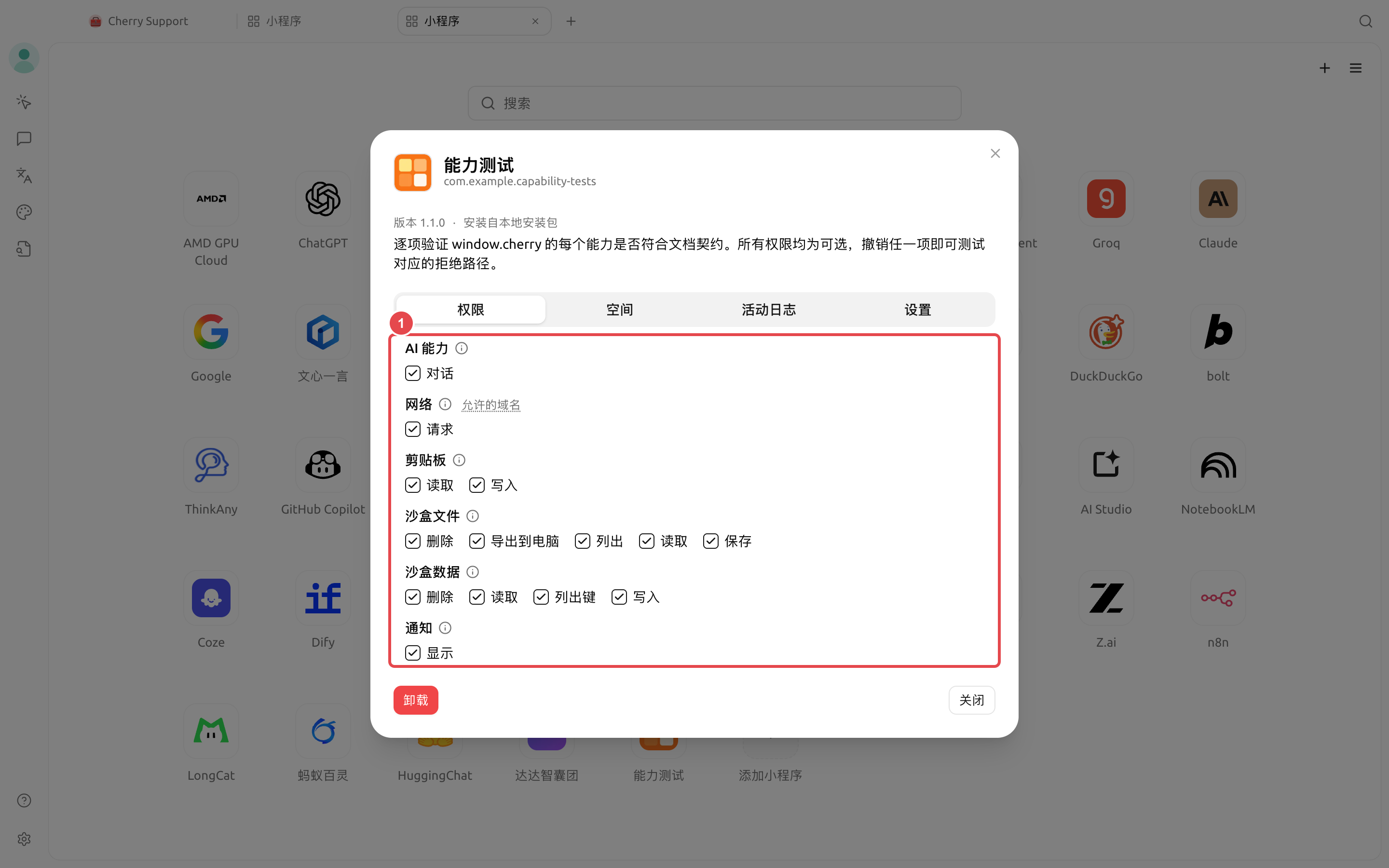
The installation confirmation page will show the MiniApp name, version, description, and all permissions. Required permissions cannot be deselected; optional permissions are checked by default, and you can deselect them before installation or adjust them afterward.
Proceed only if the MiniApp's purpose matches its permissions and the source is trustworthy. MiniApps that need AI usually show [AI Capability] → [Chat].
Choose an AI model for the MiniApp
In the [MiniApps] grid, right-click the target MiniApp and select [View Details].
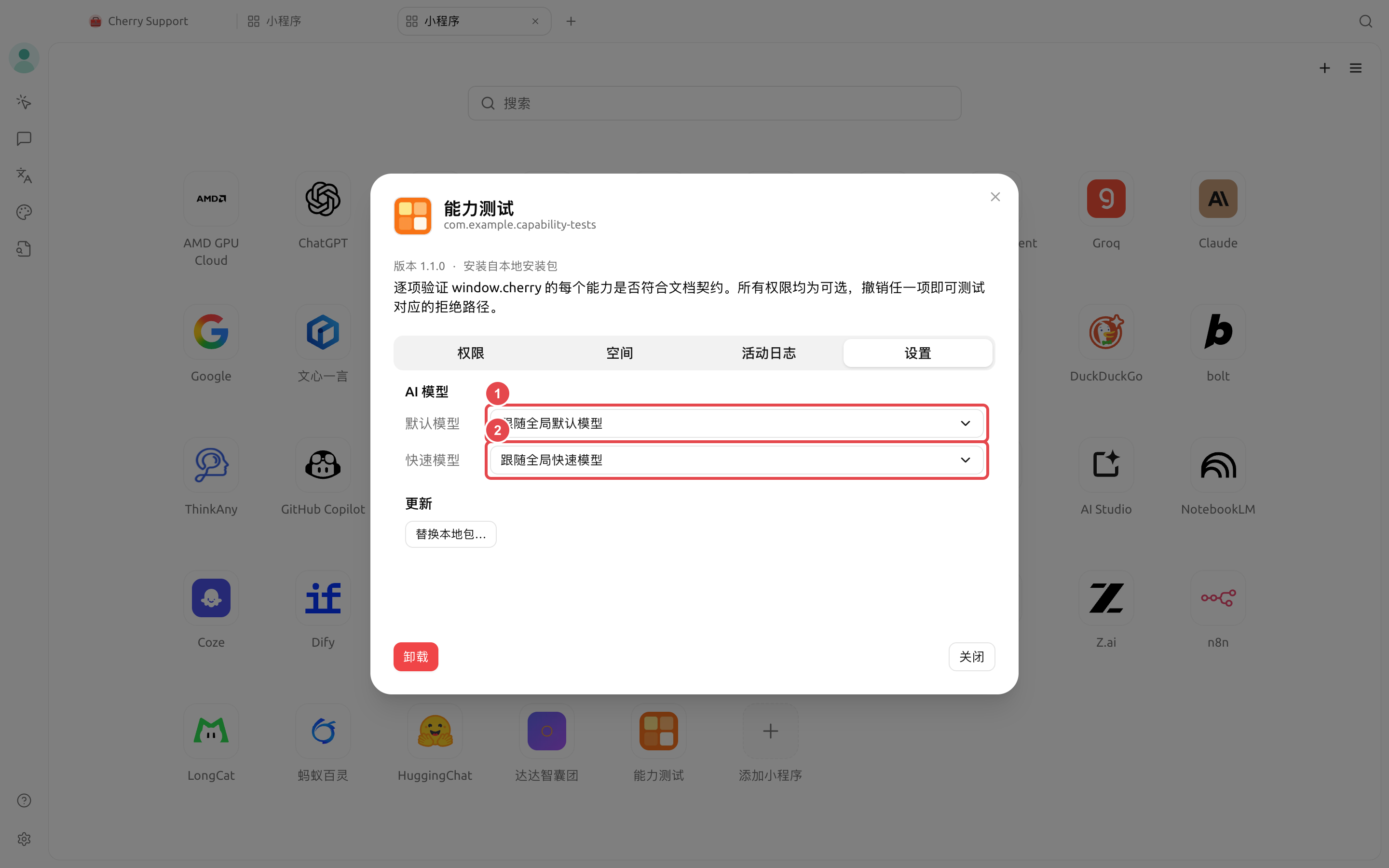
Switch to [Settings] and find [AI Model].
Set the [Default Model] and [Quick Model] according to the MiniApp's purpose. When left blank, they follow Cherry Studio's global default model and global quick model respectively.
Reopen the MiniApp and trigger an AI operation once. If no available model exists, the MiniApp should indicate that AI is temporarily unavailable.
The [Default Model] is suitable for primary tasks such as long-form generation and complex analysis; the [Quick Model] is suitable for low-latency tasks such as title suggestions, short rewrites, and tag extraction. Which slot is ultimately used is determined by the MiniApp design.
Create a minimal version
A generative MiniApp is essentially a static web project. The minimal directory only needs two files:
First create manifest.json, declare the app information and ai.chat permission:
id It is recommended to use a reverse-domain format you control, and it may only contain lowercase letters, numbers, dots, and hyphens.com.cherrystudio.* is an official reserved namespace; do not use it.
Then in index.html use the global object cherry to call AI. The example below first checks whether the [Default Model] is available, then displays the streamed text segment by segment:
window.cherry and cherry point to the same set of host APIs, so no SDK needs to be imported. MiniApps can only send text messages; image input and tool calls are not supported yet. It only specifies using the default or quick slot, and will not receive the model name, provider information, or API key.
Package and test
Confirm
manifest.jsonit is located in the project root, and the entry file matchesentry.Compress within the project directory; on macOS or Linux, you can use:
On Windows PowerShell, first generate a ZIP, then change the .miniapp extension:
In Cherry Studio's [Local MiniApp] installation area, select the generated
my-writer.miniapp.Make sure the installation page only requests the expected permissions, then open it after installation and test input, AI output, error prompts, and state after re-entering.
When debugging is needed, open [Developer Tools] in the MiniApp toolbar to inspect page errors and requests blocked by the sandbox.
Do not compress the entire project folder from an outer directory; make sure the root of the archive can directly show manifest.json. Cherry Studio can also recognize archives wrapped in only one directory layer, but a clear root structure makes troubleshooting easier.
Expected result
After installation, you should see a new icon in the [MiniApps] grid. After opening it, enter text and click the button, and the result area will continuously display the text returned by the model. Right-click the MiniApp and enter [View Details] to see the [AI Capability] permission it requested, the model slot it uses, and the most recent call records.
If installation succeeds but AI is unavailable, first check the model in [View Details] → [Settings], then check whether [AI Capability] → [Chat] is allowed in [Permissions].
Key screenshots

Click [Generative MiniApps] to open the [Add MiniApp] panel.

Drag in the
.miniapppackage or click [Choose File...].You can also enter the HTTPS installation URL provided by the developer.

Check that [AI Capability] and authorizations such as network, clipboard, files, data, and notifications match the MiniApp's purpose.

The [Default Model] handles the MiniApp's main AI requests and follows the global default model when left blank.
The [Quick Model] handles low-latency requests specified by the MiniApp and follows the global quick model when left blank.
Configuration instructions
Installation source
—
Use a local .miniapp file
Determines whether to install from a local package or an HTTPS URL
Self-use testing, team distribution
For third-party MiniApps, first verify the publisher, source code, and permissions
AI permissions
Declared by the MiniApp; optional permissions are checked by default during installation
Grant only the permissions necessary to complete the function
Allow calling cherry.ai.chat()
All AI features
Required permissions cannot be revoked individually; uninstall if you no longer trust it
Default model
Follow the global default model
Use a chat model that you have verified is available
Handles primary generation and analysis tasks
Long text, complex instructions, structured output
Calls count toward the usage of the corresponding model service
Quick model
Follow the global quick model
Choose a faster-responding model for short tasks
Handles low-latency tasks
Revise titles, complete text, classify, extract tags
The MiniApp must explicitly choose quick to use
Reasoning mode
Off when not passed by the MiniApp
Turn off for ordinary rewriting first
Allow models that support reasoning to reason first
Complex analysis, planning
Models that do not support switching will ignore this item
Theme style
Follow Cherry Studio's light/dark theme
Reference /__cherry/theme.css
Use color variables provided by the host
All custom interfaces
External CDN resources will be blocked by the sandbox and should be packaged into the app
What other capabilities can be used
cherry.storage
Save settings and state as strings
storage.* or specific methods
cherry.file
Save, read, and export files within the MiniApp's own sandbox
file.* or specific methods
cherry.notification
Send system notifications through Cherry Studio
notification.show
cherry.network
Access HTTPS domains declared in the manifest
network.fetchand fill in network domain list
cherry.clipboard
Read and write plain text when the MiniApp is visible and has keyboard focus
clipboard.read、clipboard.write
cherry.app
Read app version, language, and current permissions
No declaration required
Local MiniApps cannot directly use localStorage、browser fetch、cookies, pop-ups, or external CDNs. Use cherry.storagewhen you need to save state, use cherry.network.fetch when you need network access, and declare the allowed domains in the manifest.
User cases
Writing and rewriting
Draft, tone, and word-count requirements
Use the [Default Model] to generate the main text and the [Quick Model] to provide title options
Can preserve the original meaning and quickly switch between different expressions
Meeting notes organization
Pasted meeting notes
Extract conclusions, owners, and deadlines, and output them in a fixed format
Each action has an owner and time field
Multilingual translation
Original text, target language, and glossary
Fix terminology and output format in the system message, and stream the translation
Proper nouns are consistent, paragraph structure is preserved
Structured information extraction
Contract, resume, or feedback text
Ask the model to return results in fixed fields, then have the page validate missing items
Required fields are complete, and abnormal content is flagged
Learning practice
Notes, question types, and difficulty
Generate questions, hints, and explanations, and save progress with sandbox data
You can continue the last practice session after reopening
Vertical workflow
Team templates and business rules
Combine input, AI processing, human confirmation, and export in one interface
Repeated tasks can be completed stably through the same workflow
The results of a generative MiniApp are still generated by the selected model. High-risk uses such as medical, legal, and financial scenarios, as well as data that affects formal business operations, must be reviewed by qualified personnel.
FAQ
References
Last updated
Was this helpful?