> For the complete documentation index, see [llms.txt](https://docs.cherryai.com.cn/llms.txt). Markdown versions of documentation pages are available by appending `.md` to page URLs; this page is available as [Markdown](https://docs.cherryai.com.cn/docs/en-us/cherry-studio/preview/app.md).

# Mini Programs

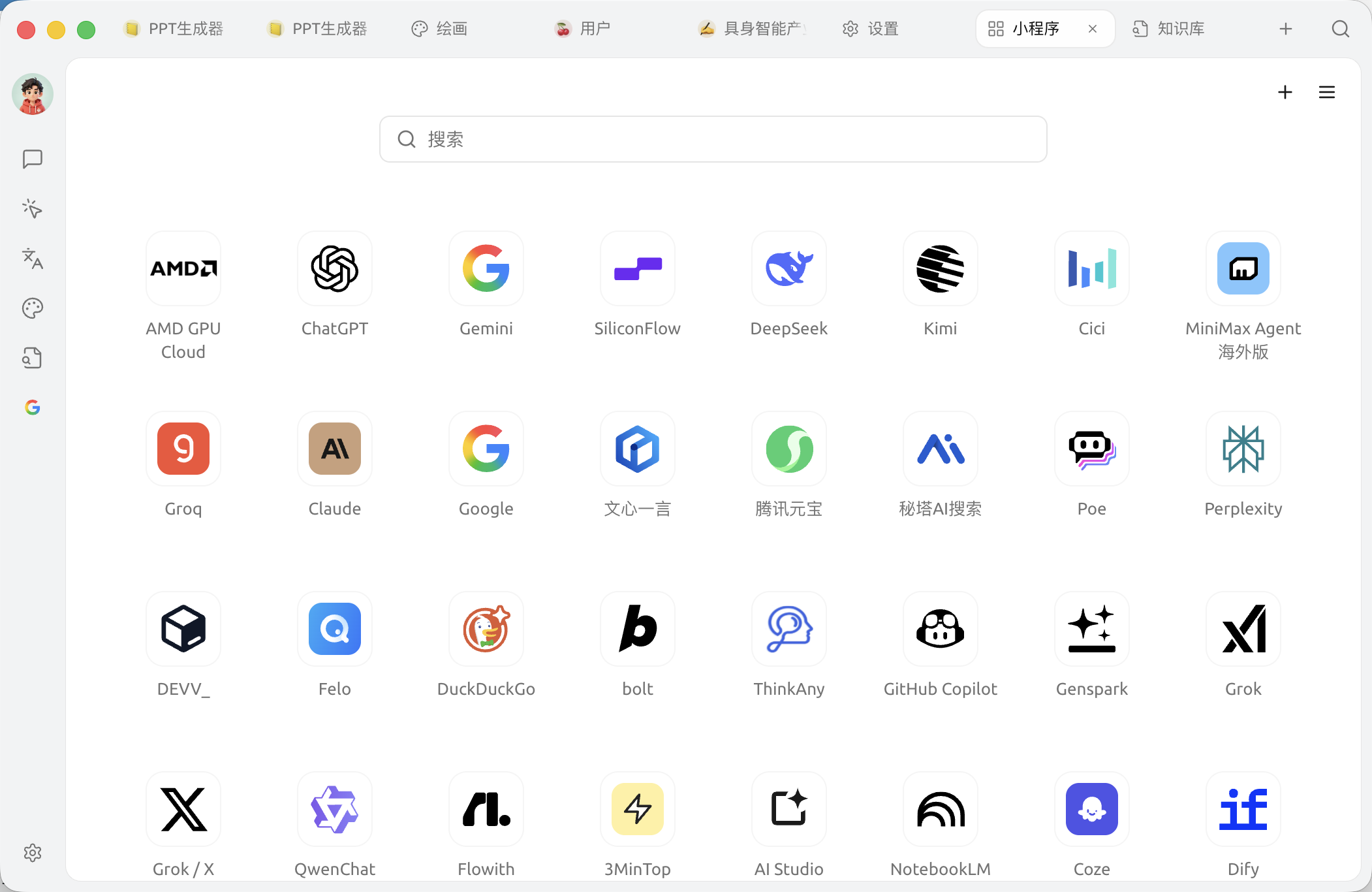
Mini program page (top Tab `+` Enter **Launcher** → `Mini program`) Open each AI vendor's web version (such as ChatGPT, Claude, Wenxin Yiyan, Kimi, etc.) in the form of a native client window, so you can switch between different models' web experiences without leaving Cherry Studio.

### Enter mini program

1. Click the top Tab bar `+` or open directly **Launcher**
2. Click `Mini program` App icon
3. Select the service you want to open in the mini program grid

<figure><img src="/files/c62e32cc9341e0da971f79e96ba102694b899da6" alt=""><figcaption><p>Mini program grid, built in with 40+ services; the `Custom` item at the end can add any webpage</p></figcaption></figure>

At the top of the page there is **search box** and **Settings (⚙️)** entry, at the end of the list `customize` used to add any webpage.

### Settings

Cherry Studio mini program settings support the following actions:

* **Show / hide mini programs**: You can drag mini programs left or right into two areas to control their visibility
* **Sort mini programs**: Drag up and down to sort the mini programs
* **Mini program area filtering**: Automatically hide mini programs you cannot access based on your selection
* **Mini program cache count**: If the number of mini programs opened at the same time exceeds this count, some mini programs will enter an inactive state

### Customization and management

Cherry Studio's mini programs support the following actions:

* **Add to launcher**: Add frequently used mini programs to the launcher, making it convenient to open from `+` the entry quickly. You can manage it in `Settings → Mini Programs` or right-click the mini program icon and choose **Add to launcher**
* **Keep Alive**: Keep the mini program window from being destroyed immediately when you switch away; when you enter it again, you don't need to log in or reload
* **Add custom webpage**: Click the `customize` icon at the end of the list, fill in the name, URL, and icon to add it to the grid
* **Delete / Edit**: Right-click any mini program icon to

### Tips and tricks

* Mini programs use each service's**web version**, and login state, cookies, and settings are all stored locally, isolated from the system browser
* If a mini program fails to load, you can right-click → Reload, or check the proxy settings (see [General settings](/docs/en-us/pre-basic/settings/general.md))
* The current mini programs and conversation panel are not yet interconnected; if you need the AI to read content in a mini program, you need to copy or screenshot it manually

If you encounter any problems, please submit feedback in [Feedback and Suggestions](/docs/en-us/question-contact/suggestions.md) ).

***

### 💡 Get help and submit feedback

If you encounter any questions, bugs, or have suggestions for feature improvements during configuration or use, please refer to [Feedback and Suggestions](/docs/en-us/question-contact/suggestions.md) the official channels provided there.


---

# Agent Instructions
This documentation is published with GitBook. GitBook is the documentation platform designed so that both humans and AI agents can read, navigate, and reason over technical content effectively. Learn more at gitbook.com.

## Querying This Documentation
If you need additional information that is not directly available in this page, you can query the documentation dynamically by asking a question.

Perform an HTTP GET request on the current page URL with the `ask` query parameter, and the optional `goal` query parameter:

```
GET https://docs.cherryai.com.cn/docs/en-us/cherry-studio/preview/app.md?ask=<question>&goal=<endgoal>
```

`ask` is the immediate question: it should be specific, self-contained, and written in natural language.
`goal` is optional and describes the broader end goal you are ultimately trying to accomplish on behalf of the user. GitBook uses it to tailor the answer towards what is most useful for that goal.

The response will contain a direct answer to the question and relevant excerpts and sources from the documentation.

Use this mechanism when the answer is not explicitly present in the current page, you need clarification or additional context, or you want to retrieve related documentation sections.