> For the complete documentation index, see [llms.txt](https://docs.cherryai.com.cn/llms.txt). Markdown versions of documentation pages are available by appending `.md` to page URLs; this page is available as [Markdown](https://docs.cherryai.com.cn/docs/en-us/advanced-basic/workbench/screenshot-ocr.md).
# Screenshot, Annotation, and OCR
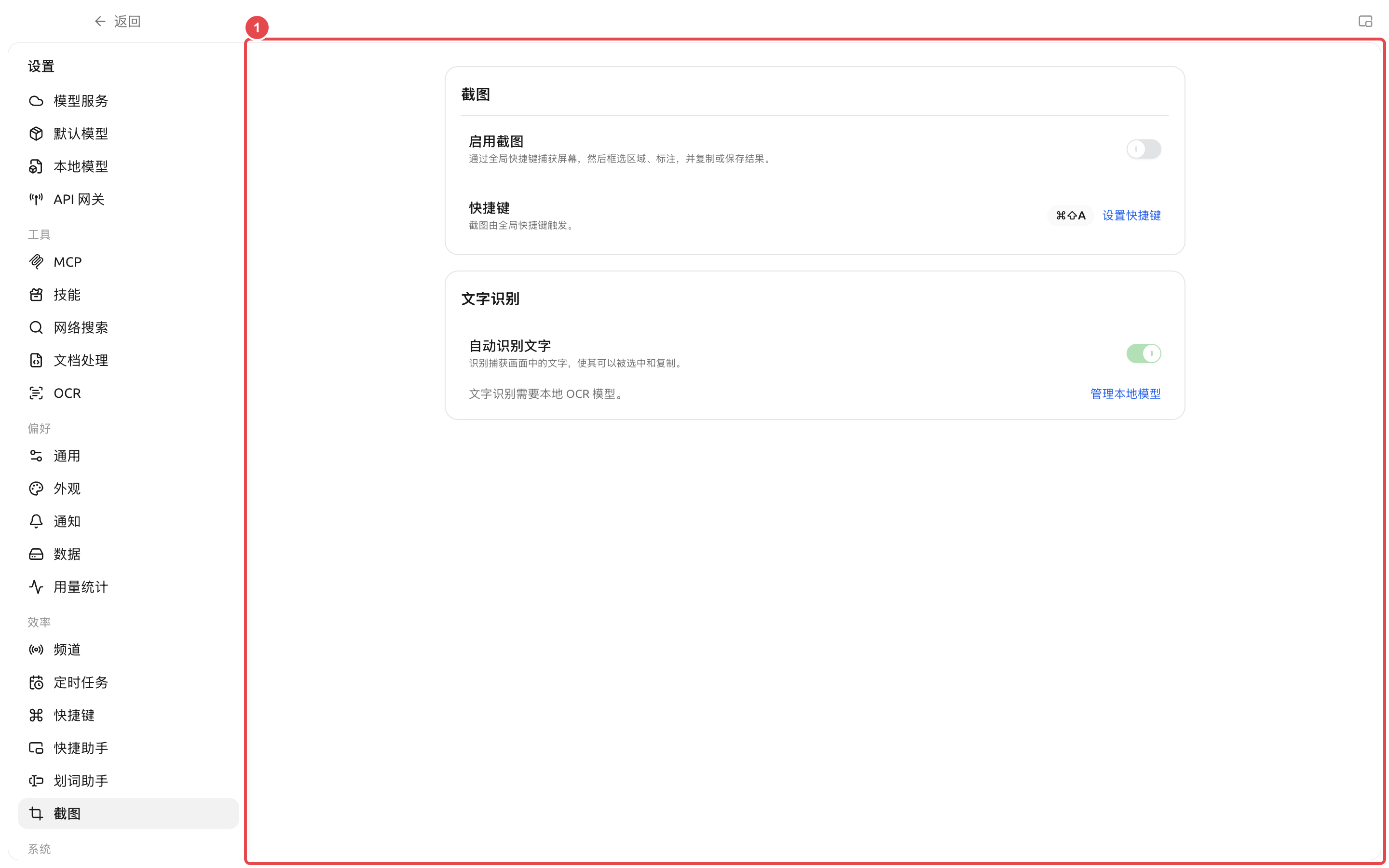
Cherry Studio can capture a screen region with a global hotkey, add rectangles, arrows, brushes, text, or mosaics, and copy or save the result. After enabling local OCR, you can also directly select and copy text in the screenshot.
### Goals and prerequisites
* Path: \[Settings] → \[Screenshot];
* On macOS, you need to allow Screen Recording the first time you use it; after authorization, restart the app as prompted on the page;
* OCR requires downloading a text recognition model in \[Settings] → \[Local Models];
* The screenshot feature is disabled by default, and automatic text recognition is enabled by default, but OCR will not run if the model is not ready.
### Terms
| Terms | Meaning |
| ------------- | ---------------------------------------------------------------------------------- |
| Global hotkey | A hotkey that can be triggered even when the current focus is not in Cherry Studio |
| OCR | Recognize text in an image as selectable, copyable text |
| Mosaic | Obscure accounts, paths, keys, or other sensitive areas in the screenshot |
### Operation path
\[Settings] → \[Screenshot] → turn on \[Enable Screenshot] → press the screenshot hotkey → select an area → annotate or recognize text → copy or save.
### Steps
{% stepper %}
{% step %}
#### 1. Enable screenshots and check permissions
Open \[Settings] → \[Screenshot] and turn on \[Enable Screenshot]. If \[Screen Recording Permission] appears on macOS, choose \[Authorize]; after authorization, click \[Restart Now].
{% endstep %}
{% step %}
#### 2. Set the hotkey
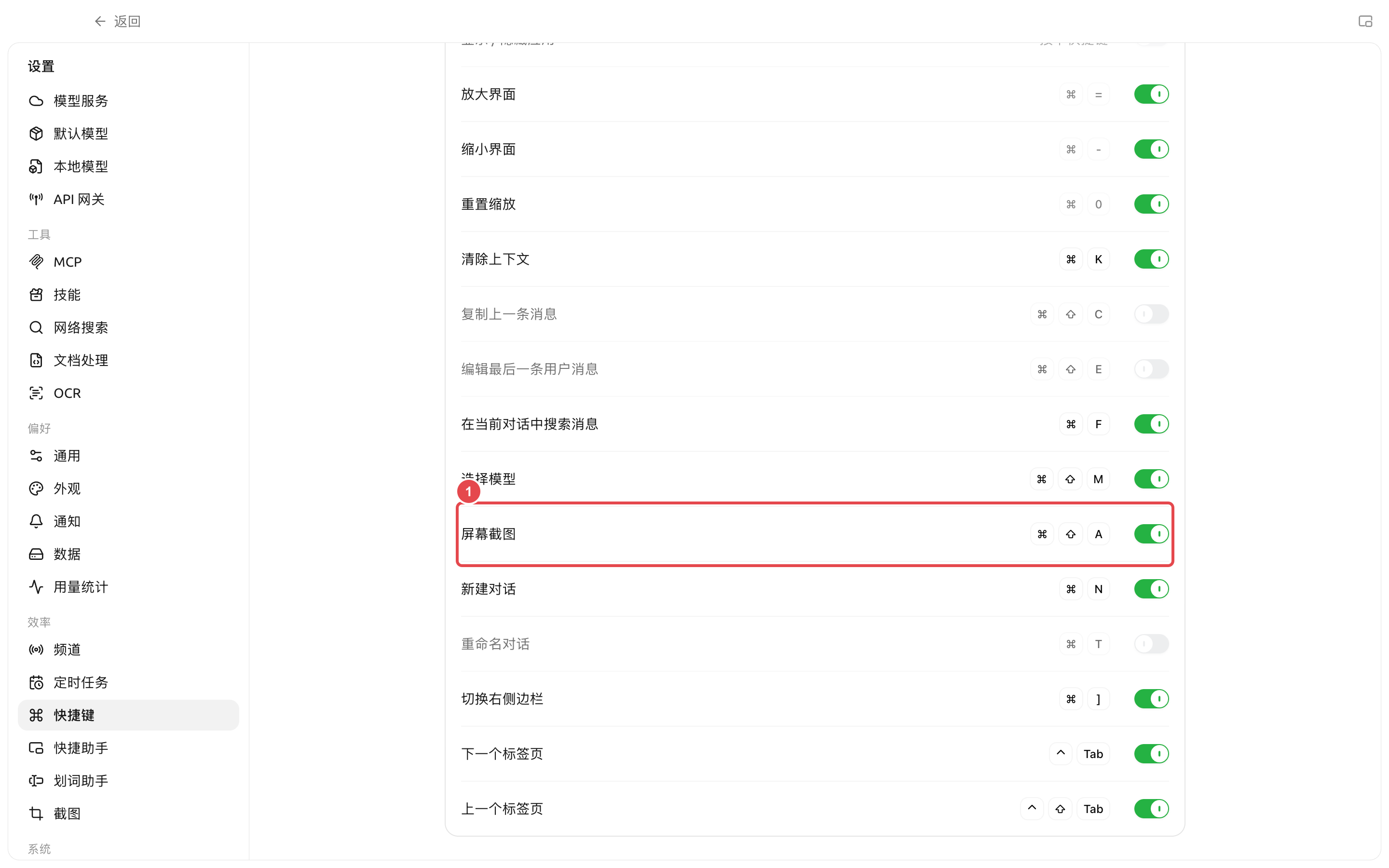
The default hotkey is macOS's `Command+Shift+A`and Windows and Linux's `Ctrl+Shift+A`. Click \[Set Hotkey] to jump to the corresponding row; if it is already occupied by the system or another app, the page will show a conflict warning.
{% endstep %}
{% step %}
#### 3. Select and annotate
After pressing the hotkey, drag to select a region. Use \[Rectangle], \[Arrow], \[Brush], and \[Text] to highlight key points, and use \[Mosaic] to cover sensitive information; the property panel lets you adjust color, line width, and font size.
{% endstep %}
{% step %}
#### 4. Copy text or image
When the OCR model is ready, the page will automatically recognize text; you can also click \[Recognize Text]. Directly select text or choose \[Copy All Text]; after finishing annotations, choose \[Copy and Close] or \[Save Image].
{% endstep %}
{% endstepper %}
### Expected results
The screenshot contains only the selected area; the annotations are clear and sensitive information has been obscured; after copying, you can paste the image into the target app, or paste the OCR text as editable text.
### Key screenshots
① [Screenshot] is a customizable global hotkey; after changing it, test it once in a non-Cherry Studio window first.
### Configuration notes
| Configuration item | Product default | Recommended starting point | Function | Applicable scenario | Notes |
| ---------------------------- | ---------------------- | -------------------------------------------------- | ----------------------------------------------- | ------------------------------------------- | -------------------------------------------------- |
| Enable screenshot | Disable | Turn on when needed | Register global screenshot hotkey | Daily screenshots, tutorials, issue reports | macOS requires Screen Recording permission |
| Screenshot hotkey | `Command/Ctrl+Shift+A` | Keep the default unless there is a conflict | Trigger screenshots from any app | High-frequency cross-app use | Will not trigger when it conflicts with other apps |
| Automatically recognize text | Enable | Keep it on if you often copy text from screenshots | Automatically run OCR after taking a screenshot | Error screenshots, tables, interface text | Need to download a local OCR model |
### User case
A tester captured a configuration error, used a rectangle to frame the error message, used a mosaic to obscure the account and local path, and then copied it into the issue feedback assistant. Later, they copied the error code from the same screenshot and pasted it into the reproduction steps to avoid mistakes from manual entry.
### FAQ
What should I do if pressing the hotkey does nothing?
Make sure \[Enable Screenshot] is turned on, then check whether a conflict warning appears next to the hotkey. On macOS, also check Screen Recording permission and restart after authorization; on Windows and Linux, try changing to a combination not used by the system.
Why can't I copy text?
Open \[Settings] → \[Local Models] and make sure the OCR model status is Ready. Text cannot be recognized while annotating; finish or undo the current annotation first, then run OCR.
### References
* Issue feedback and feature requests
* Input toolbar and productivity tools
---
# Agent Instructions
This documentation is published with GitBook. GitBook is the documentation platform designed so that both humans and AI agents can read, navigate, and reason over technical content effectively. Learn more at gitbook.com.
## Querying This Documentation
If you need additional information that is not directly available in this page, you can query the documentation dynamically by asking a question.
Perform an HTTP GET request on the current page URL with the `ask` query parameter, and the optional `goal` query parameter:
```
GET https://docs.cherryai.com.cn/docs/en-us/advanced-basic/workbench/screenshot-ocr.md?ask=&goal=
```
`ask` is the immediate question: it should be specific, self-contained, and written in natural language.
`goal` is optional and describes the broader end goal you are ultimately trying to accomplish on behalf of the user. GitBook uses it to tailor the answer towards what is most useful for that goal.
The response will contain a direct answer to the question and relevant excerpts and sources from the documentation.
Use this mechanism when the answer is not explicitly present in the current page, you need clarification or additional context, or you want to retrieve related documentation sections.