> For the complete documentation index, see [llms.txt](https://docs.cherryai.com.cn/llms.txt). Markdown versions of documentation pages are available by appending `.md` to page URLs; this page is available as [Markdown](https://docs.cherryai.com.cn/docs/en-us/advanced-basic/extensions/mcp.md).
# MCP and External Tools
MCP is the connection method that lets an Agent use external tools and resources. Cherry Studio can manage MCP servers, built-in servers, service marketplace entries, and some service provider entry points, then bind the connected servers to a specified Agent.
### When MCP is needed
* The Agent needs to call services beyond Cherry Studio’s built-in tools;
* The team already has databases, browsers, or business systems that provide MCP interfaces;
* You want the same external capabilities to be reused by multiple Agents;
* You need to provide tools, resources, or prompts to the model in a unified way.
Use skills only when you need a fixed workflow, and bind a knowledge base directly when you only need to retrieve Cherry Studio’s knowledge base; there is no need to set up MCP just to be “more advanced.”
### Add Server
Path: 【Settings】→【MCP】→【MCP Servers】→【Add】.
{% stepper %}
{% step %}
#### 1. Confirm the connection method
Local commands usually use standard input/output; remote services usually provide SSE or a streamable HTTP address. Fill in the configuration according to what the service provider gives you; do not guess based on the name.
{% endstep %}
{% step %}
#### 2. Fill in the configuration and check permissions
Local servers need commands, parameters, and environment variables; remote servers need a URL, and some services also require authorization. Before saving, confirm the command source and data scope.
{% endstep %}
{% step %}
#### 3. Start and view tools
Enable the server, wait for the status to become normal, then open the details to check the tools, resources, and prompts it provides. If the connection fails, first check the server logs.
In the tool list, expand a tool to view the full Markdown description, as well as parameters, types, required flags, and enum values shown hierarchically. Before calling it, first verify the required parameters; object or array parameters should be expanded layer by layer to avoid guessing the input format based only on the tool name.
{% endstep %}
{% step %}
#### 4. Bind to Agent
Open 【Work】→ Agent menu→【Edit】→【MCP】 and enable this server. A server that is not started cannot be bound and used properly.
{% endstep %}
{% endstepper %}
### Built-in Servers and Service Marketplace
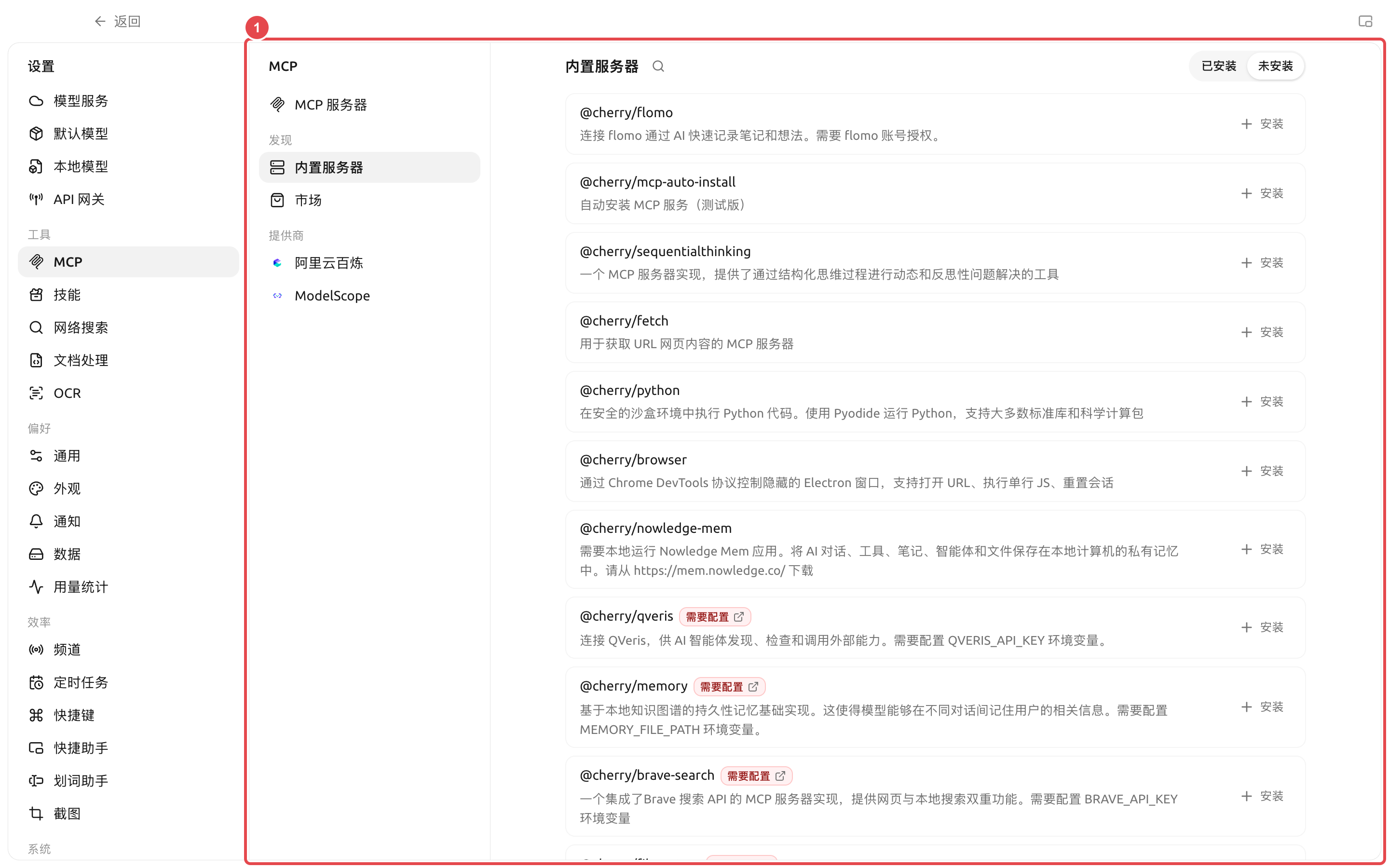
【Built-in MCP】 provides commonly used capabilities that can be installed or enabled directly; 【Service Marketplace】 is used to manage third-party marketplace sources. Before installing, still review the instructions, commands, environment variables, and permissions; a built-in entry point does not mean all external service operations are risk-free.
① The built-in list will indicate whether an account, API Key, or directory configuration is required; after installation, you still need to complete the configuration and verify the connection.
QVeris is located under 【Built-in Servers】 and is used to let the Agent discover, inspect, and call external capabilities. After installation, you need to configure `QVERIS_API_KEY`; do not put the key into Agent prompts, skills, or public screenshots.
### Using MCP prompts and resources in the input area
In addition to tools, servers may also provide “prompts” and “resources.” After the server has been bound to the current assistant or Agent, open the 【+】 panel in the input area:
* Select 【MCP Prompts】 to insert the server template into the input box; required parameters in the template will appear as fillable fields;
* Select 【MCP Resources】 to choose files, records, or other resources from the bound servers;
* Short text resources will be inserted directly into the input box; larger or binary resources will be included as references and read by models that support tool calls when needed.
{% hint style="info" %}
The panel only shows servers that are connected within the current conversation scope and that truly provide the corresponding capabilities. If you cannot see 【MCP Prompts】 or 【MCP Resources】, first check the corresponding tabs in the server details, then confirm that the current assistant or Agent has bound this server.
{% endhint %}
### Configuration suggestions
| Configuration item | Product default | Recommended starting point | Function | Applicable scenario | Notes |
| --------------------- | ---------------------------------------------- | -------------------------------------------------------------------- | -------------------------------------------- | ---------------------------------------- | --------------------------------------------------------------------- |
| Server status | Decide after adding based on the configuration | Enable only one at a time and verify it | Control whether the server is available | Initial integration, troubleshooting | Hard to locate the issue when multiple services fail at the same time |
| Agent binding | Do not automatically bind all servers | Only bind the servers required by the current Agent | Control the capability scope | Division of labor across multiple Agents | Avoid irrelevant tools from taking up context |
| Environment variables | Do not prefill secrets | Use credentials with the minimum permissions required by the service | Provide authentication or runtime parameters | Private services | Hide sensitive content before screenshots and exports |
| Tool approval | Determined by the Agent permission mode | Keep confirmation for write or billing tools | Prevent accidental operations | Databases, files, external APIs | Channel entry points can use a stricter mode |
### User case: connect a project database to an analysis Agent
The administrator provides a read-only MCP connection. The user verifies that the server is working under 【Settings】→【MCP】, then binds it only to the “Data Analysis” Agent. The Agent uses read-only tools to obtain data and writes the report to the work directory; tools that involve updating data are not enabled. In this way, even if the prompt is misunderstood, the business database will not be modified directly.
What is the difference between MCP and an API gateway?
MCP connects external tools to Cherry Studio; an API gateway exposes Cherry Studio’s model capabilities to other programs in an API-compatible way. The data flow direction is opposite.
What should I do if the server shows connected but the Agent still cannot find the tools?
Check whether the Agent is bound to the server, whether the tools have been turned off, and whether a permission request is pending. After modifying the Agent configuration, send a new message to let the runtime load the new tools.
What should I do if the server shows connected but the Agent still cannot find the tools?
Check whether the Agent is bound to the server, whether the tools have been turned off, and whether a permission request is pending. After modifying the Agent configuration, send a new message to let the runtime load the new tools.
---
# Agent Instructions
This documentation is published with GitBook. GitBook is the documentation platform designed so that both humans and AI agents can read, navigate, and reason over technical content effectively. Learn more at gitbook.com.
## Querying This Documentation
If you need additional information that is not directly available in this page, you can query the documentation by asking a question.
Perform an HTTP GET request on the following URL with the `ask` and `goal` query parameters:
```
GET https://docs.cherryai.com.cn/docs/en-us/advanced-basic/extensions/mcp.md?ask=&goal=
```
`ask` is the immediate question: it should be specific, self-contained, and written in natural language.
`goal` is what the user is ultimately trying to achieve, the reason they need the answer. Sharing it helps GitBook give you a better, more relevant answer. A goal is most helpful when it describes the outcome the user wants rather than restating the question. For example, with `ask=how do I create an API token`, a goal like `automate deployments from our CI pipeline` lets GitBook tailor the answer to that use case.
The response will contain a direct answer to the question and relevant excerpts and sources from the documentation.
Use this mechanism when the answer is not explicitly present in the current page, you need clarification or additional context, or you want to retrieve related documentation sections.