> For the complete documentation index, see [llms.txt](https://docs.cherryai.com.cn/llms.txt). Markdown versions of documentation pages are available by appending `.md` to page URLs; this page is available as [Markdown](https://docs.cherryai.com.cn/docs/en-us/advanced-basic/developer-tools/code-cli.md).

# Coding Partner (Code CLI)

\[Coding Companion] Used to install, configure, and launch common programming command-line tools. Cherry Studio distinguishes between app-hosted versions, versions already in the system PATH, and the tool’s own account login, and will not automatically overwrite system installations.

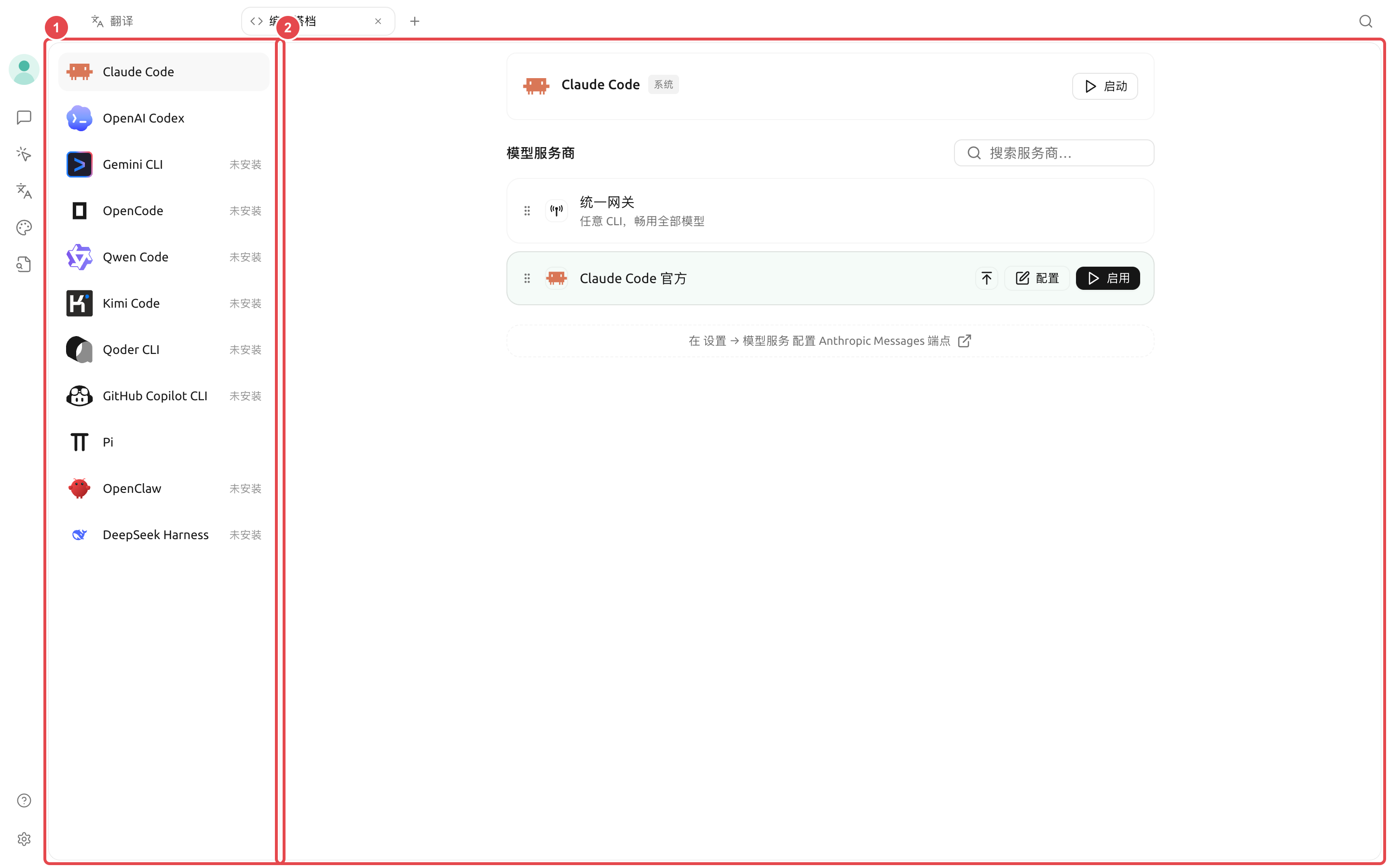
<figure><img src="https://raw.githubusercontent.com/SiinXu/cherry-studio-docs/2446b25878f69e98f33d50623a3c4cf5e836680a/.gitbook/assets/cherry-guide-code-cli-list.png" alt="编码搭档页面中的 CLI 列表、安装状态和模型服务配置"><figcaption><p>1. Select a tool on the left and confirm its installation status; 2. Select the unified gateway, the tool’s official account, or a compatible model service on the right.</p></figcaption></figure>

### What this page can do

* Check whether the tool is installed and whether updates are available;
* Install, update, or remove Cherry Studio-hosted copies of the tool;
* Detect tools already in the system PATH;
* Select a service provider, model, and parameters for CLIs that require model services;
* Keep the native login method for CLIs that log in with their own accounts;
* Start after selecting the working directory and a terminal detected by the system.

The page includes tools such as Claude Code, OpenAI Codex, Gemini CLI, OpenCode, Qwen Code, Kimi Code, Qoder CLI, GitHub Copilot CLI, Pi, and DeepSeek Harness. The actual visible items may change with product updates; refer to the page list.

### General launch process

{% stepper %}
{% step %}

#### 1. Open \[Coding Companion] from the \[Launchpad]

Select the tool you need and first check whether it is not installed, hosted by Cherry Studio, or from the system.
{% endstep %}

{% step %}

#### 2. Complete installation or login

If it is not installed, click \[Install]. For CLIs that provide their own account login, follow the on-page prompts to complete the native login; you do not need to choose a service provider in Cherry Studio.
{% endstep %}

{% step %}

#### 3. Configure model connection

For tools that require Cherry Studio model services, you can choose the \[Unified Gateway] or a compatible service provider and model. The page filters by the interface type required by the CLI, and incompatible service providers will not be listed.
{% endstep %}

{% step %}

#### 4. Select directory and terminal

The working directory determines where the CLI starts. The terminal can only be selected from the list detected by the system; after launching, use a read-only command first to confirm the current path.
{% endstep %}

{% step %}

#### 5. Launch and verify

Click \[Launch], confirm the account or model is correct, and then perform file modifications or commands. When you need to adjust reasoning strength, permissions, or tool-specific options, open \[Configuration].
{% endstep %}
{% endstepper %}

### DeepSeek Harness

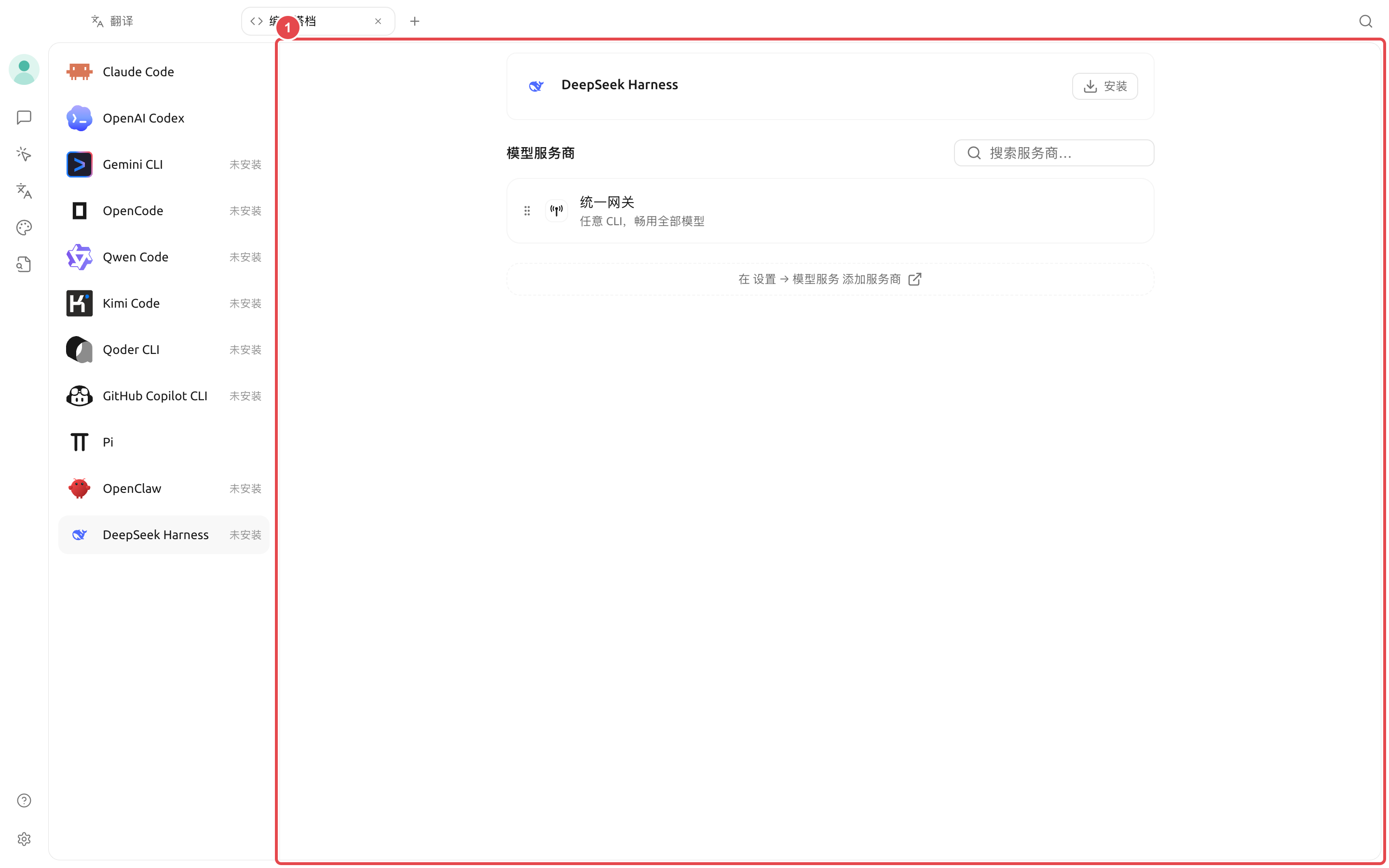
<figure><img src="https://raw.githubusercontent.com/SiinXu/cherry-studio-docs/2446b25878f69e98f33d50623a3c4cf5e836680a/.gitbook/assets/cherry-guide-code-cli-dsh.png" alt="编码搭档中的 DeepSeek Harness 安装和统一网关配置"><figcaption><p>1. If it is not installed, complete the hosted installation first; after installation, configure a compatible service provider, default permissions, and Agent mode, then start the Web UI.</p></figcaption></figure>

DeepSeek Harness has a different process from a normal terminal CLI: after installation and selecting a service provider, it is hosted by Cherry Studio and can open a separate Web UI. In the parameters, you can choose the default Agent mode and default permissions:

| Configuration      | Suitable for                                                              | Notes                                                                    |
| ------------------ | ------------------------------------------------------------------------- | ------------------------------------------------------------------------ |
| \[Standard]        | Files, Shell, retrieval, skills, planning, and sub-agents may all be used | The tool has the broadest capabilities; use controlled permissions first |
| \[PTC Code]        | Need to combine multi-step tool operations through Code Mode              | Better suited for complex coding tasks                                   |
| \[Minimal]         | Only a persistent Shell and a text editor are needed                      | Fewer dependencies, but a smaller capability scope                       |
| \[Read-only]       | Check projects, do not write files                                        | Risky operations will still ask for confirmation                         |
| \[Workspace Write] | Allows modifications to the current DSH workspace                         | Does not mean files outside the workspace can be accessed                |
| \[Full Access]     | An isolated, trusted, and recoverable environment                         | No operation confirmations are requested; highest risk                   |

### Be clear about installation sources

| Source                | What Cherry Studio will do                                   | How you should maintain it                                      |
| --------------------- | ------------------------------------------------------------ | --------------------------------------------------------------- |
| Cherry Studio-hosted  | Install, update, and uninstall the corresponding hosted copy | Manage it in \[Coding Companion] or \[Environment Dependencies] |
| System PATH           | Detect and use directly, without overwriting                 | Update or uninstall with the original package manager           |
| Tool official account | Keep the tool’s own login process                            | Manage accounts and authorization in the tool’s interface       |

<figure><img src="https://raw.githubusercontent.com/SiinXu/cherry-studio-docs/2446b25878f69e98f33d50623a3c4cf5e836680a/.gitbook/assets/cherry-guide-code-cli-list.png" alt="编码搭档页面中的 CLI 列表、安装状态和模型服务配置"><figcaption></figcaption></figure>

{% hint style="warning" %}
After uninstalling the Cherry Studio-hosted copy, if an executable with the same name still exists in the system, the page will automatically fall back to the system version. If behavior changes, first confirm which source is currently in use.
{% endhint %}

### User case: launching a coding tool in the project directory

The developer first selects the current project directory, chooses a verified model connection, and then launches Pi or another CLI. The first command only reads the repository status; after confirming that the account, model, and directory are correct, the tool is then allowed to modify files and run checks.

<details>

<summary>Why can’t I find an already installed terminal or CLI?</summary>

Cherry Studio detects tools from the login environment and standard locations. Make sure the command can run in the login terminal, then restart the app to refresh the environment. Portable or non-standard paths currently need to be launched manually from that terminal.

</details>

<details>

<summary>Why can’t I find an already installed terminal or CLI?</summary>

Cherry Studio detects tools from the login environment and standard locations. Make sure the command can run in the login terminal, then restart the app to refresh the environment. Portable or non-standard paths currently need to be launched manually from that terminal.

</details>


---

# Agent Instructions
This documentation is published with GitBook. GitBook is the documentation platform designed so that both humans and AI agents can read, navigate, and reason over technical content effectively. Learn more at gitbook.com.

## Querying This Documentation
If you need additional information that is not directly available in this page, you can query the documentation dynamically by asking a question.

Perform an HTTP GET request on the current page URL with the `ask` query parameter, and the optional `goal` query parameter:

```
GET https://docs.cherryai.com.cn/docs/en-us/advanced-basic/developer-tools/code-cli.md?ask=<question>&goal=<endgoal>
```

`ask` is the immediate question: it should be specific, self-contained, and written in natural language.
`goal` is optional and describes the broader end goal you are ultimately trying to accomplish on behalf of the user. GitBook uses it to tailor the answer towards what is most useful for that goal.

The response will contain a direct answer to the question and relevant excerpts and sources from the documentation.

Use this mechanism when the answer is not explicitly present in the current page, you need clarification or additional context, or you want to retrieve related documentation sections.