> For the complete documentation index, see [llms.txt](https://docs.cherryai.com.cn/llms.txt). Markdown versions of documentation pages are available by appending `.md` to page URLs; this page is available as [Markdown](https://docs.cherryai.com.cn/docs/en-us/advanced-basic/cases/automated-daily-report.md).

# Channel and Scheduled Daily Reports

The operations team wants to automatically aggregate designated materials every weekday morning, generate a daily report, and send it to the team channel. Before automating, first run one manually to quickly uncover missing data, path errors, and notification destination issues.

## What to prepare first

* A daily report Agent that has already been validated in \[Work];
* A clear data source and a working directory containing only the required materials;
* Fixed-format content can be turned into a skill;
* A channel that has been connected and whose message scope has been restricted;
* A weekday scheduled task.

<figure><img src="/files/e223660288c412279f29ebf3bd1b4b1d12975ae4" alt="频道设置中的平台列表和添加入口"><figcaption><p>First bind the daily report to a tested channel, then select it as the notification target for the scheduled task.</p></figcaption></figure>

<figure><img src="/files/cde6077f074e8ee59ce67e0bd26d30a8aa55bfa5" alt="Agent 状态面板中的子任务、后台命令和上下文用量"><figcaption><p>After the first automatic run, check the Agent status and run records to see whether the task was actually completed.</p></figcaption></figure>

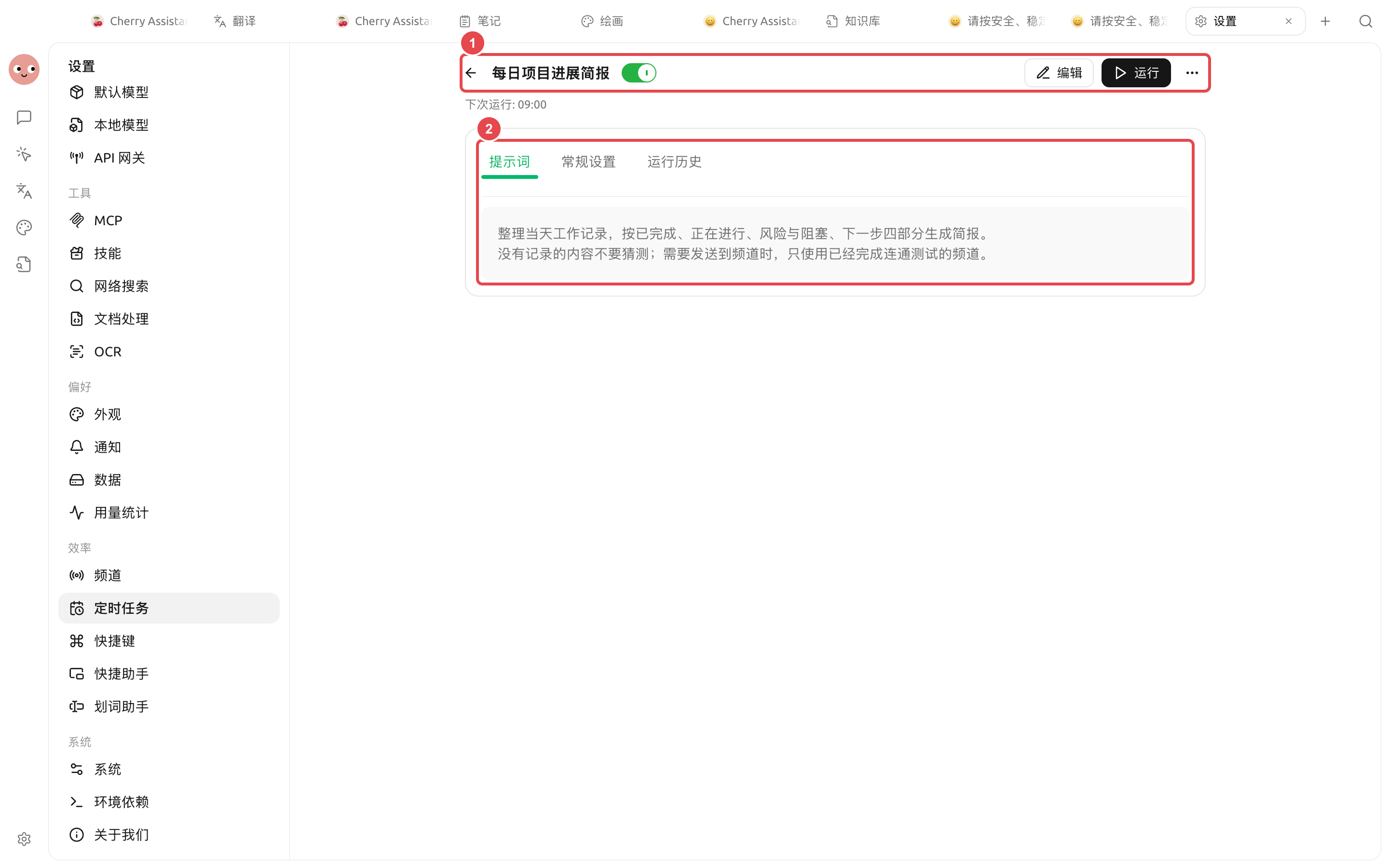
<figure><img src="https://3562065924-files.gitbook.io/~/files/v0/b/gitbook-x-prod.appspot.com/o/spaces%2F0Ut5BptC3t8CtSU1UWpM%2Fuploads%2Fgit-blob-b7bdae7ef46b33fe53006da754217349fced92e6%2Fcherry-v2-guide-case-daily-report-schedule.png?alt=media" alt="设置中已经保存并启用的每日项目进展简报定时任务和完整提示词"><figcaption><p>1) The task has been enabled and shows the next run time; 2) The prompt clearly specifies the four-part structure, missing-data handling, and channel-sending conditions.</p></figcaption></figure>

## Configuration steps

{% stepper %}
{% step %}

### 1. Manually generate a daily report

Require the Agent to output four sections: "Progress, Metrics, Risks, To-do." Check whether missing data is stated clearly instead of inventing content.
{% endstep %}

{% step %}

### 2. Configure the notification channel

First tell the Agent which platform and group to connect to, then go to \[Settings] → \[Channels] to verify credentials, allowed session ID, workspace, and permission mode.
{% endstep %}

{% step %}

### 3. Create a scheduled task

Have the Agent create a weekday schedule, or open \[Settings] → \[Scheduled Tasks] → \[New]. Select the daily report Agent, working directory, execution time, and notification channel.
{% endstep %}

{% step %}

### 4. Test immediately

After saving, click \[Run] and check the generated session, run history, and channel messages. Don't wait until the next day to discover a path or destination error.
{% endstep %}

{% step %}

### 5. Observe and adjust

For the first few runs, check the time required, usage, and failure reasons. When the data source or team format changes, update the skill or task prompt; do not maintain conflicting rules in multiple places.
{% endstep %}
{% endstepper %}

## Example task prompt

```
Read the data added yesterday in the current working directory and generate a Chinese operations daily report. It must always include Progress, Key Metrics, Exceptions, and Today's To-dos. If no data is found, write "No data available" and list the missing files; do not make up any numbers. Send the result to the configured team channel and keep a Markdown file in the working directory.
```

## Failure handling

| Symptom                   | Check location                                                                  |
| ------------------------- | ------------------------------------------------------------------------------- |
| Not running               | Scheduled task status, next run time, system sleep                              |
| Run failed                | \[Run History] → \[View Session]                                                |
| File was not generated    | Working directory, permission requests, and the Agent file tool                 |
| Message was not delivered | Channel status, receiving target, and platform logs                             |
| Duplicate content         | Whether heartbeat and multiple identical schedules are enabled at the same time |

## Recommended combination and completion criteria

| Item                | Recommended approach                                                                                                                             |
| ------------------- | ------------------------------------------------------------------------------------------------------------------------------------------------ |
| Agent               | First manually run the same daily report successfully, then hand it over to the scheduled task                                                   |
| Schedule            | Prefer \[Every day] or \[Weekdays], and confirm the next run time                                                                                |
| Channels            | Send to a test session first, then switch to the production group                                                                                |
| Completion criteria | Run history is successful; the report file can be opened; the channel receives only one message; when data is missing, no results are fabricated |

{% hint style="warning" %}
Scheduled tasks run unattended. Before going live, keep the file scope minimal and permissions appropriate to avoid handing high-risk writes or external modifications over to full-access mode.
{% endhint %}

{% hint style="info" %}
The demo environment in the screenshot is not bound to an external channel, so it only shows tasks that have already been saved and enabled. For production use, you still need to click \[Run], confirm that \[Run History] is successful, and see one real message in the test channel before putting it into daily operation.
{% endhint %}


---

# Agent Instructions
This documentation is published with GitBook. GitBook is the documentation platform designed so that both humans and AI agents can read, navigate, and reason over technical content effectively. Learn more at gitbook.com.

## Querying This Documentation
If you need additional information that is not directly available in this page, you can query the documentation dynamically by asking a question.

Perform an HTTP GET request on the current page URL with the `ask` query parameter, and the optional `goal` query parameter:

```
GET https://docs.cherryai.com.cn/docs/en-us/advanced-basic/cases/automated-daily-report.md?ask=<question>&goal=<endgoal>
```

`ask` is the immediate question: it should be specific, self-contained, and written in natural language.
`goal` is optional and describes the broader end goal you are ultimately trying to accomplish on behalf of the user. GitBook uses it to tailor the answer towards what is most useful for that goal.

The response will contain a direct answer to the question and relevant excerpts and sources from the documentation.

Use this mechanism when the answer is not explicitly present in the current page, you need clarification or additional context, or you want to retrieve related documentation sections.