> For the complete documentation index, see [llms.txt](https://docs.cherryai.com.cn/llms.txt). Markdown versions of documentation pages are available by appending `.md` to page URLs; this page is available as [Markdown](https://docs.cherryai.com.cn/docs/en-us/advanced-basic/automation/scheduled-heartbeat.md).

# Scheduled Tasks, Heartbeats, and Run Logs

Scheduled tasks are for "doing something at a specific time," while heartbeats are for "checking whether there's anything to do at regular intervals." Both depend on an available Agent and workspace.

<figure><img src="/files/4913f5d239cd41fad83d6407973bc4e0d2849c36" alt="从触发条件到 Agent 执行、发送通知和查看运行记录的自动化流程图"><figcaption><p>First confirm the trigger method and notification target, then let the Agent create it; after saving, test it once immediately.</p></figcaption></figure>

## Prioritize having the Agent create it

Stating the plan directly in \[Work] is usually faster:

```
Create a 9:00 AM weekday task for the current Agent: read yesterday's data in the work directory, generate an operations daily report, and send it to the connected Feishu channel after success. Show me the configuration first; do not enable it immediately.
```

Agents can use the \[Scheduled Tasks] tool to create and manage plans. When you need to precisely view, filter, or edit all tasks, use \[Settings] -> \[Scheduled Tasks].

## Manual creation

{% stepper %}
{% step %}

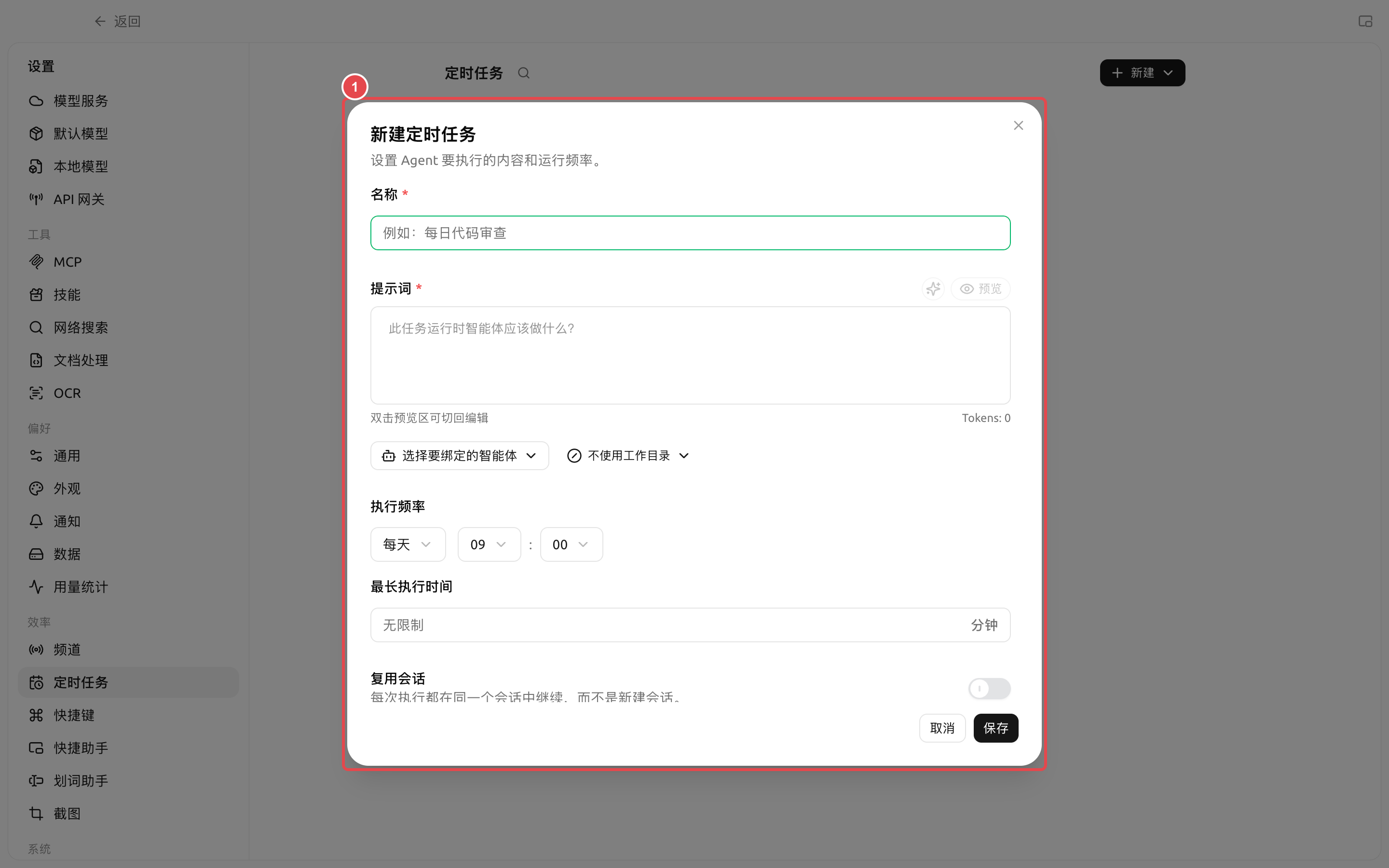
### 1. Open \[Settings] -> \[Scheduled Tasks] -> \[New]

Fill in the task name, and select the Agent and workspace.
{% endstep %}

{% step %}

### 2. Write the task prompt clearly

Explain the data location, outputs, boundaries, and success criteria. Scheduled tasks have no one beside them to ask follow-up questions, so the prompt should be more complete than in ordinary conversations.
{% endstep %}

{% step %}

### 3. Choose the execution schedule

You can choose one-time, interval, daily, weekday, weekly, or custom Cron. Confirm that the time zone and next run time are as expected.
{% endstep %}

{% step %}

### 4. Choose a notification channel and test

When external notifications are needed, choose a channel that already has a receiving target set up. After saving, click \[Run] first, then check status, duration, and results in \[Run History].
{% endstep %}
{% endstepper %}

## How to choose a scheduling method

| Need                            | Recommended approach | Example                                                 |
| ------------------------------- | -------------------- | ------------------------------------------------------- |
| Run only once at a certain time | One-time             | Remind to submit materials tomorrow afternoon           |
| Check at fixed minute intervals | Interval             | Check task status every 30 minutes                      |
| Fixed daily or weekdays         | Daily / Weekdays     | Daily reports, startup checks                           |
| Fixed day of the week           | Weekly               | Generate a weekly report every Friday                   |
| Complex calendar rules          | Cron                 | Already familiar with Cron and need combined conditions |

## Use case: weekday daily reports

| Configuration | Suggested starting point                                                          | Why                                                       | Notes                                                        |
| ------------- | --------------------------------------------------------------------------------- | --------------------------------------------------------- | ------------------------------------------------------------ |
| Agent         | Use a dedicated Agent that has already successfully run the daily report manually | Avoid having automated tasks take on unverified workflows | Do not temporarily switch models and tools                   |
| Workspace     | Contains only the input and output directories for daily reports                  | The input boundary is clear, and outputs are easy to find | Do not overwrite the raw data                                |
| Schedule      | \[Weekday] and confirm the next run time                                          | More intuitive than writing Cron by hand                  | Whether to run on holidays needs to be confirmed by yourself |
| Notifications | Send to a test group or your own conversation first                               | Convenient for checking the format and duplicate sending  | Run it manually at least once before officially enabling it  |

### Completion criteria

Manual run succeeded; \[Run History] can open the corresponding conversation; the daily report file is in the agreed directory; the test channel received only one message; the next run time is correct.

## Heartbeat

Path: \[Work] -> Agent menu -> \[Edit] -> \[Basics] -> \[Heartbeat Detection].

The current Agent has heartbeat enabled by default, with an interval of 30 minutes. It can be turned off when continuous checking is not needed; tasks that require clear timing, notifications, and run records should still use scheduled tasks.

{% hint style="warning" %}
Do not let multiple heartbeats and scheduled tasks repeat the same work. Duplicate schedules not only waste quota, but may also generate multiple files or send duplicate messages.
{% endhint %}

<details>

<summary>What should I do if the task ran but the channel didn't receive a message?</summary>

First check \[Run History] to confirm whether the Agent succeeded. If the task succeeded, then check the channel receiving target; if the task failed, click \[View Conversation] to check model, permissions, workspace, and tool errors.

</details>


---

# Agent Instructions
This documentation is published with GitBook. GitBook is the documentation platform designed so that both humans and AI agents can read, navigate, and reason over technical content effectively. Learn more at gitbook.com.

## Querying This Documentation
If you need additional information that is not directly available in this page, you can query the documentation dynamically by asking a question.

Perform an HTTP GET request on the current page URL with the `ask` query parameter, and the optional `goal` query parameter:

```
GET https://docs.cherryai.com.cn/docs/en-us/advanced-basic/automation/scheduled-heartbeat.md?ask=<question>&goal=<endgoal>
```

`ask` is the immediate question: it should be specific, self-contained, and written in natural language.
`goal` is optional and describes the broader end goal you are ultimately trying to accomplish on behalf of the user. GitBook uses it to tailor the answer towards what is most useful for that goal.

The response will contain a direct answer to the question and relevant excerpts and sources from the documentation.

Use this mechanism when the answer is not explicitly present in the current page, you need clarification or additional context, or you want to retrieve related documentation sections.